
How to share a card with Web Print
What you'll learn
Share the card that is open in eMedia Cards with Web Print. Anyone with the link can fill in a new record on a phone, tablet or computer. eMedia Cards saves the record in the database, then prints the card on this PC, or only saves it.
Before you start
-
eMedia Cards Standard edition or higher, activated. Without a license, Web Print is unavailable.
-
A card template connected to a database. Each card sent from the link is a new record. This example uses
Larkspur Hill School Student Card.eccs, connected tostudents.csv: 20 students with the columnsStudentID,FirstName,LastName,ClassandPhoto, and their photos in thePhotosfolder. -
The template, the CSV file and the
Photosfolder are in the download above, with aREADME.txt. Unzip it to keep this layout. The school and the students are fictitious. -
This PC and the phone, tablet or computer need internet access. The link opens a page on www.emedia.cards: there is no port or network setting to change.
-
Offline / privacy mode must be off. It blocks Web Print.
How to share the card
-
Open the template. Open
Larkspur Hill School Student Card.eccs. It opens connected tostudents.csv. -
Open Web Print. Click Web Print in the left bar, or Tools > Web Print.... The Web Print window opens.
-
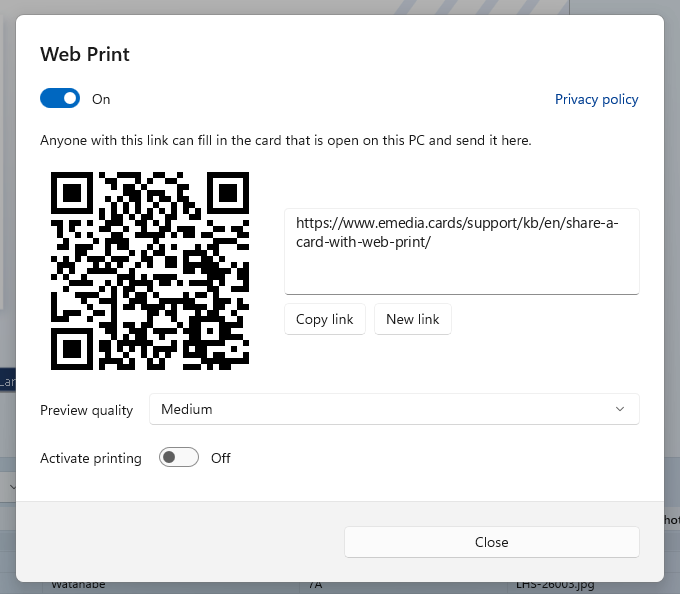
Turn sharing on. At the top of the window, set the switch to On. The window shows a QR code and the link.
-
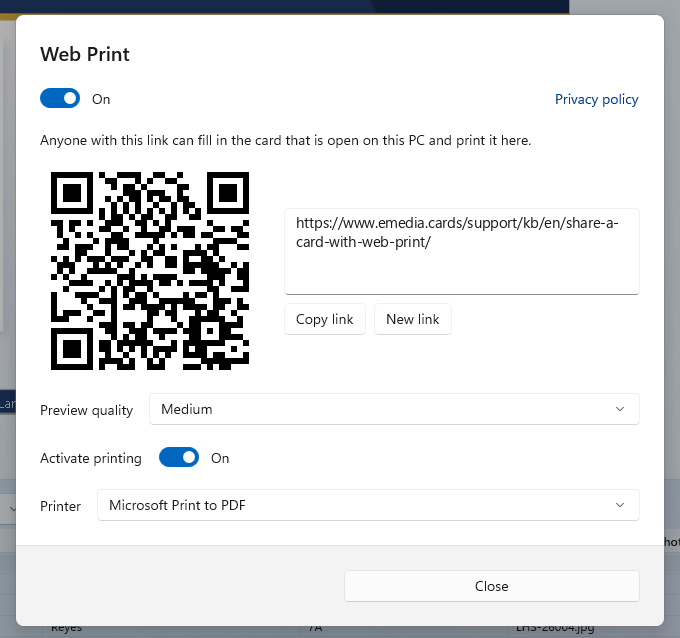
Choose what happens to each card. Turn Activate printing on to print each card on this PC, then choose the Printer. The window says: "Anyone with this link can fill in the card that is open on this PC and print it here."
-
Or only save the cards. Turn Activate printing off. Each card is saved in the database and nothing is printed. The window says: "Anyone with this link can fill in the card that is open on this PC and send it here."
-
Choose the preview quality. In Preview quality, choose Low, Medium or High: the quality of the card picture shown on the phone after each card.
-
Share the link. Scan the QR code with the phone's camera, or click Copy link and send the link. eMedia Cards shows "Link copied."
-
Click Close. Sharing stays on while eMedia Cards is open, and the Web Print button stays highlighted.
The page on the phone always shows the card that is open on this PC. Open another template, and the page switches to that card.
To fill in a card on the phone, see How to fill and print a card from a phone.
How to see who is connected
The Web Print button shows how many devices have the link open. Point to it to read, for example, "1 device on this link".
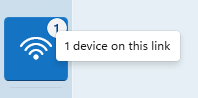
Up to 10 devices can have the link open at the same time.
How to stop sharing or replace the link
-
Stop sharing: open Web Print and set the switch to Off. The link stays the same: set the switch to On to share it again.
-
Replace the link: click New link. eMedia Cards shows "The previous link no longer works." Share the new link or QR code. Use it when the link reached someone who should not have it.
Tips
-
The phone adds new records only. It does not search or change the records already in the database.
-
The phone form shows the same fields as the Input panel in Operating mode. A column whose Display or Edit box is unticked in the Database Wizard is not on the phone form.
-
With Activate printing on, each card prints one copy on the Printer chosen in the Web Print window. With no printer chosen, eMedia Cards on Windows uses the Windows default printer, and eMedia Cards on Mac uses the Default printer of its Printing options.
-
A photo taken on the phone is named and saved like a webcam photo, with the photo object's File naming. See How to take a card photo with a phone.
-
Only one eMedia Cards window can run Web Print at a time.
Common errors
| Symptom | Cause | Fix |
|---|---|---|
| Web Print is greyed out. | eMedia Cards is not activated, or the edition is Starter Edition or Order only. | Activate eMedia Cards with a Standard Edition or Professional Edition license. |
| Offline / privacy mode is on. Turn that off under Options → General to use online features. | Offline / privacy mode blocks Web Print. | Turn it off in Tools > Options... > General. |
| This Web Print link is not on the server yet, so the page does not open. Activate this PC and leave sharing on. | The link is not registered yet. | Check that this PC is activated, and leave the switch On. |
| This Web Print link is not on the server yet. eMedia Cards could not reach www.emedia.cards. | This PC has no internet access, or a firewall blocks www.emedia.cards. | Check the internet connection of this PC. |
| The server rejected this PC's license for Web Print. Check that the license is registered and enabled, then activate this PC again. | The license is not valid for Web Print. | Activate this PC again, or contact support. |
| Web Print is already running in another eMedia Cards window. | Another eMedia Cards window shares its card. | Use that window, or close it. |
| Could not replace the link. Check the connection and try again. | New link could not reach the server. | Check the internet connection, then click New link again. |