
How to remove a photo's background
What you'll learn
Cut the person out of the background of a photo with Photo studio, in the Adjust picture window, and give the photo a plain background: white, light gray, blue, a colour you choose, or the card itself. Photo studio works on this computer: photos never leave it, and the original picture file is not changed.
Before you start
-
eMedia Cards Standard edition or higher, on Windows or Mac. In Starter, Photo studio shows an upgrade message.
-
A card with a photo object (Image type: Photo). This example uses
Benjamin Turner badge.eccs, the badge from How to add a photo to a card: its photo object Photo1 showsBenjamin Turner.jpg, a computer-generated portrait taken in an office. -
The badge, the photo and the logo are in the download above, with a
README.txt. Keep the files in the same folder. -
No internet connection is needed.
-
On Windows, Photo studio uses a model bundled with the app. On Mac, it uses Apple's built-in Vision and needs macOS 14 or later.
How to remove the background
-
Open
Benjamin Turner badge.eccsand switch to Design mode. -
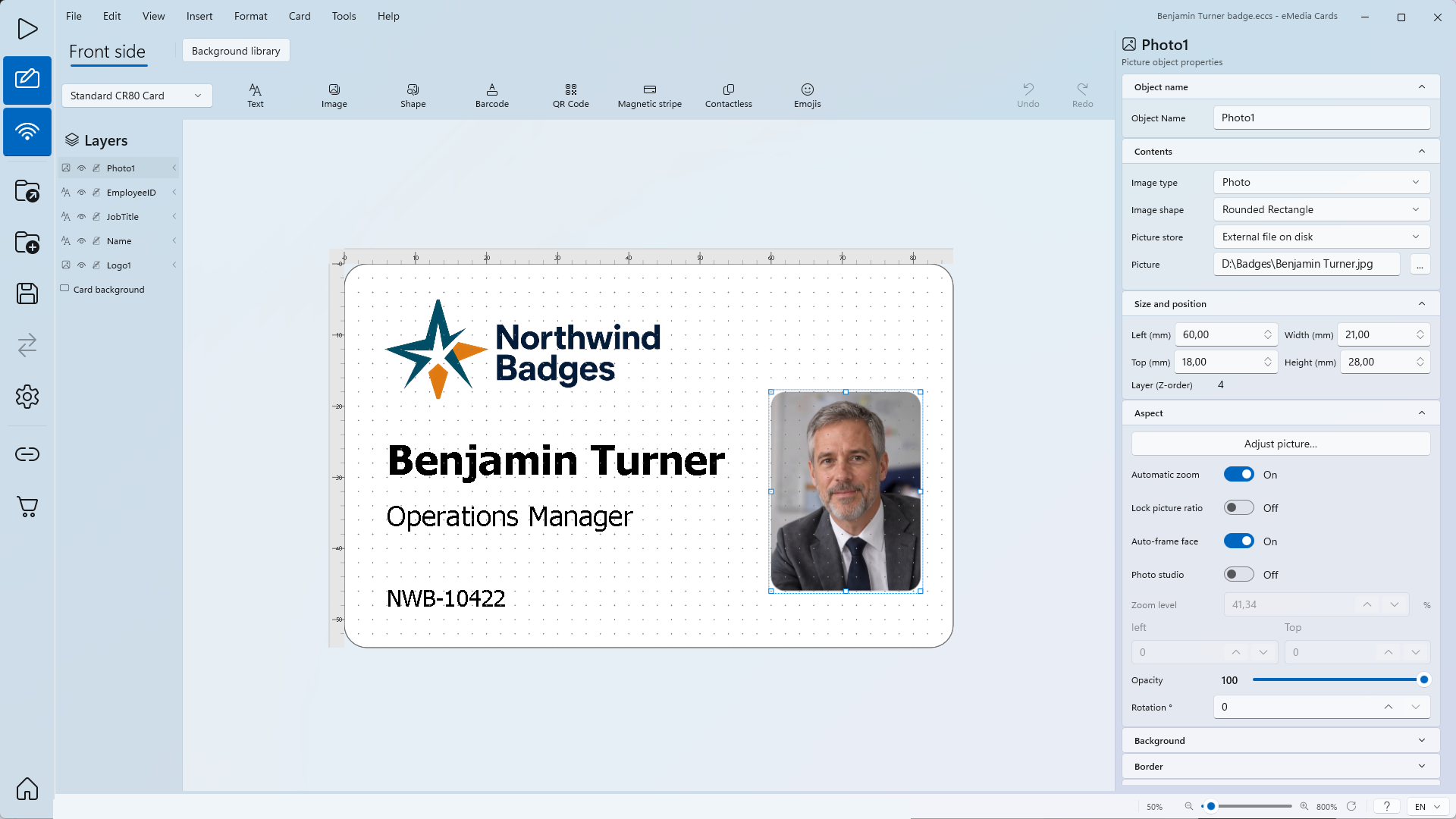
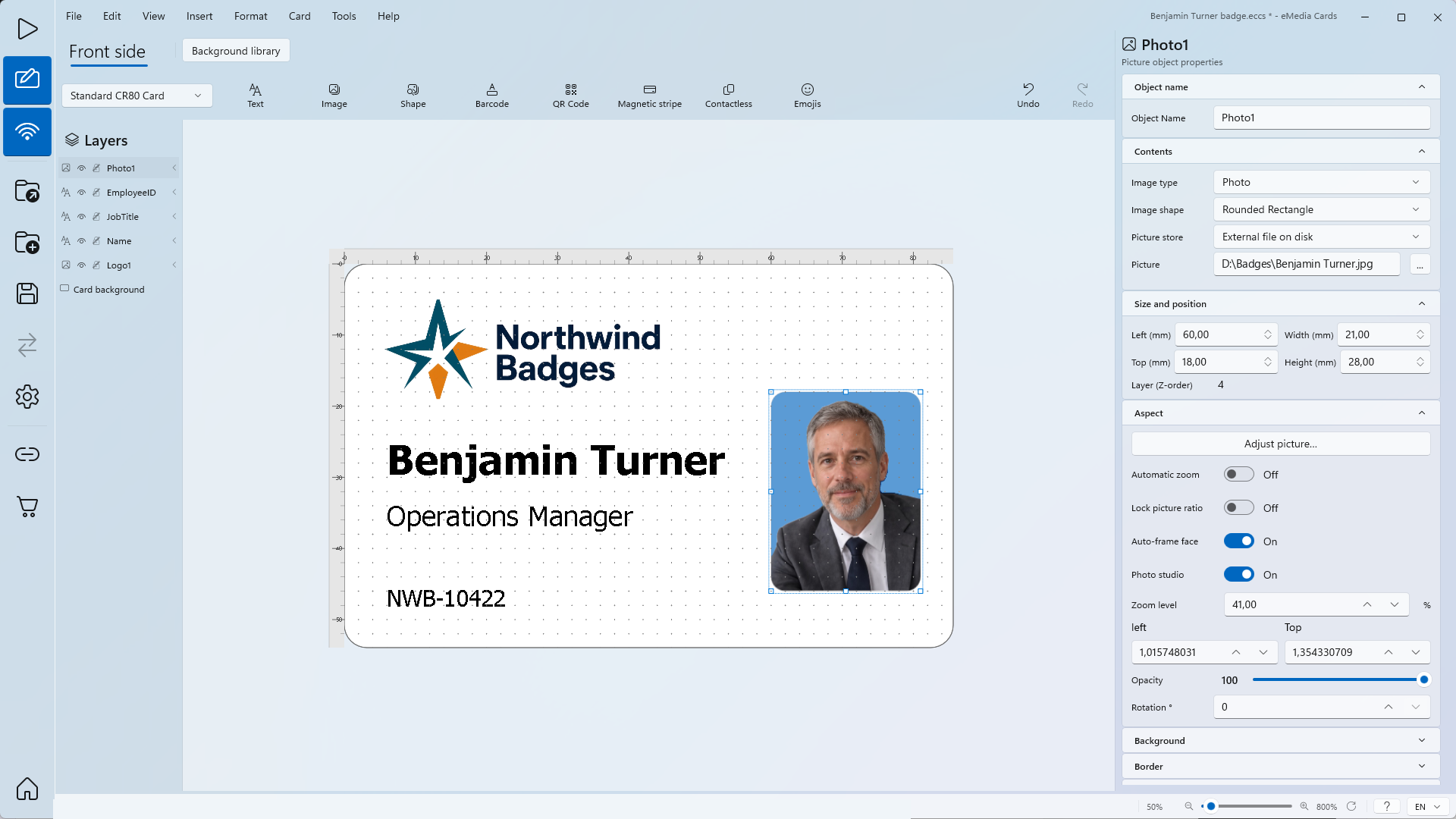
Click the photo on the card, or Photo1 in Layers. Picture object properties opens. Under Aspect, Photo studio is Off.
-
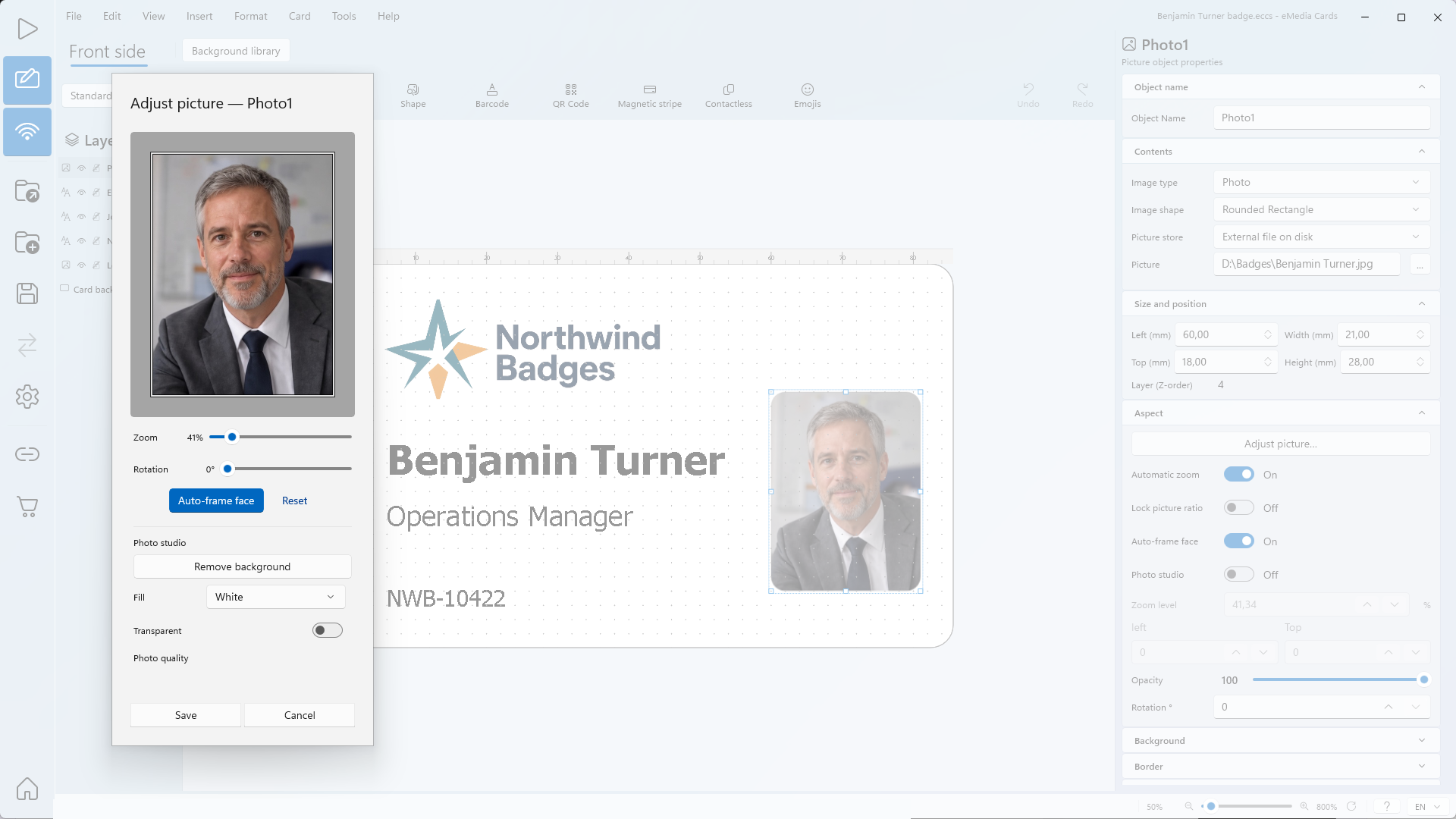
Under Aspect, click Adjust picture…. The window Adjust picture — Photo1 opens, with the Photo studio section under the preview.
-
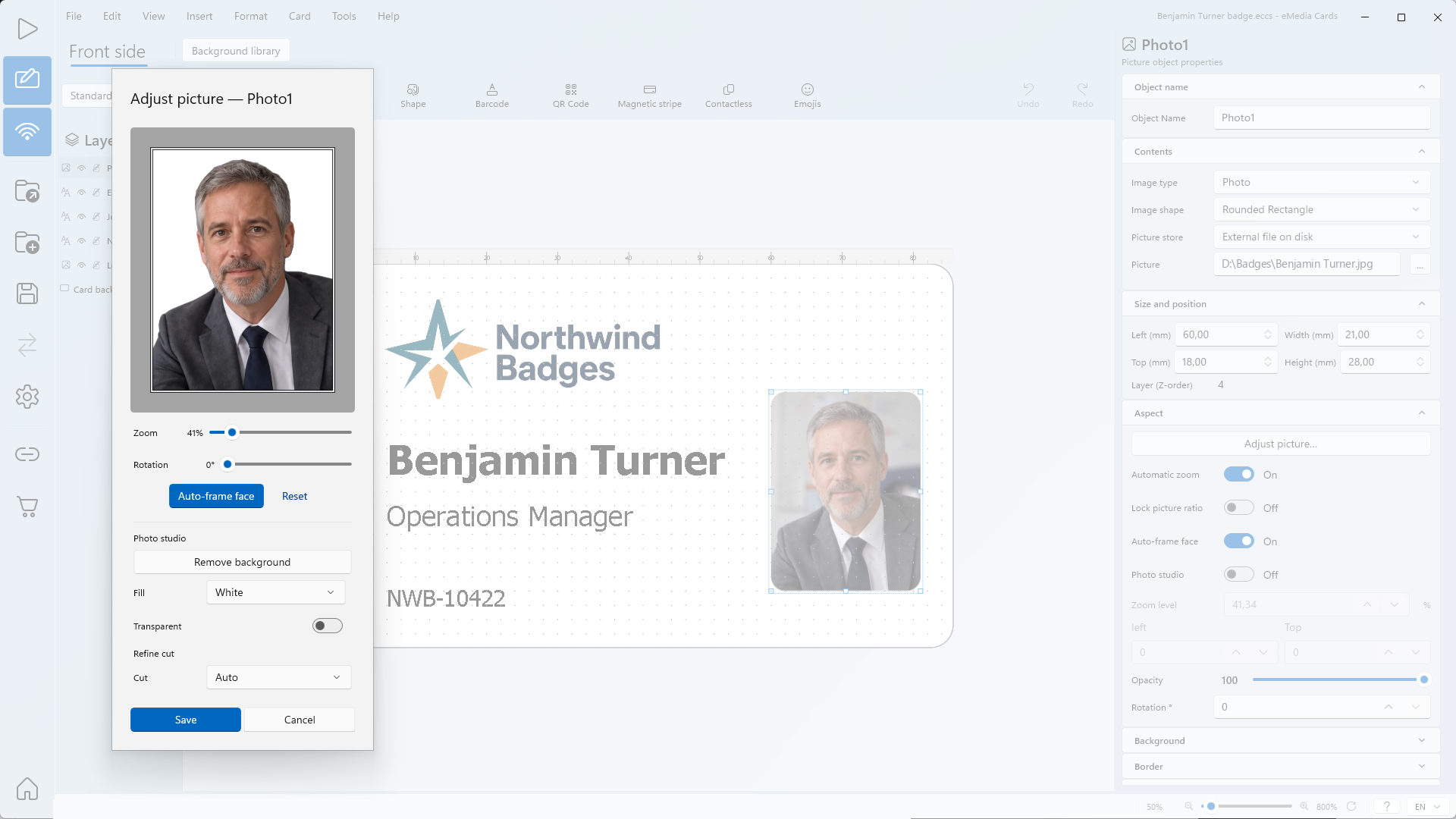
Click Remove background. After a few seconds, the preview shows the person on a white background.
-
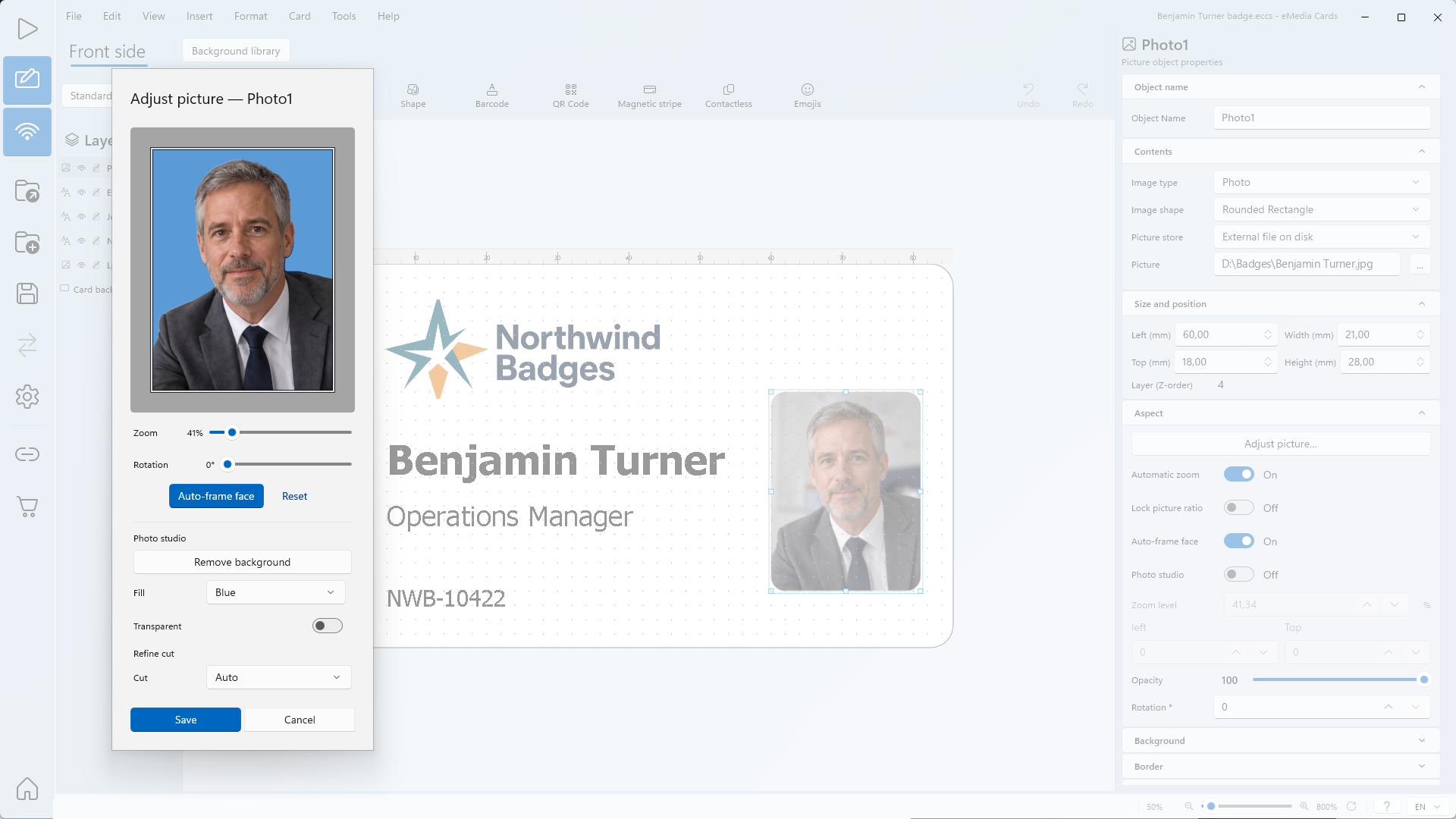
In Fill, choose the new background: White, Light gray, Blue or Custom color. With Custom color, click the Custom color button next to it and pick a colour. Here: Blue.
-
Optional: turn Transparent on to show the card through the cut-out instead of a fill colour. Fill is then greyed out. On this badge, the card is white.
-
Optional: under Refine cut, in Cut, choose Fine hair to keep more hair, or Plain backdrop for a cleaner background. Auto suits most photos.
-
Click Save. Under Aspect, Photo studio turns On, and the photo on the card shows its new background. Cancel closes the window without changes.
How it works on every card
Photo studio belongs to the photo object: every photo shown in Photo1 gets the new background, on every card. In Operating mode, the photo keeps its blue background, and so does a photo you load with Browse for a picture or take with Acquire picture.
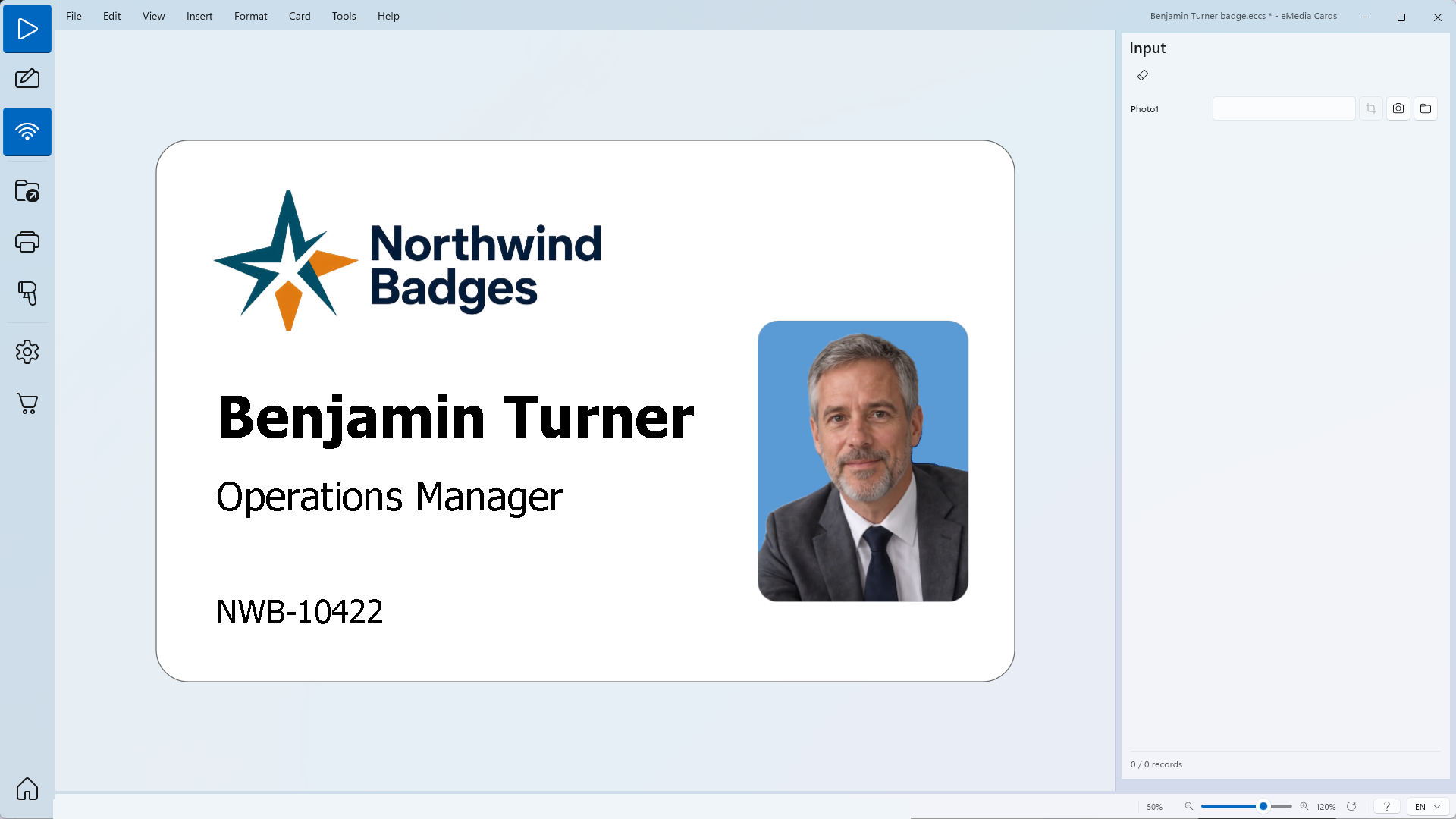
To show the original photo again, turn Photo studio off under Aspect. Turn it on again to bring the new background back.
To change the background of one card only, in Operating mode, click Adjust picture next to Photo1, change the Photo studio settings and click Save.
Tips
-
A photo with an even background and good light gives the cleanest cut.
-
Save also keeps the framing shown in the window and turns Automatic zoom off, as in How to crop and zoom a photo on a card.
-
In Design mode, the Cut choice is not kept: every card uses Auto. In Operating mode, Save keeps the Cut choice for that card.
-
In the Adjust picture window, Reset brings back the photo as it was when you opened the window. If you click Save after Reset, Photo studio turns off.
Common errors
| Symptom | Cause | Fix |
|---|---|---|
| Available with Standard Edition. | Photo studio is part of the Standard edition. | Upgrade to Standard or higher. |
| Background removal is not available. Check that Photo Studio files are installed. | The Photo studio files of eMedia Cards are missing or damaged. | Reinstall eMedia Cards. |
| Parts of the hair are cut off. | The cut is too tight for this photo. | In Cut, choose Fine hair. |
| Bits of the old background remain. | The background is busy or close to the colours of the person. | In Cut, choose Plain backdrop, or use a photo with a plainer background. |
| Fill is greyed out. | Transparent is on. | Turn Transparent off. |
| The card shows the original photo again. | Photo studio is off under Aspect. | Turn Photo studio on. |