
How to export card designs as PNG or PDF
What you'll learn
Save a card as a file instead of printing it: a PNG picture to send by email or put on a website, or a PDF page for a print shop or a customer proof. Export the card on screen, or several records at once.
Before you start
-
eMedia Cards Standard Edition or higher, activated. See Compare the eMedia Cards editions.
-
This example uses
Gilded Heron Golf Club.eccdbfrom the download above: a single-sided VIP membership card with an internal database of 10 members. The club and its members are fictitious. -
Export works in Operating mode, the mode the template opens in.
How to export one card as PNG
-
Open the template. Open
Gilded Heron Golf Club.eccdb. It opens in Operating mode on the first member. -
Go to the record to export. Click its row in the records grid.
-
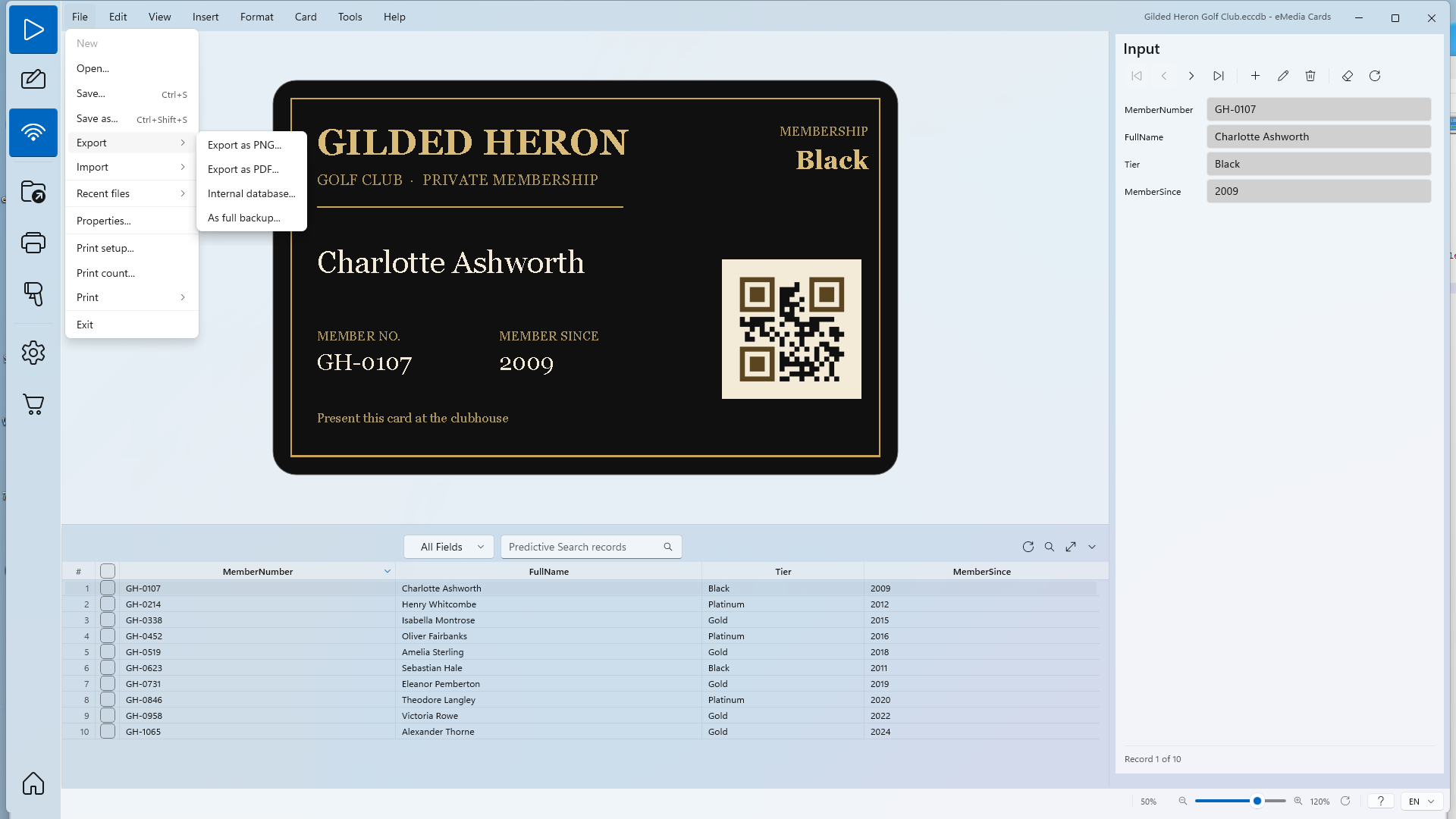
Click File > Export > Export as PNG....
-
Choose the file name and the folder. The name starts as the template file name, for example
Gilded Heron Golf Club.png. Click Save.
The status bar says "Saved to:" and the path of the file.

The PNG is the card exactly as it prints, at print resolution: 600 DPI unless you changed Printing resolution in Tools > Options... > Printing. A double-sided card gives two files, _Front.png and _Back.png.
How to export one card as PDF
-
Go to the record to export. Click its row in the records grid.
-
Click File > Export > Export as PDF....
-
Choose the file name and the folder, for example
Gilded Heron Golf Club.pdf, then click Save.
The PDF has one card-size page (CR80, 85.6 x 54 mm) per side: one page for this single-sided card, two for a double-sided card.
How to export several records
-
Tick the records to export. Tick their check boxes in the records grid. To tick them all, click the check box in the column header.
-
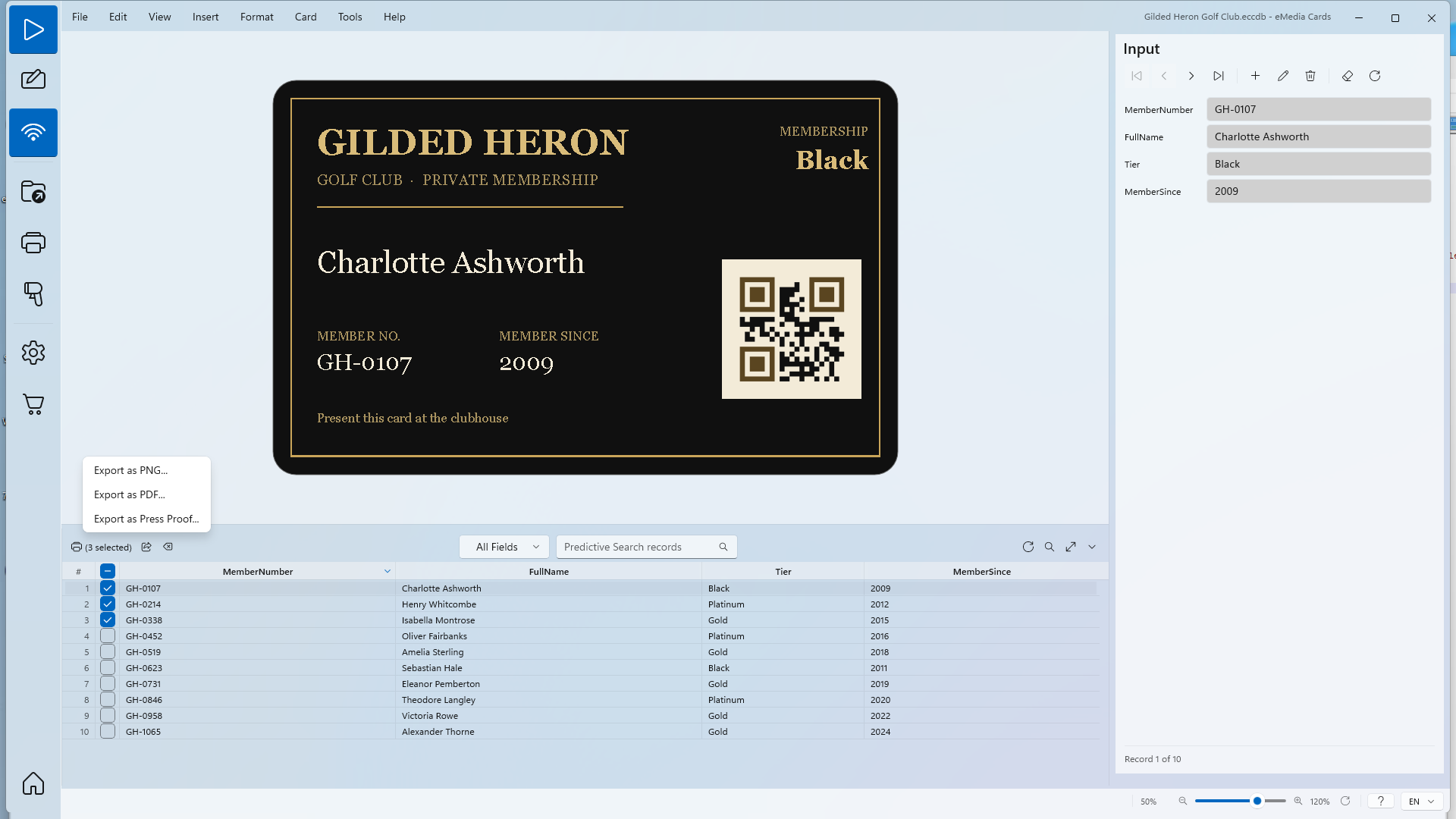
Click the export button. When records are ticked, the grid toolbar shows the count, for example (3 selected), and an export button next to it. Its tooltip says "Export the selected records as PNG, PDF, or Press Proof".
-
Choose the format.
-
Export as PNG... saves one ZIP file with one PNG per record.
-
Export as PDF... saves one PDF with one page per record.
-
-
Choose the file name and the folder, then click Save. The suggested name is the card name, the word
exportand the date and time, for exampleNew Card_export_20261119_114714.zip.
The status bar says "Saved to:" and the path of the file.

Inside the ZIP, the PNG files are numbered in record order: ..._001.png, ..._002.png, and so on.
Tips
-
To export the records found by a search, use the Share button of the search panel: its tooltip says "Export matching records as PNG, PDF, or Press Proof".
-
Export as Press Proof... saves an A4 sheet with several cards for a customer to approve before printing.
-
To get one file per record instead of one ZIP or one PDF, turn on Separate print jobs in Tools > Options... > Printing > Batch Printing. eMedia Cards then asks for a file name for each record.
-
On a Mac, File > Export > Export as PNG... and Export as PDF... export the card on screen in the same way.
Common errors
| Symptom | Cause | Fix |
|---|---|---|
| A message says "Available with Standard Edition." | Export needs Standard Edition or higher. | Activate a Standard Edition license: see Compare the eMedia Cards editions. |
| Export failed: Could not create the export file. | The folder is read-only or the file is open in another program. | Close the file, or choose another folder. |
| The export button is not in the grid toolbar. | No record is ticked. | Tick at least one record. |