
How to connect a card template to a CSV file
What you'll learn
Connect a CSV file to a card template with the Database Wizard, link its columns to card objects, and show the records in Operating mode.
Before you start
-
A template open in Design mode. This example uses
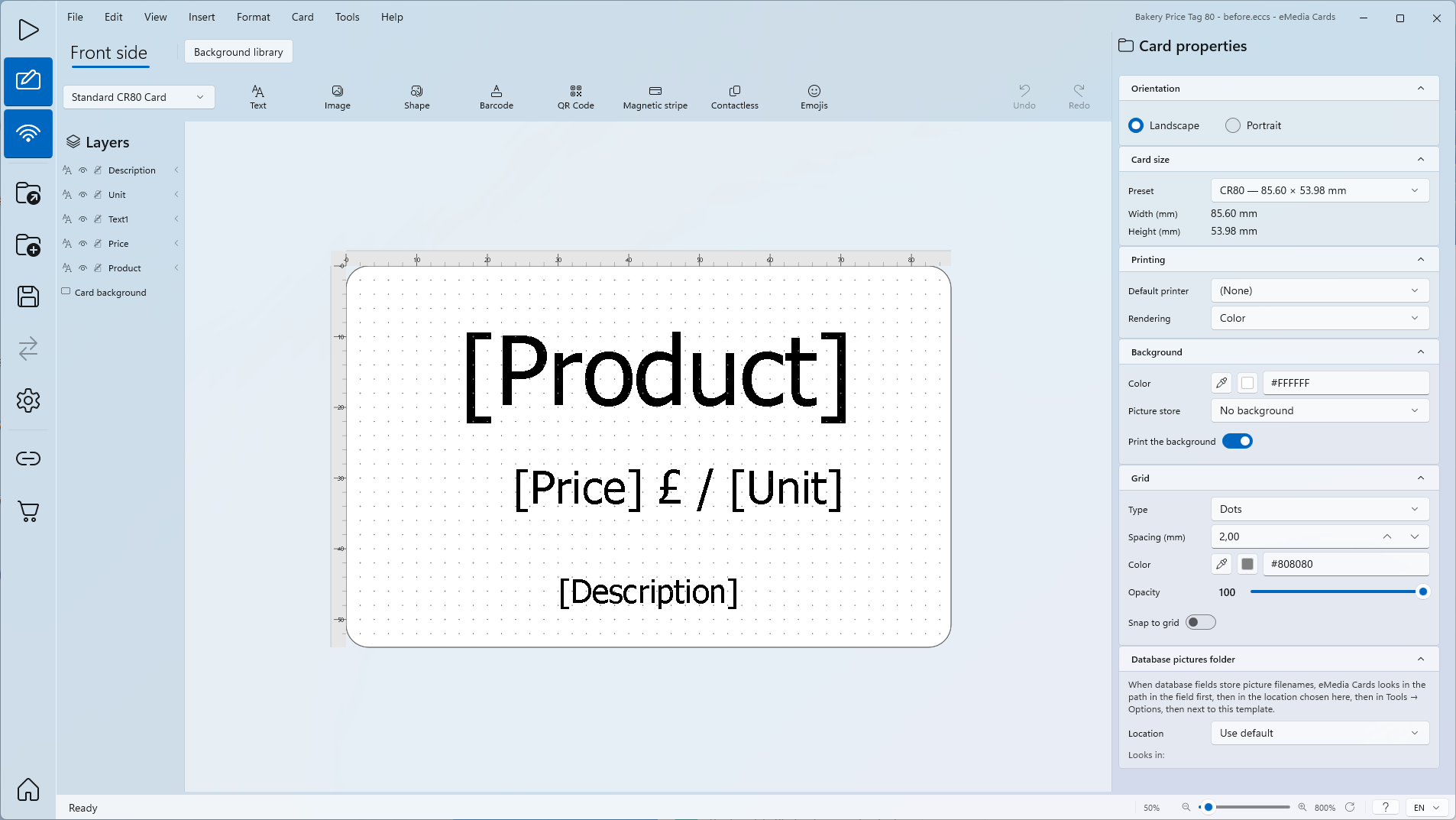
Bakery Price Tag 80.eccs, a CR80 price tag, front only. Product, Price, Unit and Description are text objects with a database field source. Text1 is fixed text (£ /). -
A CSV file with a header row. This example uses
Bakery Price Tag 80 semicolon.csv: 80 rows,;delimiter, columnsSKU;ProductName;Price;Unit;Category;DescriptionLine1;DescriptionLine2;Organic;Barcode. -
A delimited
.txtor.tsvfile works the same way, through Excel / CSV. -
Both example files are in the sample files ZIP, with a
README.txt. The data is fictitious. -
Starter Edition uses only the first 50 rows of a CSV file. Standard Edition uses all rows.
How to connect a CSV file to a template
-
Unzip the sample files and open
Bakery Price Tag 80.eccs. The template opens in Design mode, with no database connected. -
Click Tools > Connect to database.... The Database Wizard opens on step 1, Connection.
-
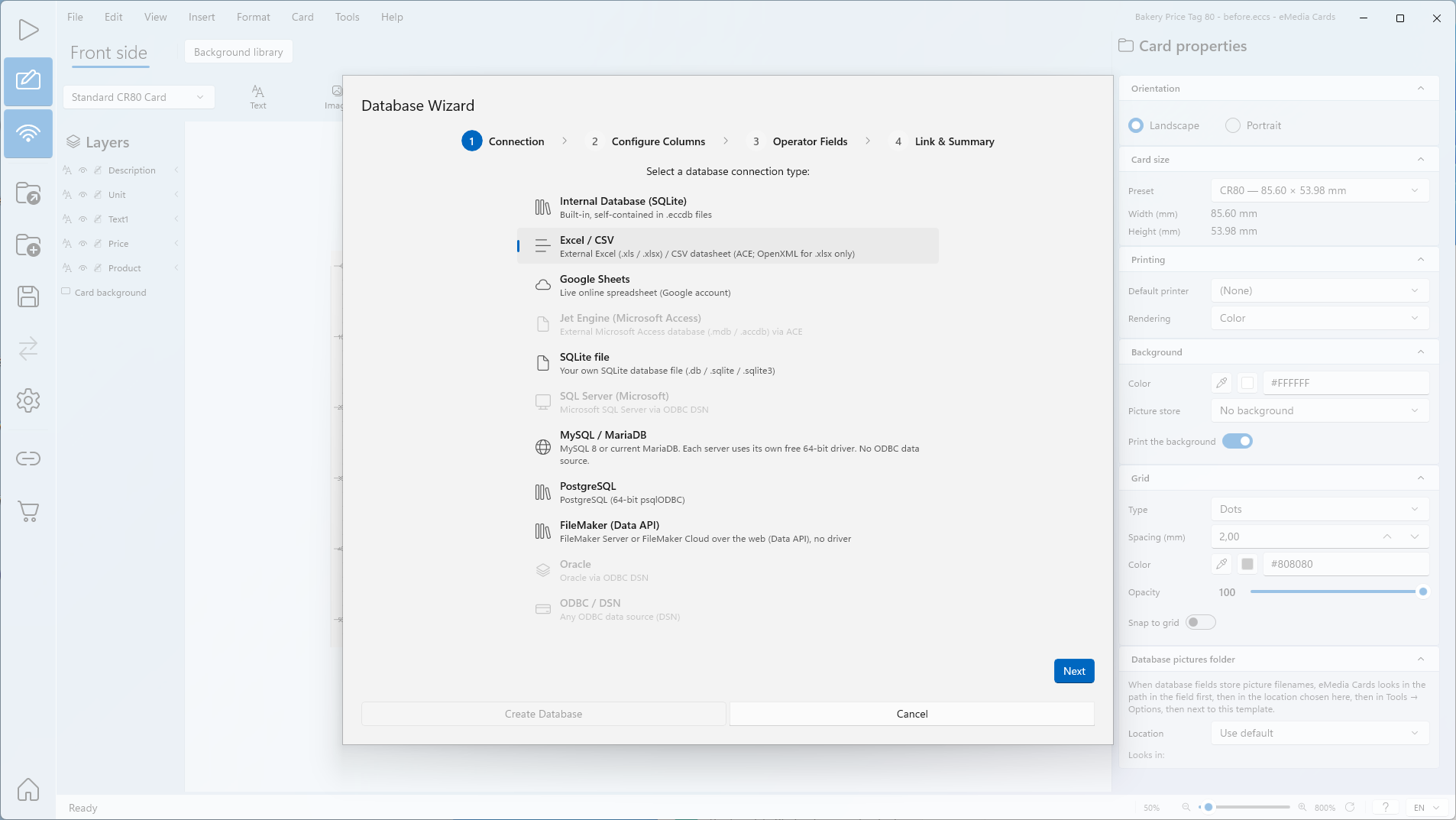
Under Select a database connection type:, click Excel / CSV.
-
Click Next. Step 2, Configure Columns, opens.
-
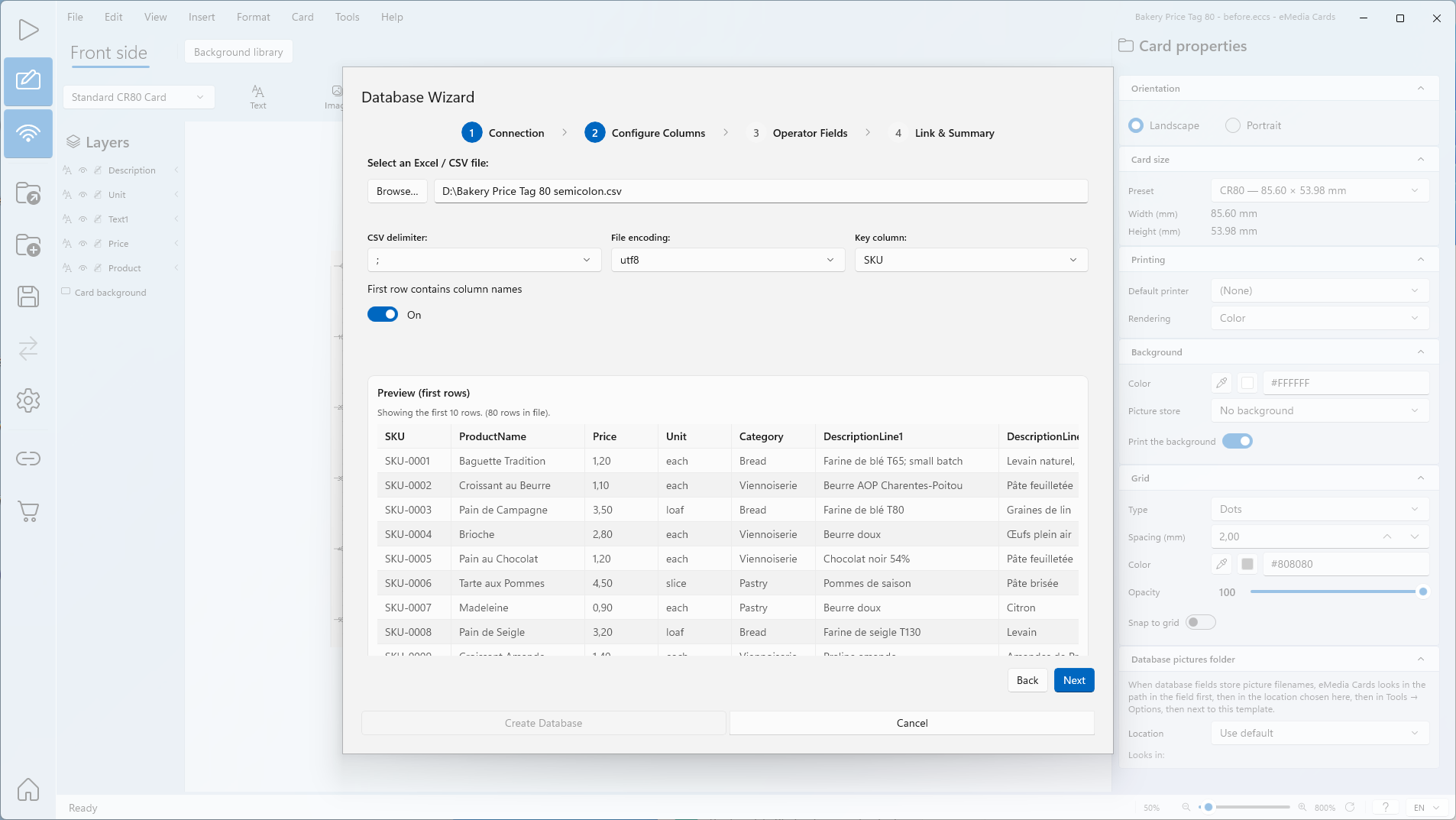
Under Select an Excel / CSV file:, click Browse… and open
Bakery Price Tag 80 semicolon.csv. In the screenshots, the file isD:\Bakery Price Tag 80 semicolon.csv. The Preview (first rows) table shows the first 10 rows and the row count of the file. -
Check CSV delimiter:. The delimiter is usually detected automatically: here
;. If the preview shows one column only, or splits columns in the wrong place, choose,,;, Tab or|. -
Check File encoding:. Here it is
utf8. Change it if accented characters look wrong in the preview. -
Keep First row contains column names on.
-
In Key column:, choose a column with a unique value in every row. Here: SKU, the default.
-
Click Next. Step 3, Operator Fields, opens.
-
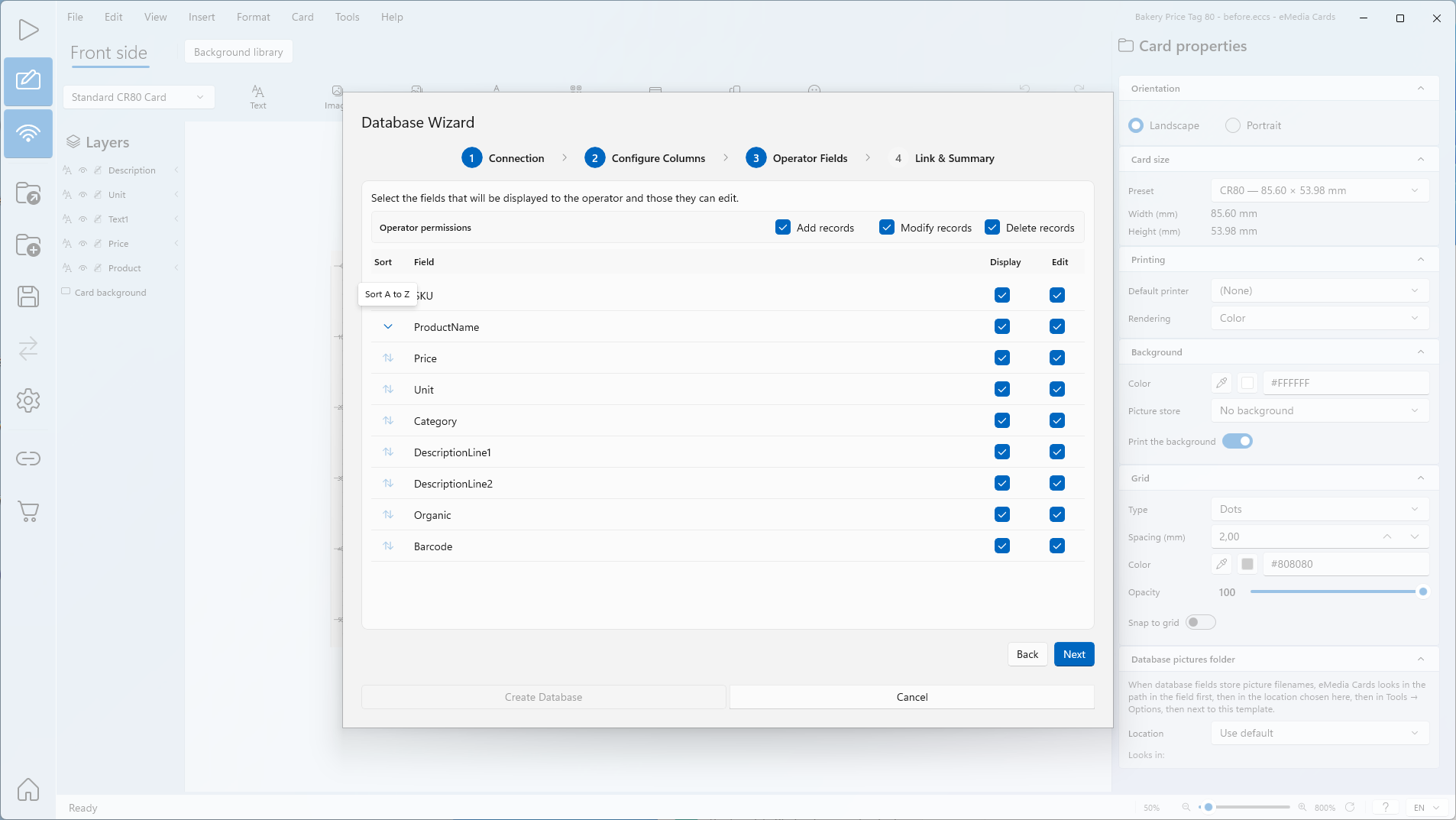
In the Display column, untick the fields the operator does not need to see. All fields are ticked by default.
-
In the Edit column, untick the fields the operator must not change.
-
Click Sort on one displayed field to set the record order in Operating mode. The tooltip shows the order: Sort A to Z or Sort Z to A. Only one field can be sorted. Here: Sort A to Z on ProductName.
-
Optional: under Operator permissions, untick Add records, Modify records or Delete records.
-
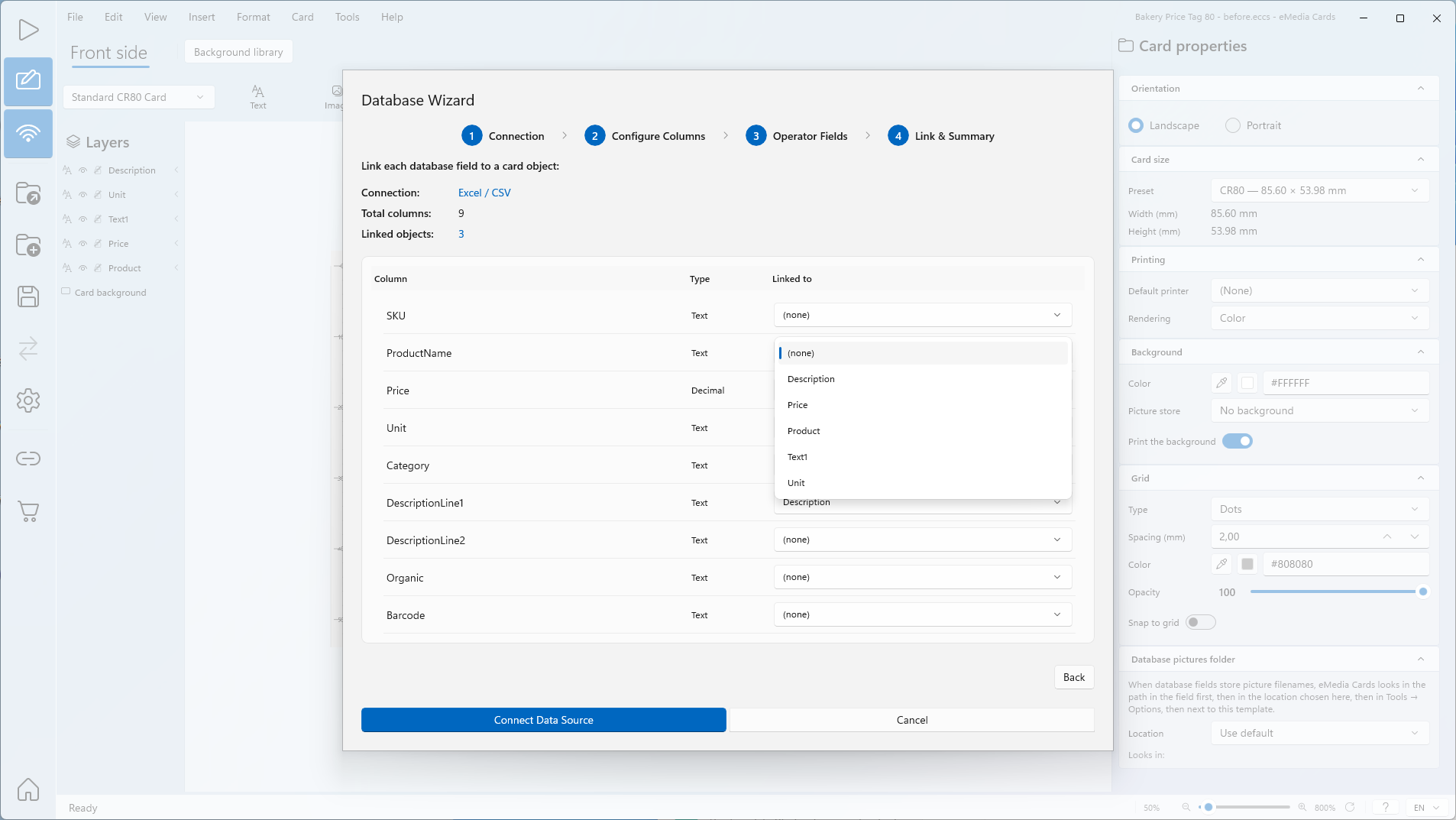
Click Next. Step 4, Link & Summary, opens.
-
Check Connection:, Total columns: and Linked objects:. A column whose name matches a card object is linked automatically: here Price and Unit.
-
In the Linked to list of ProductName, choose Product.
-
In the Linked to list of DescriptionLine1, choose Description.
-
Leave the other columns on (none). A column on (none) is not shown on the card.
-
Click Connect Data Source.
-
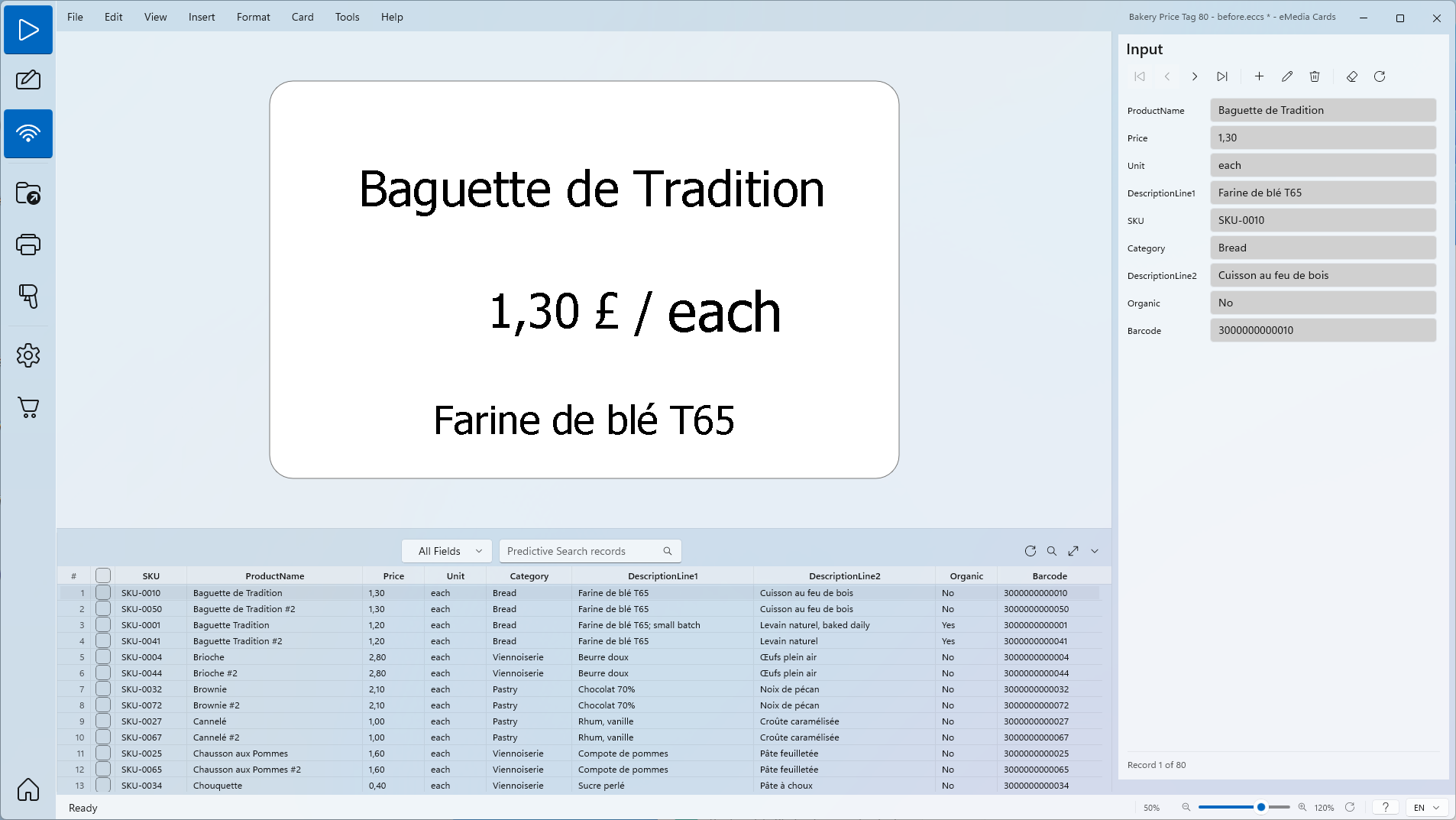
Click View > Operating mode. Connecting does not switch the mode. The card shows the first record in ProductName order.
Tips
-
The CSV file stays the live database. Adding, changing or deleting a record in Operating mode writes to the file.
-
Close the file in Excel before connecting and while eMedia Cards uses it. eMedia Cards needs exclusive access.
Common errors
| Symptom | Cause | Fix |
|---|---|---|
| The CSV file "Bakery Price Tag 80 semicolon.csv" is open in another program, so eMedia Cards can't read it. Close the file in that program, then click Browse… and select it again. | The file is open in Excel or another program. eMedia Cards needs exclusive access. | Close the file in Excel. Click Browse… and select the file again. |
| The CSV file "Bakery Price Tag 80 semicolon.csv" is open in another program or is still syncing, so eMedia Cards can't read its records right now. Close the file in that program, or wait for the sync to finish, then choose Requery. | The file was opened in Excel after connecting, or a cloud sync is still running. | Close the file in Excel or wait for the sync. Click Requery. |
| The CSV file "Bakery Price Tag 80 semicolon.csv" is open in another program or is still syncing, so eMedia Cards can't save your change right now. Close the file in that program, or wait for the sync to finish, then try again. | Excel had the file open during a save, add or delete. | Close the file in Excel, then save again. |
| The CSV file "Bakery Price Tag 80 semicolon.csv" is read-only or you don't have permission to change it, so eMedia Cards can't save your change. Check the file's permissions, then try again. | The file is read-only, or the user can't write to it. Connecting, browsing and printing still work. Nothing is written: the card stays in Edit or Add mode, and a deleted record is kept. | Clear the read-only attribute or give write permission, then try again. |
| No rows found in this source. | Wrong delimiter, or the file is empty. | Choose the correct CSV delimiter:. |
| This key column has duplicate values in the sample. Prefer a unique ID for reliable updates. | The key column has the same value in several rows. | Choose a unique Key column:. |
| Select at least one field to display to the operator. | No field has Display ticked. | Tick Display on at least one field. |
| Linked to shows (none) for a column that should be on the card. | The column name does not match a card object name. | Choose the object in Linked to. |
For a .txt or .tsv file, the messages are the same and still say CSV.