
How to activate eMedia Cards with a license key
What you'll learn
Get a license key for your case, then activate it in eMedia Cards with Help > Activate your License... to unlock printing, card encoding and export.
Before you start
-
eMedia Cards installed on the computer you will use. Download it from www.emedia.cards/download.
-
An internet connection on this computer. Without one, see If this computer is offline.
-
For an intro key or a purchase: a bank card, or another payment method offered on the secure Stripe payment page.
Which case are you?
| You have | Where it comes from | What to do |
|---|---|---|
| A prepaid key | Already paid for, for example through your reseller. | Activate it in eMedia Cards. |
| An intro key | Supplied by a partner, often in the printer box, with a free period. | Save a payment method first, then activate it. |
| No key | You have not bought one yet. | Buy a license on the website, then activate the key from the email. |
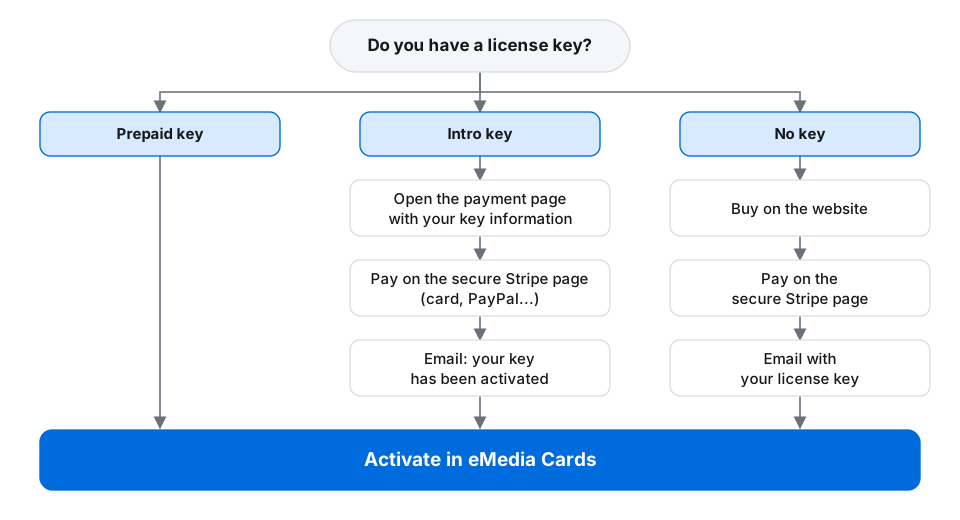
How to buy a license key on the website
-
Open shop.emedia.cards. In eMedia Cards, No, buy a license in Do you have a license key? opens the same page.
-
Under the edition you want, click Buy and the edition name, for example Buy Standard.
A secure Stripe payment page opens in a new tab. Choose one of the payment methods it shows, such as a card or PayPal, and pay.
-
The Thank you for your order. page shows Your license key is ready. and your key.
-
Open the email Your eMedia Cards license key — Order and your order number. Your key is under YOUR LICENSE KEY.
-
Activate the key with Help > Activate your License...: see How to activate your license key in eMedia Cards.
Note: Every edition on the website is an annual subscription that renews automatically each year unless you cancel it. Prices exclude VAT. The payment methods shown on the Stripe page can differ from one country to another.
How to activate an intro key
An intro key needs a saved payment method for the renewal before it activates. Nothing is charged during the free period.
-
Follow How to activate your license key in eMedia Cards with your intro key, up to Activate.
-
A secure Stripe payment page for your key opens in your browser. eMedia Cards shows Activation needs a validated card. and waits.
On the Stripe page, choose one of the payment methods it shows, such as a card or PayPal, then confirm. Nothing is charged today.
-
Open the email Your eMedia Cards key has been activated — Order and your order number. It says "Your key has been activated and your payment method has been saved." and gives the end date of your free period.
-
In eMedia Cards, click Continue.
-
eMedia Cards is activated shows. Click OK.
If the payment page did not open, click Open payment page. If you closed eMedia Cards in the meantime, activate the key again: once the payment method is saved, the key activates at once. Offline, see If this computer is offline.
Note: At the end of the free period, the first year of subscription is charged automatically, unless you cancel before then. The email gives the date and the amount.
How to activate your license key in eMedia Cards
-
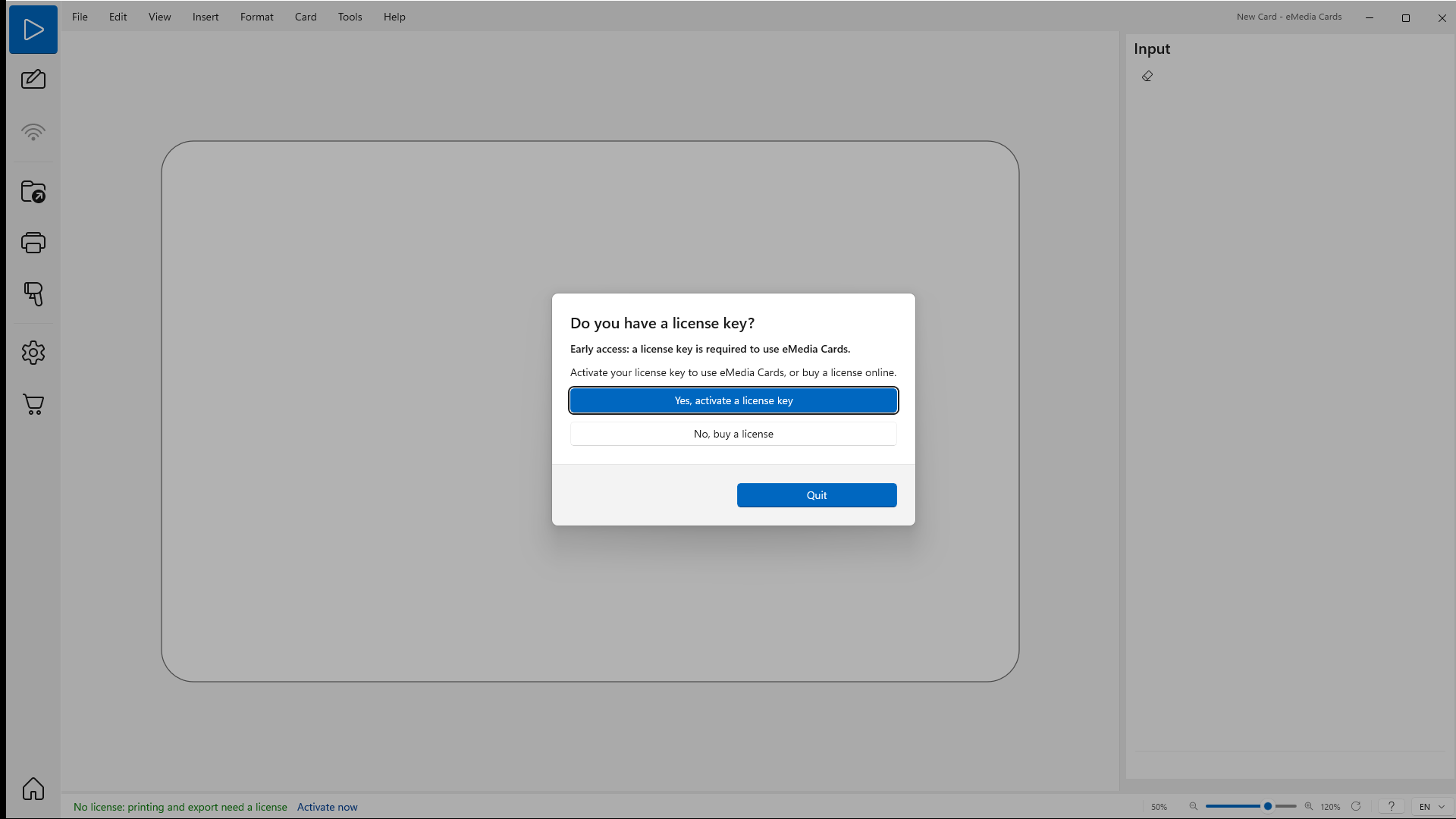
Start eMedia Cards. Do you have a license key? opens while eMedia Cards is not activated.
-
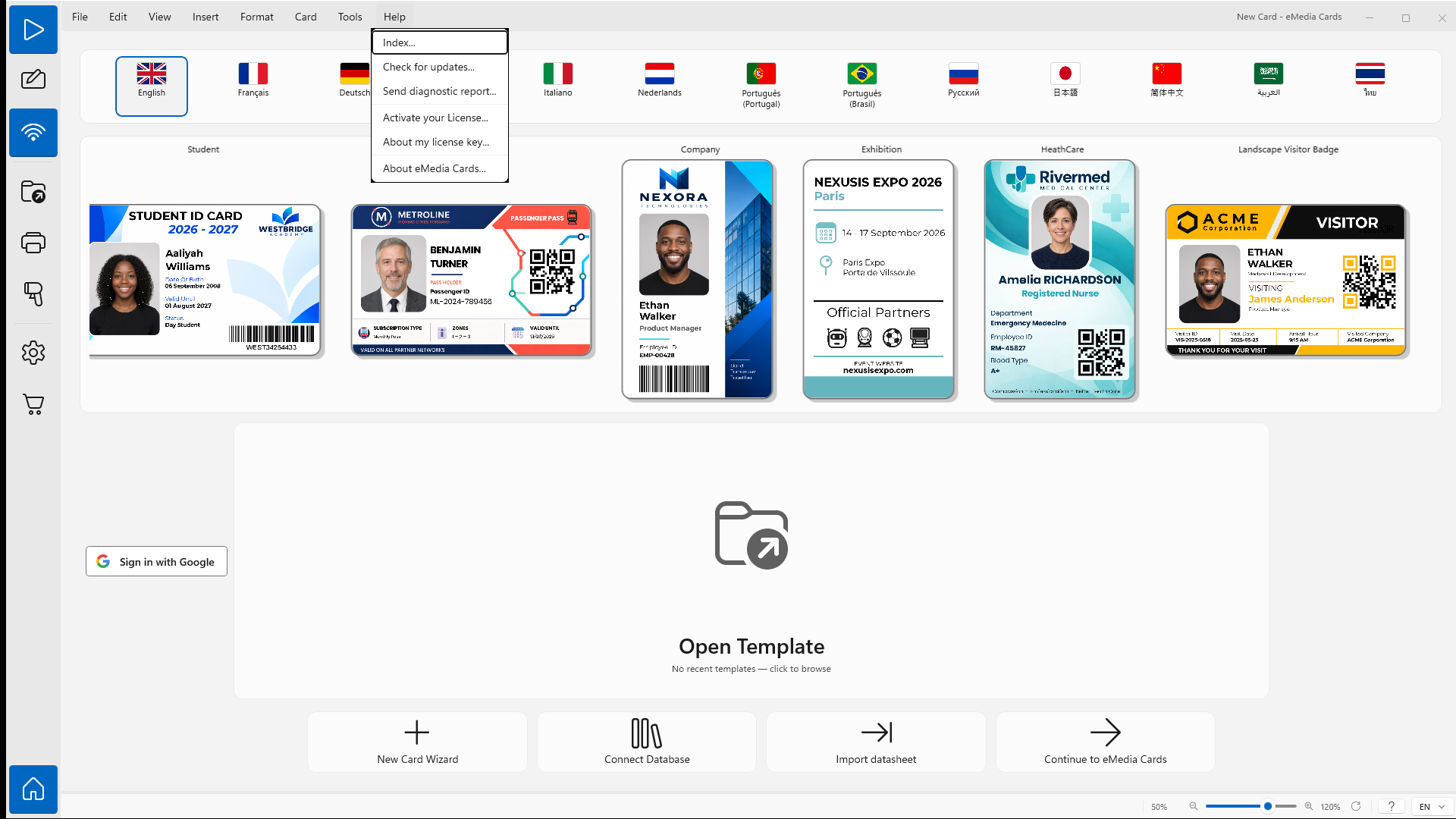
Click Yes, activate a license key. If eMedia Cards is already open, click Help > Activate your License... instead, or Activate now in the status bar.
-
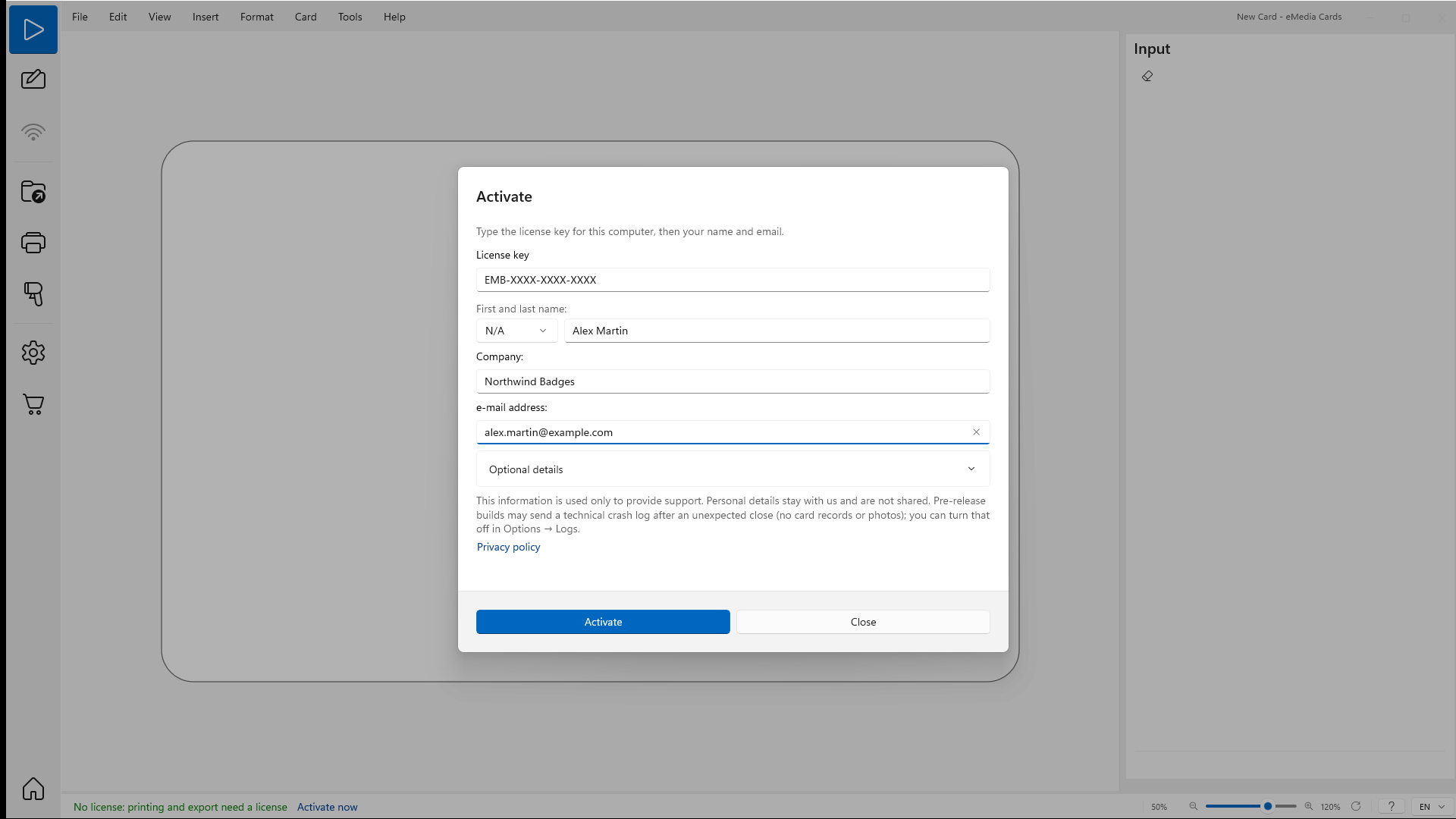
In License key, paste your key, for example
EMB-XXXX-XXXX-XXXX. -
In First and last name:, type your name.
-
In e-mail address:, type your email address.
-
Optional: fill in Company:, or open Optional details for the country, phone and address.
-
Click Activate.
-
eMedia Cards is activated and Thank you for your support show. Click OK.
Your name and email are used only to provide support. They are not shared.
If this computer is offline
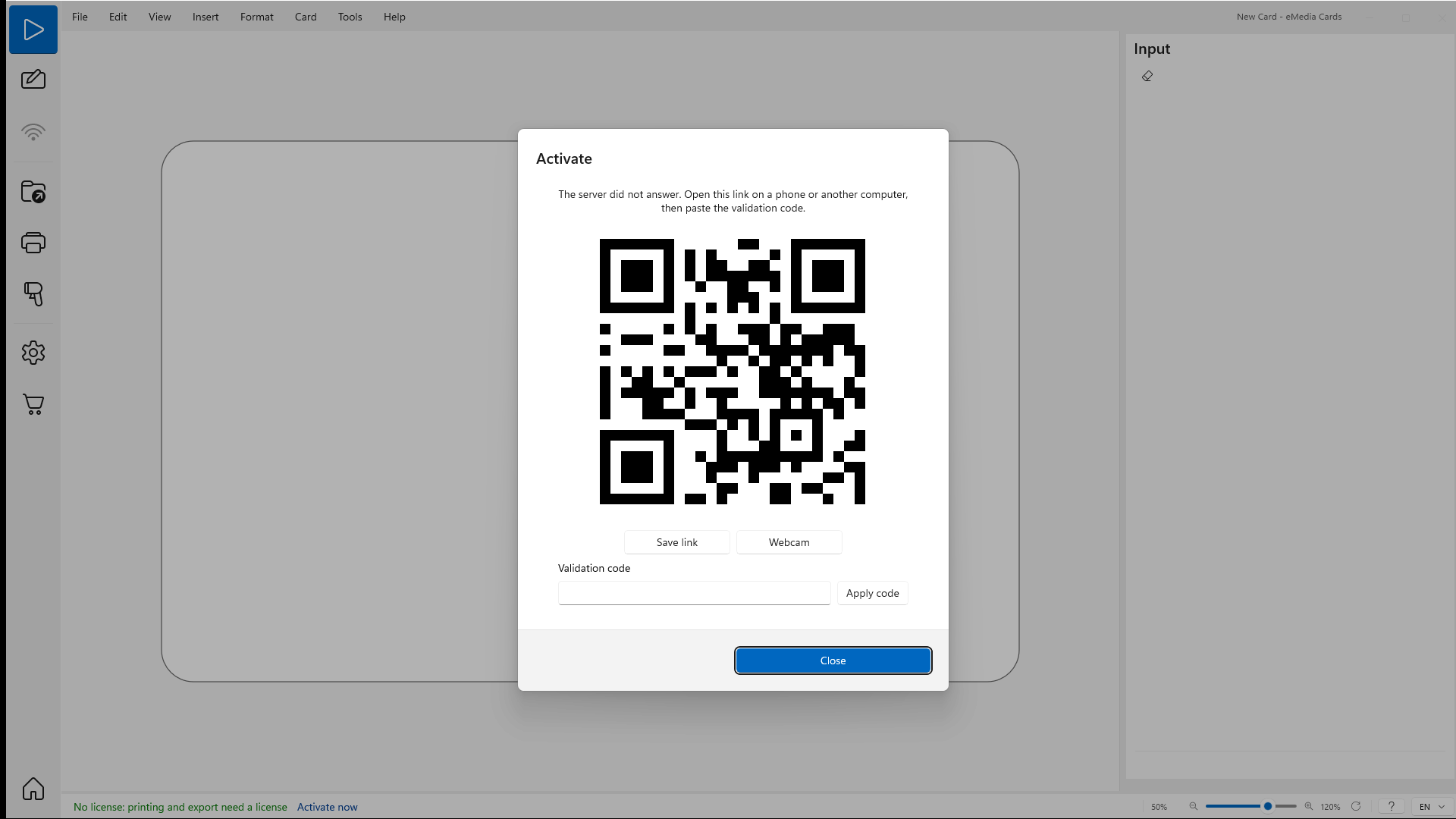
When the license server does not answer, or when Offline / privacy mode is on in Options > General, the Activate window shows an activation link as a QR code instead. You finish the activation with a phone, or another device that is online.
-
Click Activate. eMedia Cards shows The server did not answer. Open this link on a phone or another computer, then paste the validation code. above a QR code.
-
Scan the QR code with your phone camera. Without a phone, click Save link to save the link in a text file, then open it on a computer that is online.
-
The Activation page opens on the phone. It shows a verification QR code and "Click Webcam in eMedia Cards, and aim the camera at this verification QR code."
-
In eMedia Cards, click Webcam. The camera picture replaces the QR code, with Show the activation QR code.
-
Hold the phone's verification QR code in front of the camera. When the camera reads it, eMedia Cards is activated shows.
-
Click OK.
With an intro key whose payment method is not saved yet, the Activation page shows Register your card instead of the verification QR code. Click Open the secure payment page, complete the Stripe page, then reload the Activation page to get your code.
Without a webcam, or if eMedia Cards shows Could not open the webcam., use the validation code:
-
On the Activation page, under On a computer, click Copy.
-
In eMedia Cards, paste the code in Validation code. A matching code activates eMedia Cards at once.
-
If you typed the code from the other screen instead, click Apply code.
To show the first QR code again after Webcam, click QR code.
If the key was used on another computer
eMedia Cards shows This license is deployed on and the name of the other computer, then Continuing revokes that device.
-
To move the license to this computer, click Continue and revoke. The other computer loses its activation.
-
To keep it on the other computer, click Close.
Tips
-
Keep the email with your key. Help > About my license key... shows your key, its type and its end date.
-
To free a key for another computer, click Help > Deactivate this computer... on the old one first.
-
Until eMedia Cards is activated, the status bar shows No license: printing and export need a license.
Common errors
| Symptom | Cause | Fix |
|---|---|---|
| Enter a valid key. | The key is incomplete or has a typo. | Copy the key from your email or card and paste it again. |
| This license key is not registered. or Check the license key and try again. | The license server does not know this key. | Check the key. If it is right, contact your reseller or support@emedia.cards. |
| This license is already in use on other computers. | The key is active on another computer. | On that computer, click Help > Deactivate this computer..., then activate again here. |
| All computers for this license are in use. | Every computer allowed for this key is already activated. | Click Help > Deactivate this computer... on one of them, or contact support. |
| The server did not answer. | This computer has no internet connection, or the license server cannot be reached. | Connect to the internet and click Activate again, or use the validation code: see If this computer is offline. |
| Activation needs a validated card. | The intro key has no saved payment method yet. | Complete the secure payment page, then click Continue. See How to activate an intro key. |
| The card validation has not been confirmed yet. | The payment page is not finished, or the confirmation has not arrived yet. | Finish the payment page in your browser, wait a moment, then click Continue again. |
| The secure payment page cannot be opened right now, so this license cannot be activated yet. | The payment page is not available. | Try again in a few minutes, or contact your reseller. |
| You must enter your first and last name! or A valid e-mail address is required! | First and last name: or e-mail address: is empty or not valid. | Fill in both fields, then click Activate. |
| This license needs to be renewed. | The license has expired. | Click Renew. |
| This license has been disabled. | The key was disabled. | Contact your reseller or support@emedia.cards. |
| This activation is for another computer. | The validation code was made for another computer. | Open the link from this computer's Activate window and use that code. |
| That code does not match this activation. | The pasted code belongs to another activation. | Open the link again from this window and paste the new code. |
| Computer's date & time is altered. | The date or time of this computer is wrong. | Set the date and time automatically in Windows, then activate again. |
| The server refused this license with a code in brackets. | The license server refused the key for another reason. | Contact support@emedia.cards with the code. |