
How to back up a template with Export > As full backup
What you'll learn
Save a card template, its database and all its pictures in one .eccbak file with File > Export > As full backup..., then open it on another computer with File > Import > From full backup....
Before you start
-
A template that uses the internal database, an Excel file or a CSV file. Full backup does not work with Access or server databases: see Which databases a full backup can hold.
-
For photos from the database: the photo files must be on this computer, in the pictures folder or at the path in the cell.
-
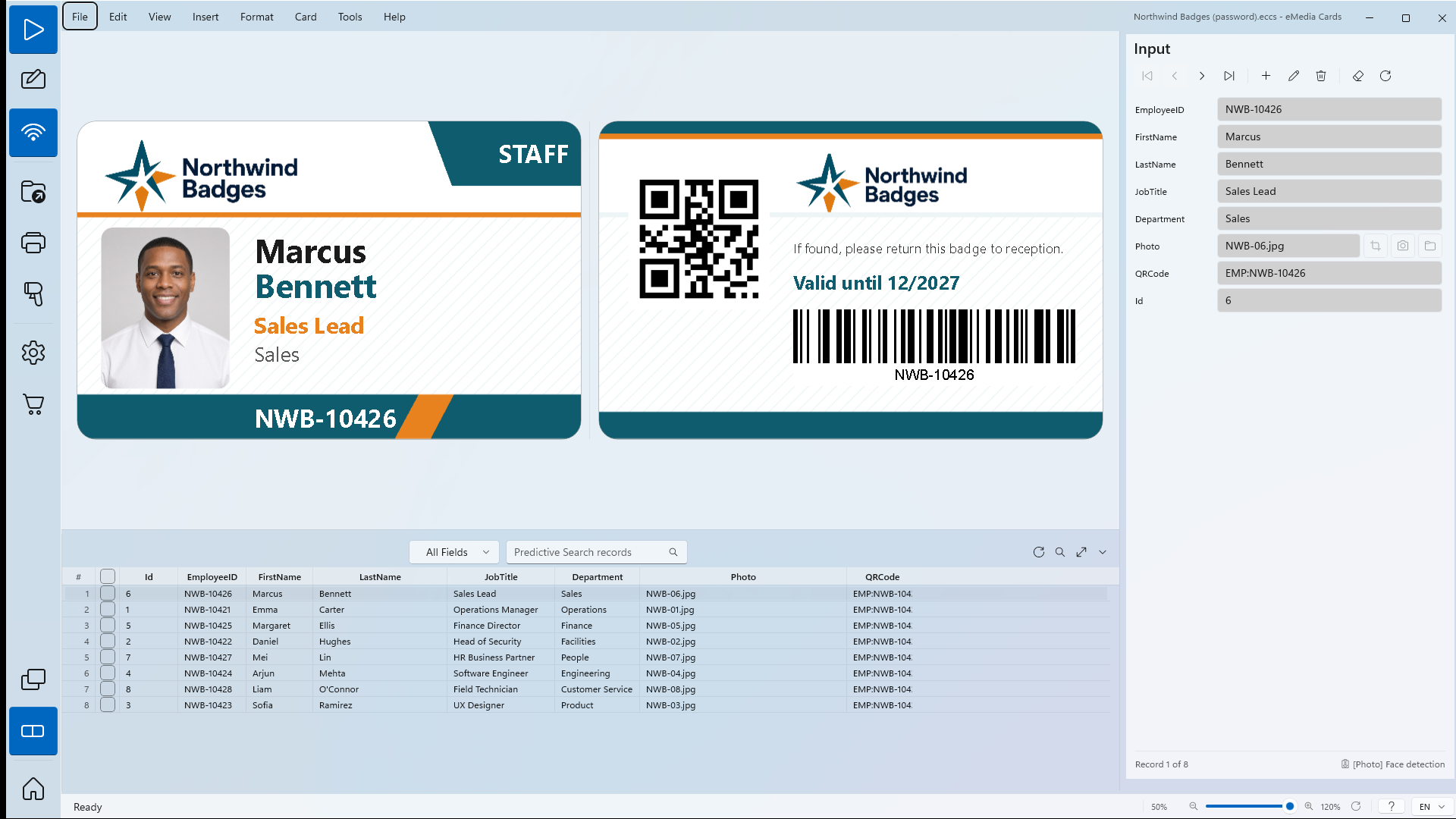
This example uses the fictional Northwind Badges staff badge (CR80, front and back), linked to the workbook
Northwind Badges_database.xlsxwith 8 records and aPhotosfolder. -
To try the import, the sample files ZIP has
Northwind Badges.eccbak, a full backup of this badge with no password, and aREADME.txt.
How to export a full backup
-
Open the template with File > Open....
-
Click File > Export > As full backup.... If the template has unsaved changes, eMedia Cards saves it first. A template that was never saved asks for a file name.
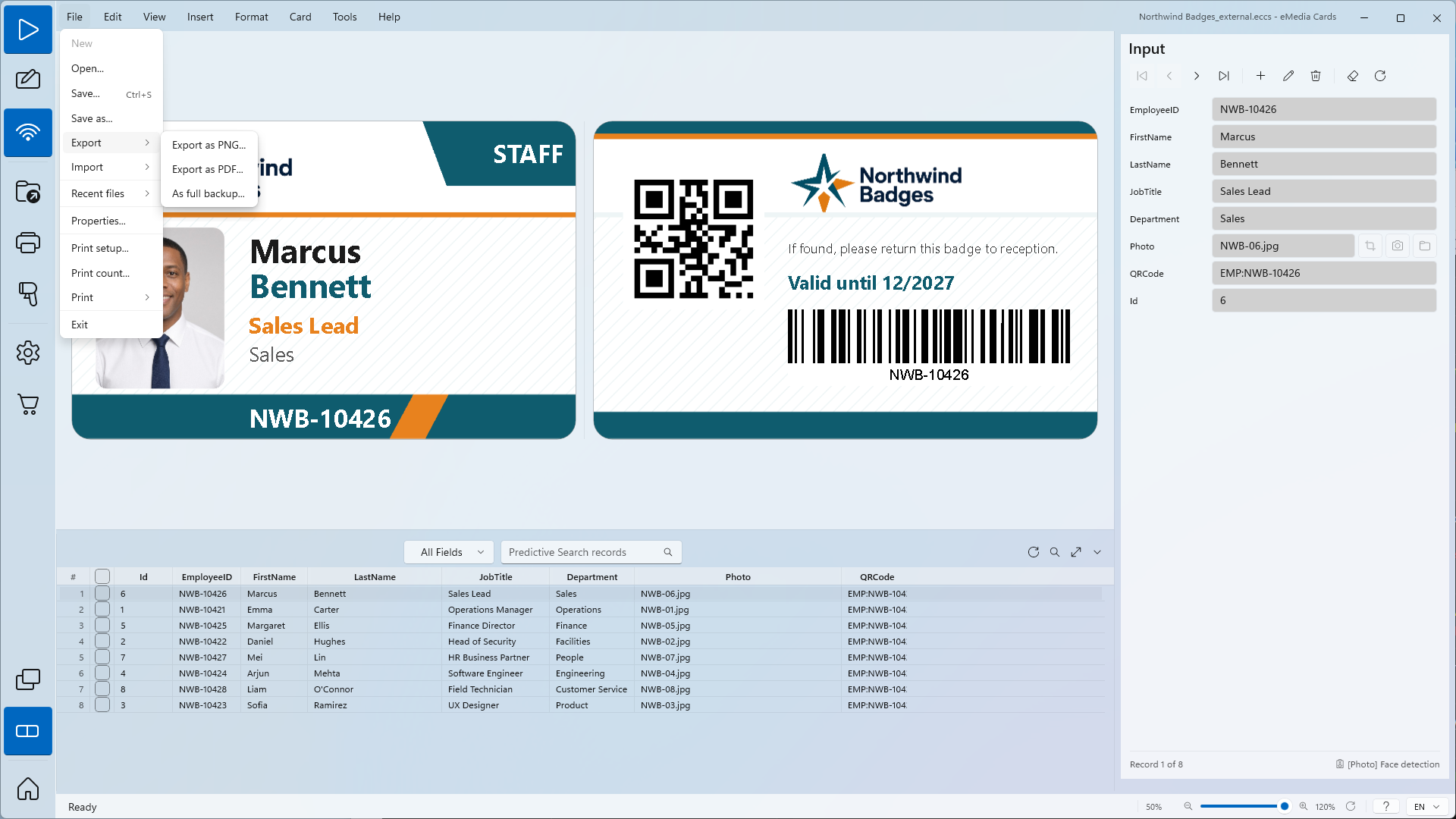
Warning: eMedia Cards first shows Checking pictures… and looks for the photo of every record. With a lot of records, checking and then copying every picture can take a really long time. Wait for it to finish.
-
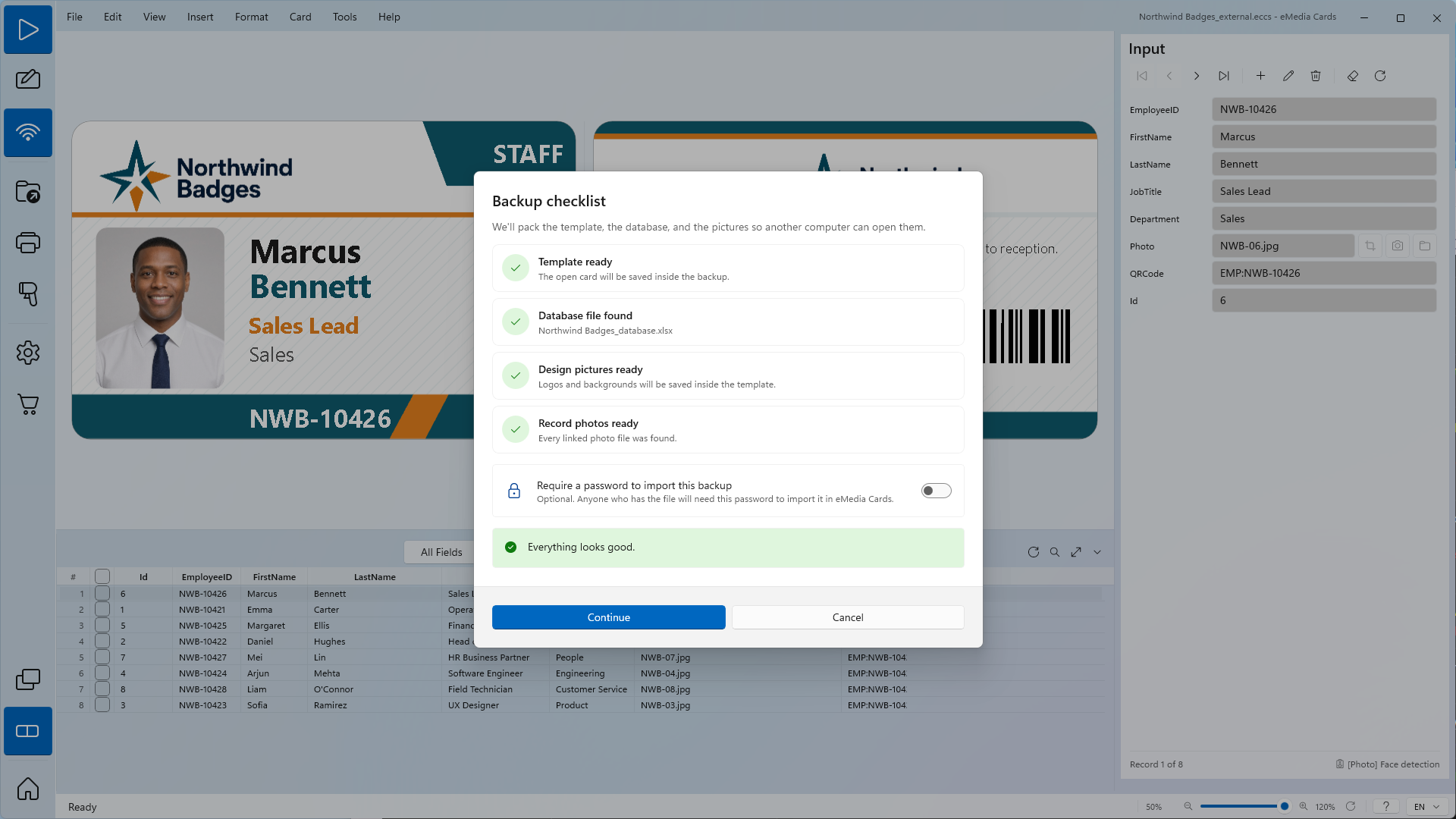
The Backup checklist opens. Check the four rows:
-
Template ready: the open card is saved inside the backup.
-
Database file found, with the file name, here
Northwind Badges_database.xlsx. -
Design pictures ready: logos and backgrounds are saved inside the template.
-
Record photos ready: every linked photo file was found.
-
-
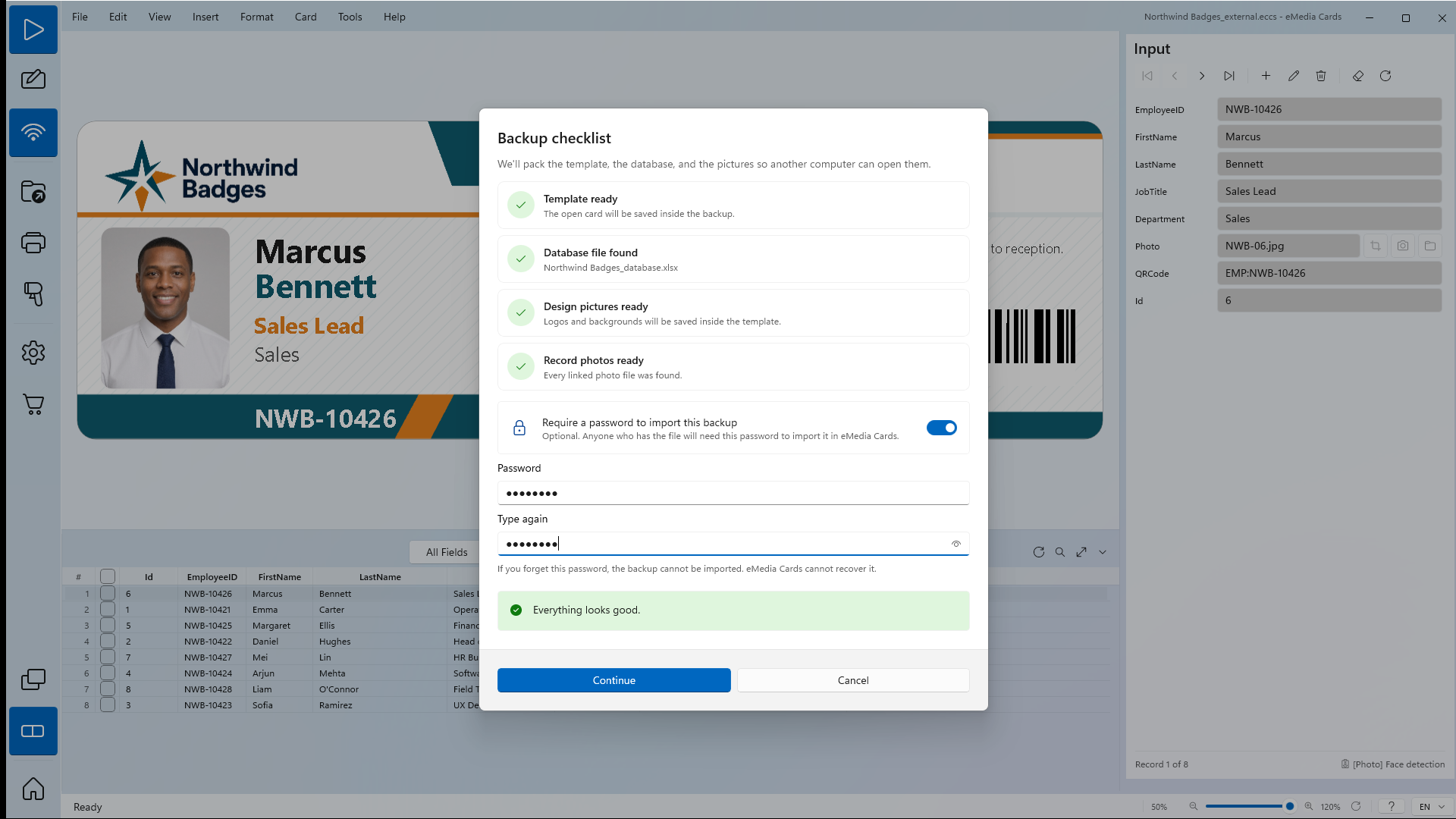
Optional: to lock the file, turn on Require a password to import this backup. Type the password in Password and again in Type again. Continue stays grey until both match.
-
Click Continue.
-
Choose a folder. The file name is the template name with
.eccbak, file type eMedia Cards backup. Click Save. -
eMedia Cards shows Creating full backup…, then Backup saved to: and the path in the status bar.
What the backup holds
The .eccbak file is a ZIP archive with:
-
the template (
.eccs), with its logos and backgrounds inside; -
a copy of the database: the
.xlsxworkbook, the.csvfile, or a copy of the internal database; -
a
Photosfolder with the photo of every record; -
backup.json, a short list of the contents and of any picture that could not be copied.
For Excel and CSV, the copy in the backup holds only the photo file names, and the template in the backup looks for the database and the Photos folder next to itself. Your open template, your workbook or CSV file and your photos are not changed.
How to import a full backup
-
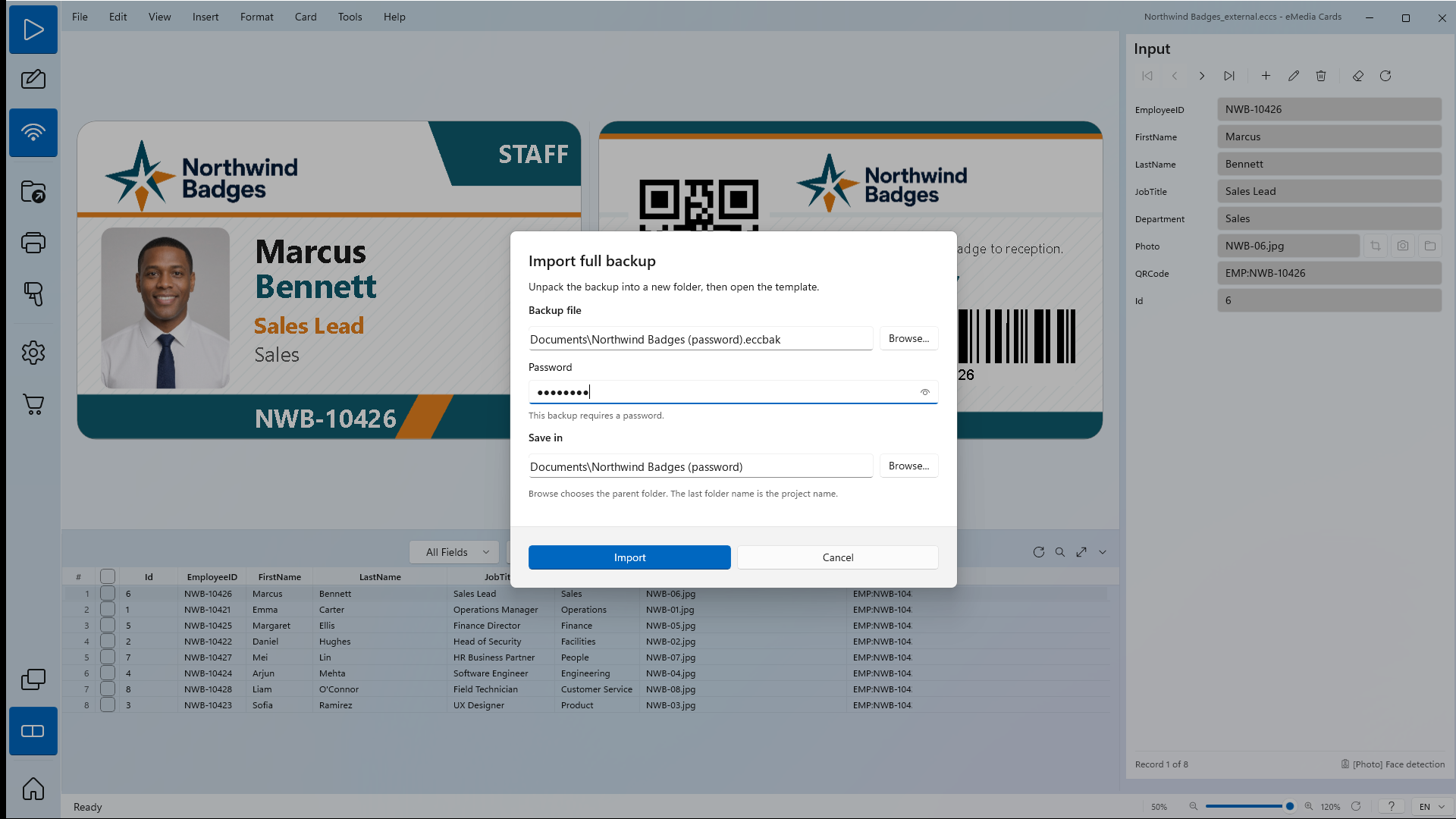
Click File > Import > From full backup.... Import full backup opens.
-
Next to Backup file, click Browse... and open the
.eccbakfile, hereNorthwind Badges.eccbakfrom the sample files. -
If the backup has a password, a Password box opens with This backup requires a password. Type the password.
-
Check Save in. It suggests a new folder named after the backup, next to it. To change it, click Browse... and choose the parent folder. The last folder name is the project name.
-
Click Import. eMedia Cards shows Importing backup…, unpacks the files and opens the template.
The new folder holds the template (.eccs), the database file and the Photos folder, all with the project name. The records and photos show at once.
Which databases a full backup can hold
-
Can hold: the internal database, Excel, CSV and a SQLite file. For Google Sheets, the backup keeps the link only: the sheet and Google Drive photos stay online, and you sign in to Google again after the import.
-
Cannot hold: Access and server databases: Jet Engine (Microsoft Access), ODBC / DSN, SQL Server (Microsoft), MySQL / MariaDB, PostgreSQL, Oracle and FileMaker. For these templates, As full backup... is not shown in File > Export. If the command runs anyway, eMedia Cards shows Full backup not available: "Full backup is available for templates that use the internal database, Excel, or CSV. Templates linked to Access, ODBC, or a server database are not copied — your IT team should back those up."
Tips
-
The samples you open from Home or from a new card are full backups too. eMedia Cards ships them as
.eccbakfiles and unpacks a copy when you open one. The Northwind Badges sample works the same way. -
The imported template uses its own copy of the workbook or CSV file. Changes there do not reach the original file, and changes in the original do not reach the copy.
-
The password is a simple lock, not strong encryption, up to 50 characters. eMedia Cards cannot recover a forgotten password.
-
Keep the
.eccbakfile to move a template with its data and photos to another computer, or to send it to someone in one file.
Common errors
| Symptom | Cause | Fix |
|---|---|---|
| Checking pictures… or Creating full backup… stays on screen for a long time. | The database has a lot of records, and eMedia Cards checks and copies the photo of each one. | Wait for it to finish. |
| As full backup... is not in File > Export. | The template uses Access or a server database, or no template is open. | Open a template that uses the internal database, Excel or CSV. Back up server databases with your IT team. |
| Some record photos are missing in the Backup checklist. | Some photo files named in the database are not on this computer. | Put the photos back in the pictures folder, or click Continue: the backup is made and lists the missing pictures in backup.json. |
| Design pictures missing and Continue is grey. | A logo or background still points to a file that is not on this computer. | Click Cancel, relink the missing design pictures, then try again. |
| Database file not found and Continue is grey. | The linked workbook or CSV file was moved, renamed or deleted. | Put the file back or reconnect the database, save the template, then try again. |
| The two passwords do not match. | Password and Type again are different. | Type the same password in both boxes. |
| Wrong password. | The password typed in Import full backup is not the one set at export. | Type the password again. A forgotten password cannot be recovered. |
| This file is not a valid eMedia Cards backup. | The file is not a .eccbak made by eMedia Cards, or it is damaged. |
Export the full backup again and copy the file again. |
| This backup was created by a newer version of eMedia Cards and cannot be imported. | The backup comes from a newer eMedia Cards. | Update eMedia Cards, then import again. |
| Replace existing files? | The Save in folder already has files. | Click Replace to replace them with the backup, or Cancel and choose another folder in Save in. |