
How to fill and print a card from a phone
What you'll learn
Open a Web Print link on a phone, tablet or computer, fill in a new card, and send it to the PC that shares it. The PC adds the record to its database, then prints the card or only saves it.
Before you start
-
A PC that shares a card with Web Print. See How to share a card with Web Print. This example uses the Larkspur Hill School student card from that page.
-
The link or the QR code from the Web Print window on that PC.
-
A phone, tablet or computer with a web browser and internet access. Nothing to install.
-
The page adds new records only. It does not search or change the records already in the database.
How to fill and send a card
-
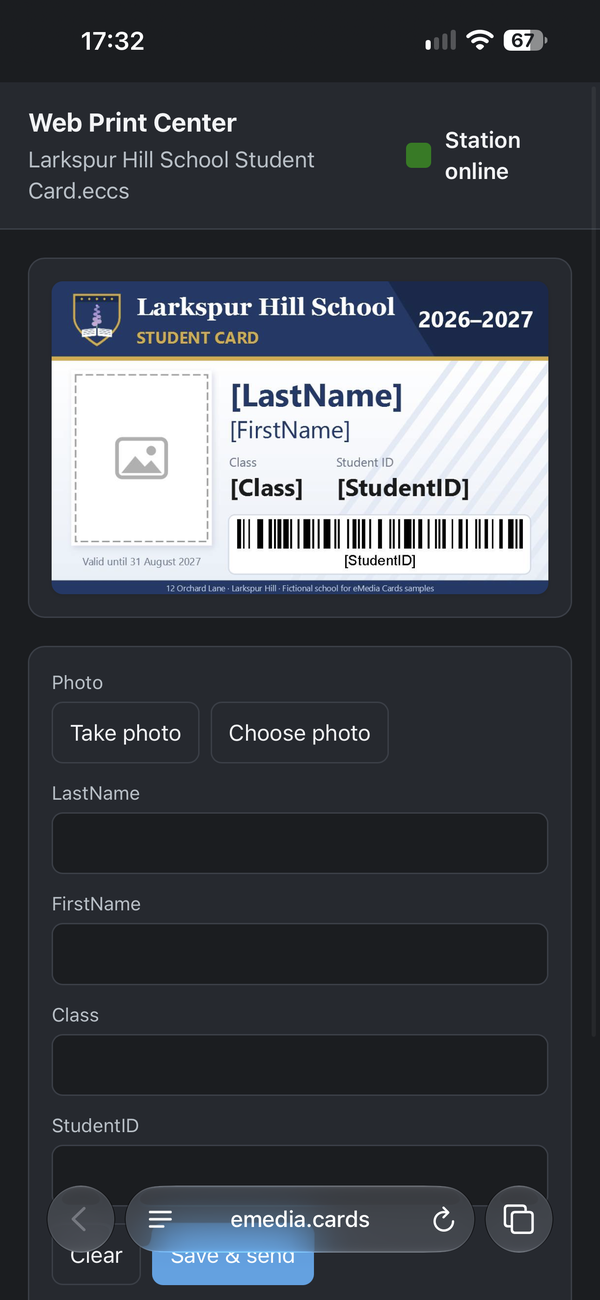
Open the link. Scan the QR code with the phone's camera, or open the link you received. The Web Print Center page opens with the name of the card and Station online.
-
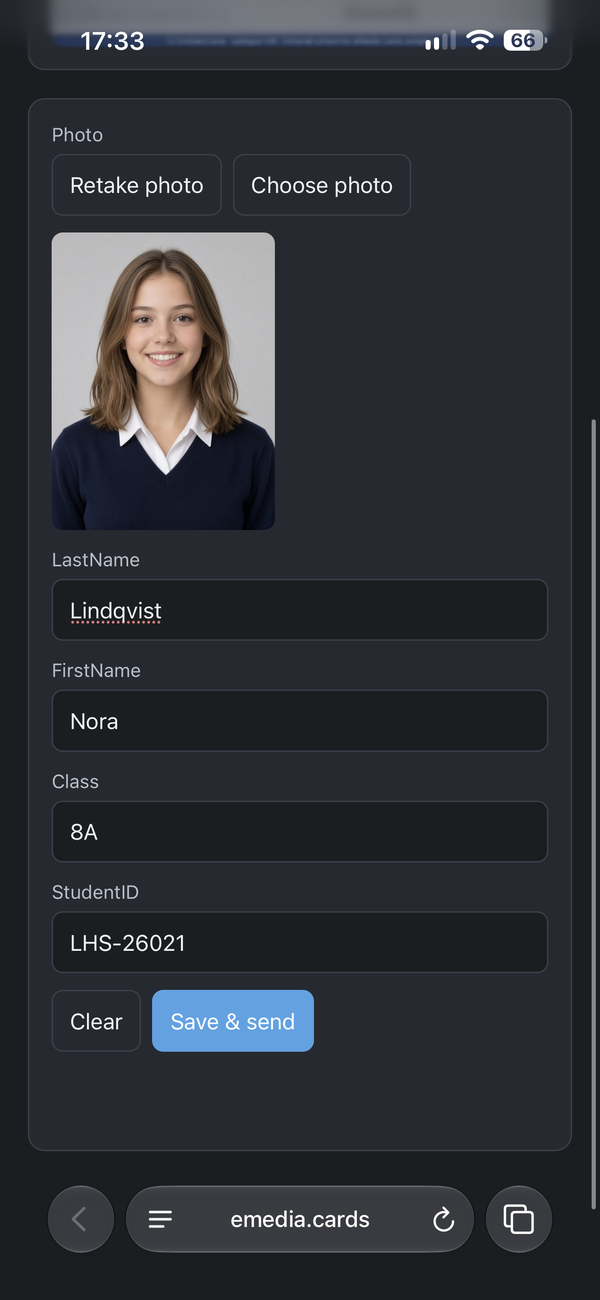
Fill in the fields. Type a value in each field: here LastName
Lindqvist, FirstNameNora, Class8Aand StudentIDLHS-26021. A date field opens a date picker, and a list field opens its choices. -
Add the photo. Under Photo, tap Take photo or Choose photo. See How to take a card photo with a phone.
-
Sign, if the card has a signature. Draw in the signature box. Tap Clear signature to start again.
-
Start again, if needed. Tap Clear to empty all the fields and the photo.
-
Send the card. Tap Save & Print. When the PC only saves the cards, the button is Save & send. While the PC works, the button shows Printing… or Sending…. When other cards are waiting, the page shows, for example, "1 card ahead."
-
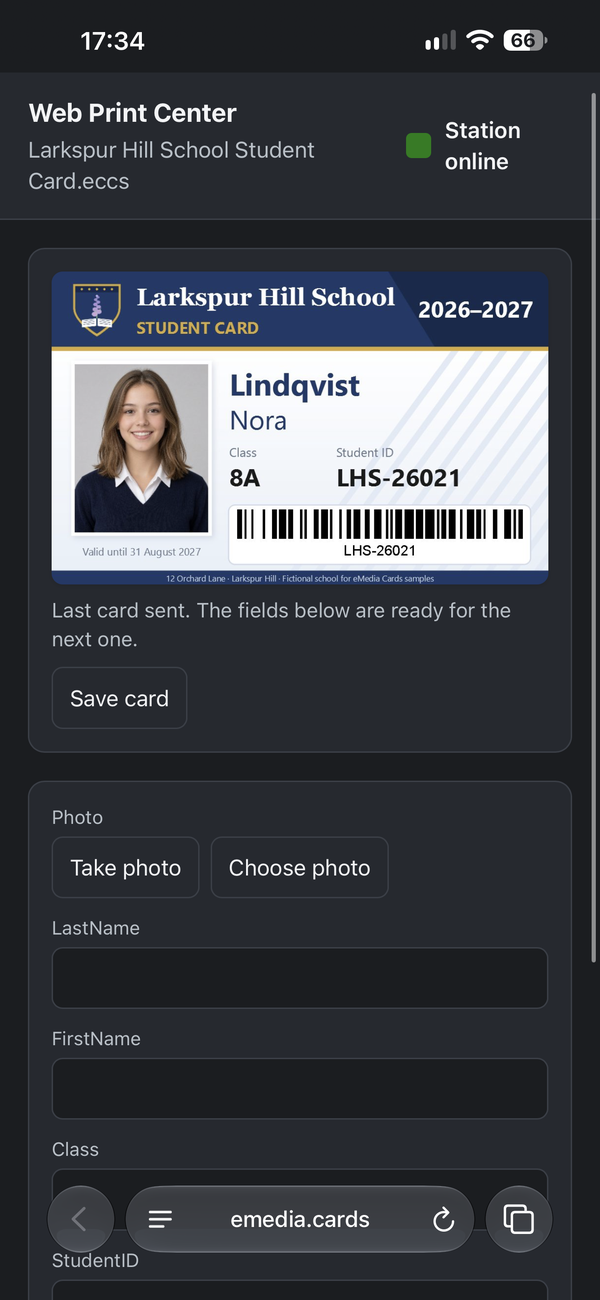
Check the card. The page shows the card as printed and "Last card printed. The fields below are ready for the next one." When the PC only saves the cards, it says "Last card sent. The fields below are ready for the next one." On the PC, the new record is in
students.csv.
-
Keep a copy, if you need one. Tap Save card to save the picture of the card on the phone.
-
Fill in the next card. The fields are empty again: each card you send is a new record.
How the page follows the PC
-
On a two-sided card, the page shows Front and Back to switch the picture, and groups the fields under Front, Back, Both sides and Other fields.
-
When the PC opens another template, the page says "The station opened another card. Reloading." and shows the new card.
-
Station offline means the PC is not sharing right now. The page connects again when it is back.
Tips
-
Fill in the student ID: the PC can name the photo file with it.
-
Save card saves
card.jpg, orcard-front.jpgandcard-back.jpgfor a two-sided card. -
The page uses the language of eMedia Cards on the PC.
Common errors
| Symptom | Cause | Fix |
|---|---|---|
| No card is open on the station. | No template is open on the PC. | Open the template on the PC. |
| The station has not saved a preview for this card yet. | The PC has not sent the card picture yet. | Save the template on the PC, then wait a moment. |
| The station did not answer in time. It may still be printing. | The PC took too long to answer. | Check on the PC before you send the card again. |
| The station could not finish that. | The PC could not save the record. | Check the fields, then try again. |
| This link is incomplete. Open the link from the station again. | Part of the link is missing. | Open the full link, or scan the QR code again. |
| 10 devices limit reached. Close another browser that has this link open, then try again. | Ten devices already have the link open. | Close the page on another device. |
| Reload this page to reach the station again. | The page lost its place on the link. | Reload the page. |
| This Web Print link is not online yet. Turn sharing on in eMedia Cards. This page opens when that computer publishes it. | Sharing is off on the PC, or the link is new. | Turn the Web Print switch On on the PC. |