
How to print double-sided cards
What you'll learn
Print a card on both sides: the front and the back in one print. eMedia Cards sends both sides; your card printer prints the back only if two-sided printing is on in its driver.
Before you start
-
A card printer that prints both sides (with a card flipper), installed on your computer (Windows or macOS).
-
Two-sided printing is on in the printer driver. Click File > Print setup..., choose your card printer, then click Printing preferences…. In the window of your printer driver, turn on duplex or two-sided printing, then save. The name and the place of this setting depend on your printer: see its manual. eMedia Cards cannot turn it on for you.
-
This example uses
Santa's Workshop Elf Pass.eccsand its Excel file from the download above (10 fictitious elves, front and back). Connect it first as shown in How to connect a card template to an Excel file.
How to make the template double sided
-
Open the template in Design mode. Open
Santa's Workshop Elf Pass.eccsand click Design in the left bar. -
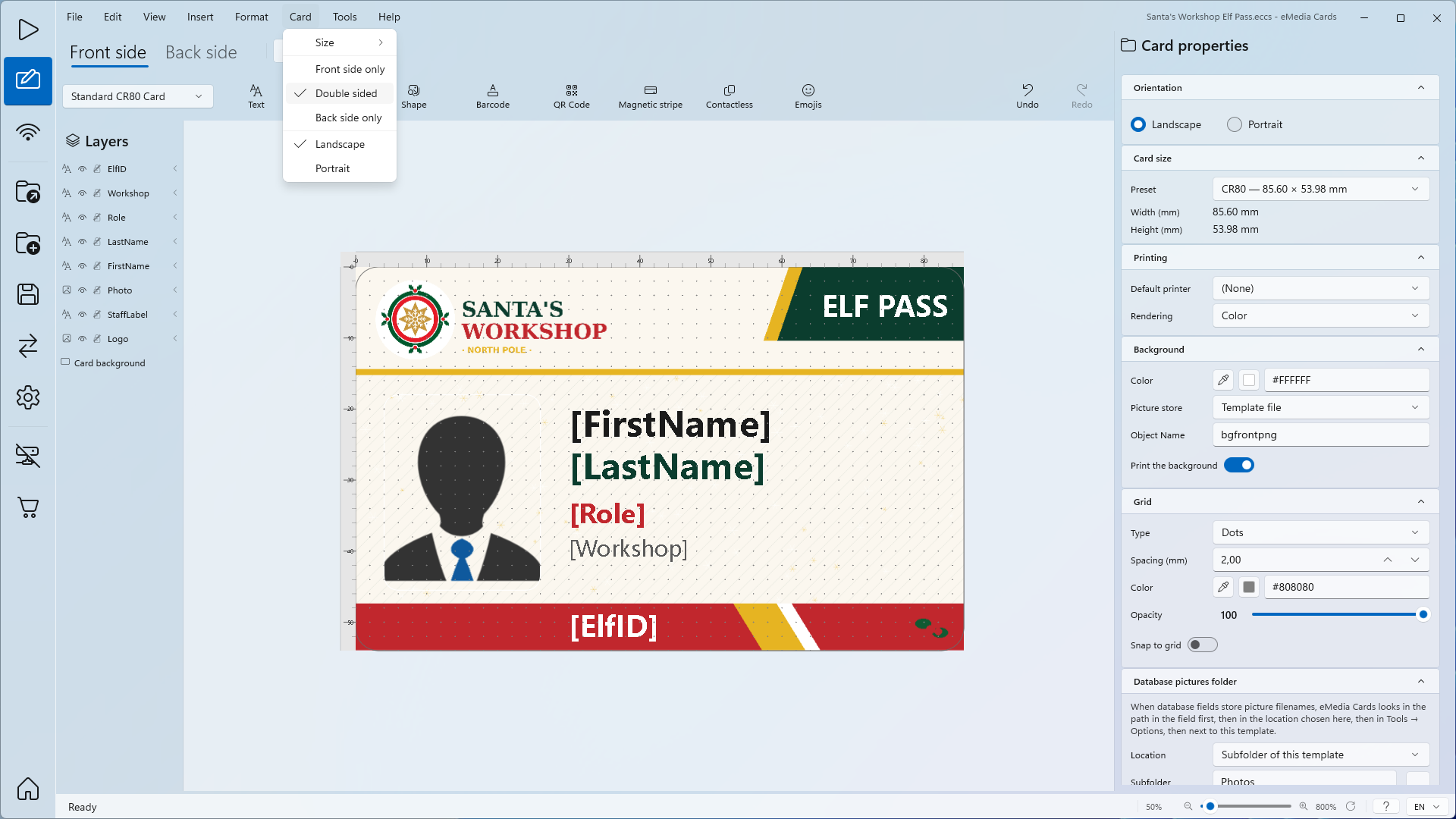
Check the Card menu. Click Card. Double sided must be ticked. Front side only and Back side only keep one side.
-
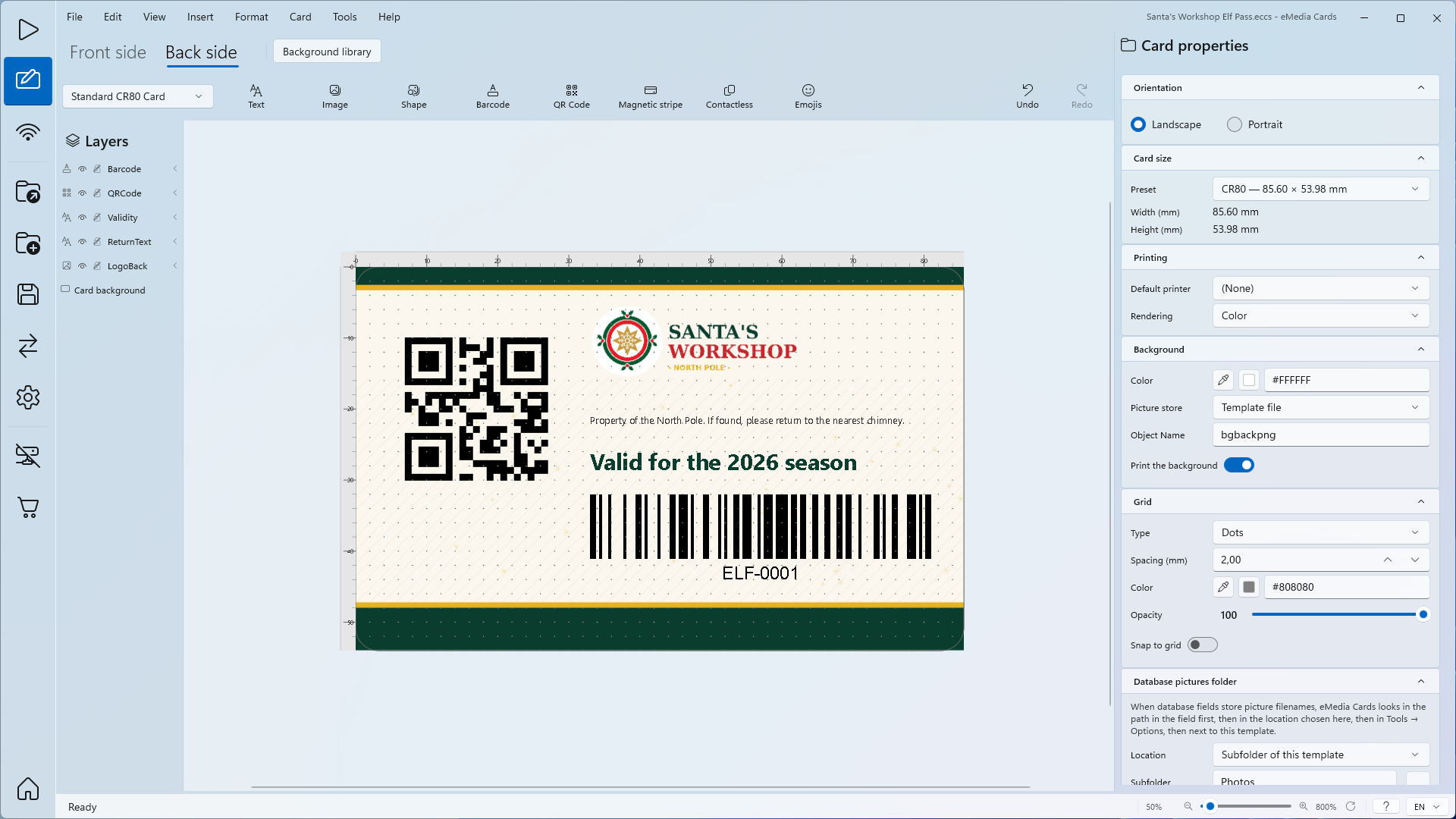
Check the back. Click the Back side tab above the card to see and edit the back. Click Front side to come back.
How to print the front and the back
-
Go to Operating mode. Click Operating in the left bar. For a double-sided card, two buttons in the left bar choose the view:
-
Tabs ("View front and back on separate tabs"), the default: one side at a time. Click the Back side tab above the card to see the back, and Front side to come back.
-
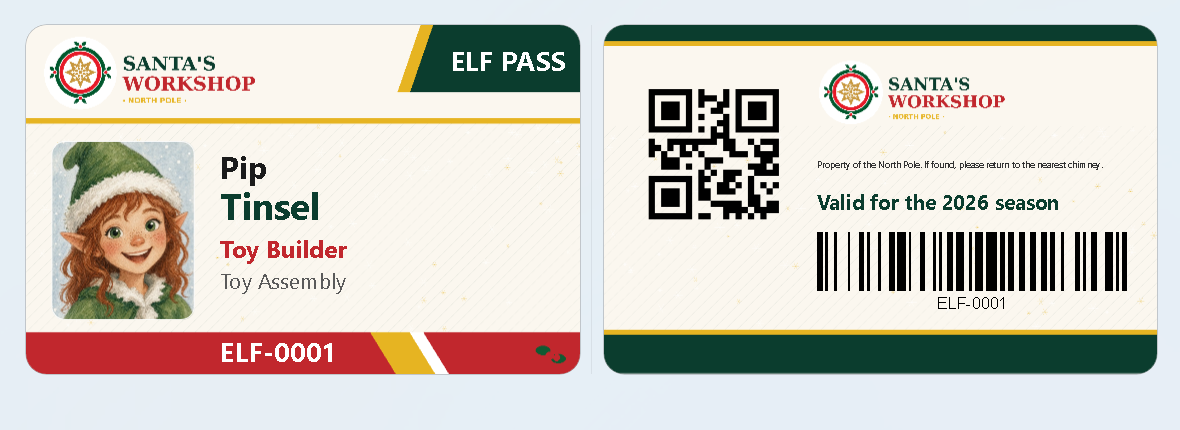
Side by side ("View front and back side by side"): the front and the back show next to each other. It is not available while the records list is maximized.
-
-
Open the Print dialog. Click File > Print > All..., or press Ctrl+P.
-
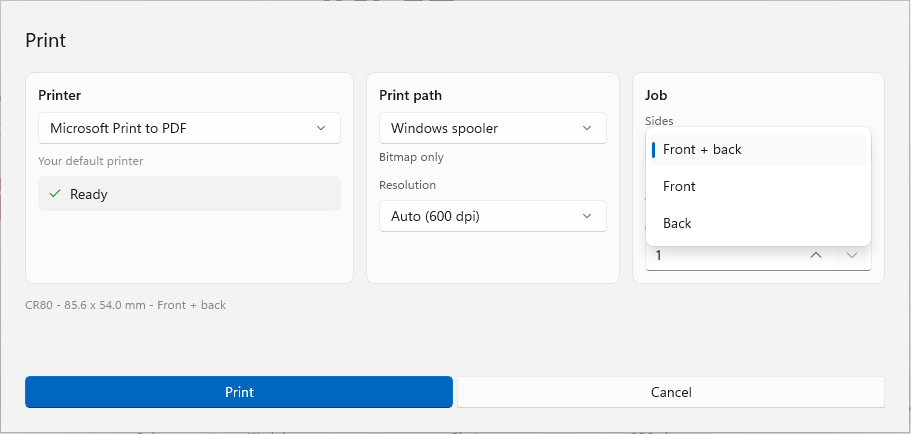
Choose the sides. In Sides, choose Front + back. Front or Back prints one side only. The line under the panels shows the sides, for example "CR80 - 85.6 x 54.0 mm - Front + back".
-
Click Print.
Tips
-
To print one side of a double-sided card, use File > Print > Front side only... or File > Print > Back side only....
-
To print the cards of several elves, tick them in the records grid: see How to print a batch of cards from your database.
-
Print one card first and check both sides before you print a batch.
Common errors
| Symptom | Cause | Fix |
|---|---|---|
| The back prints on a second card, or not at all. | Two-sided printing is off in the printer driver. | Turn it on in File > Print setup... > Printing preferences…, then print again. |
| "Front + back is selected, but the printer reports no card flipper." | Your printer does not print both sides, or its flipper is not reported. | Check your printer. You can still print: press Print anyway. |
| Sides is missing in the Print dialog. | The template has one side only. | In Design mode, tick Card > Double sided. |