
How to connect a card template to MySQL or MariaDB
What you'll learn
Connect a card template to a table on a MySQL or MariaDB server with the Database Wizard, link its columns to card objects, and show the records in Operating mode. The connection works the same way for both servers; the few MariaDB differences are noted where they apply. The records stay on the server: eMedia Cards reads and writes them live.
MySQL and MariaDB in short
-
One row in the wizard, MySQL / MariaDB, for MySQL 8 and current MariaDB. On Windows, under Server:, choose MySQL or MariaDB to match your server. On Mac, there is no such choice: the built-in client works with both.
-
Windows: each server type uses its own free 64-bit Unicode ODBC driver, installed once on each PC: the MySQL ODBC Unicode driver for MySQL, the MariaDB ODBC 3.2 driver for MariaDB. You don't need to create an ODBC data source (DSN).
-
Mac: a client for MySQL and MariaDB is built into eMedia Cards. There is no driver to install.
-
Login: a user name and a password. The wizard has no field for a second sign-in factor.
-
MySQL 8's default login method works with or without SSL. On Windows, MariaDB login methods such as ed25519, PARSEC and GSSAPI need Server: MariaDB and the MariaDB driver.
-
SSL: offers Off, Prefer, Require, Verify certificate and Verify certificate and server name. Require encrypts the connection but does not check the certificate. The two Verify choices check it, and accept an optional CA certificate file (optional): for a self-signed or private certificate. With MariaDB, Verify certificate also checks the server name.
-
Port:
3306by default. Any port from 1 to 65535 works. -
Connection time limit: on Mac, 15 seconds. On Windows, eMedia Cards sets no limit of its own: the driver's limit applies.
-
The password is saved with the template's connection details.
-
To add, change or delete records, the table needs a key column whose values are all different, usually its primary key, and your login needs write rights on the table.
-
The ODBC / DSN row, Any ODBC data source (DSN), is a different connection type, on Windows only: it needs Professional Edition. You don't need it for MySQL or MariaDB.
-
Available on Windows and Mac.
Before you start
-
Standard Edition or higher. On Windows, in Starter Edition, Next shows an upgrade note and the wizard does not continue. On Mac, the edition is checked when you connect.
-
Your own MySQL 8 or current MariaDB server, with a login that has read rights on the table, and write rights to add, change or delete records.
-
On Windows, the free 64-bit driver for your server type. If it is missing, the wizard shows Database driver not installed with a Download MySQL ODBC or Download MariaDB ODBC button.
-
This example uses
Larkspur Hill School Student Card.eccs, a CR80 student card, front only, not yet connected to a database. Its text objects LastName, FirstName, Class and StudentID and its picture object Photo are named like the columns of the table. The barcode object prints StudentID as a Code 128 barcode. -
The data is
larkspur_school.sql: it creates the databaselarkspur_schoolwith one table,students, 20 rows, and the columnsId(the primary key, numbered by the server),StudentID,FirstName,LastName,ClassandPhoto. Run it on your server with your usual MySQL or MariaDB tool. -
The template, the SQL script, the student photos and a
README.txtare in the download above. Keep thePhotosfolder next to the template. The school, the students and their faces are fictitious.
In the screenshots, the server name and the user name are examples: Server: school-server, User ID: cards_app. Use your own server, user name and password.
How to connect a MySQL or MariaDB table to a template
-
Unzip the sample files, run
larkspur_school.sqlon your server, and openLarkspur Hill School Student Card.eccs. The template opens in Operating mode. -
Switch to Design mode.
-
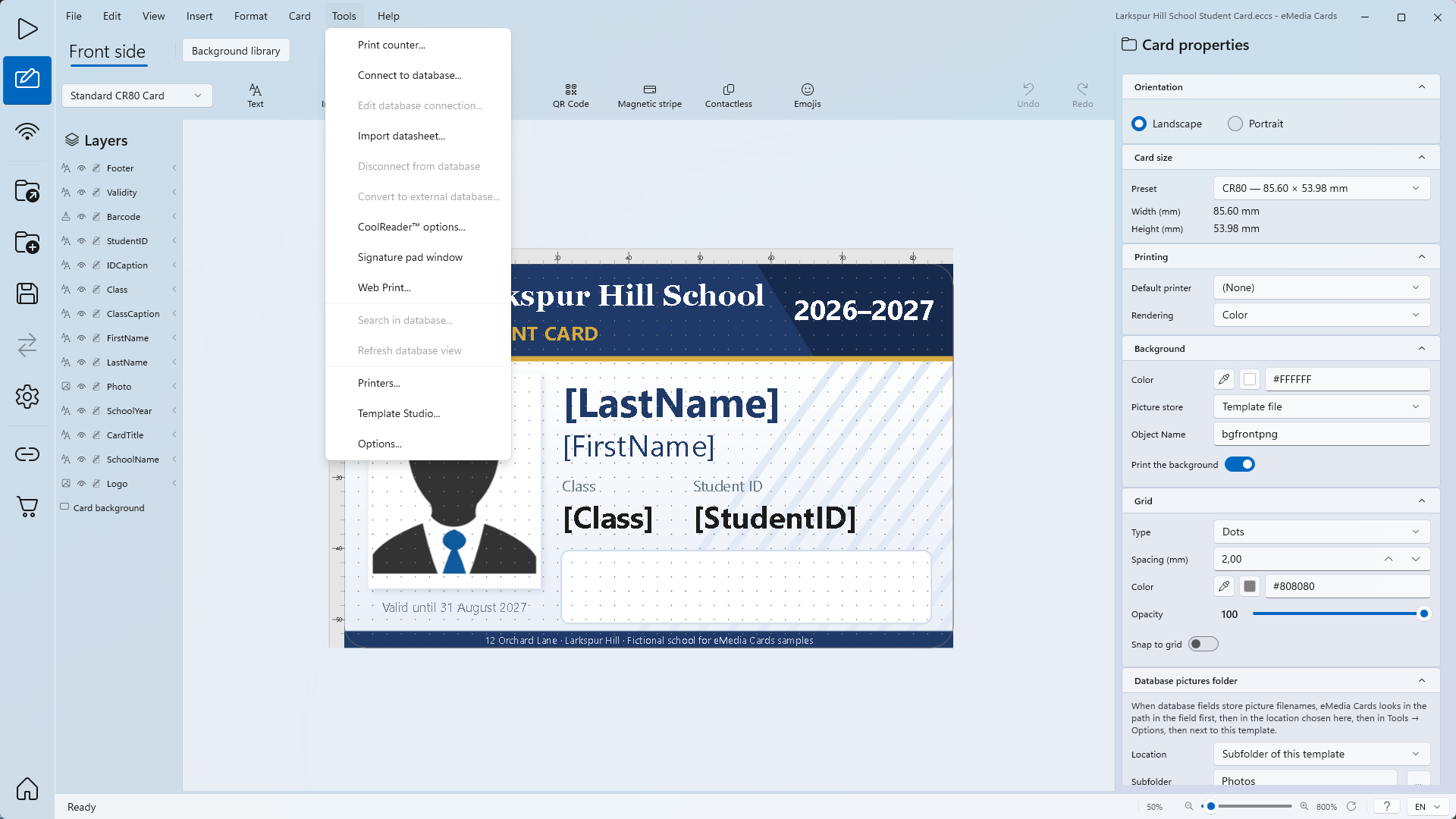
Click Tools > Connect to database.... If the message Database Connected appears, click Disconnect & Continue. The Database Wizard opens on step 1, Connection.
-
Under Select a database connection type:, click MySQL / MariaDB. On Windows, in Standard Edition, ODBC / DSN is greyed.
-
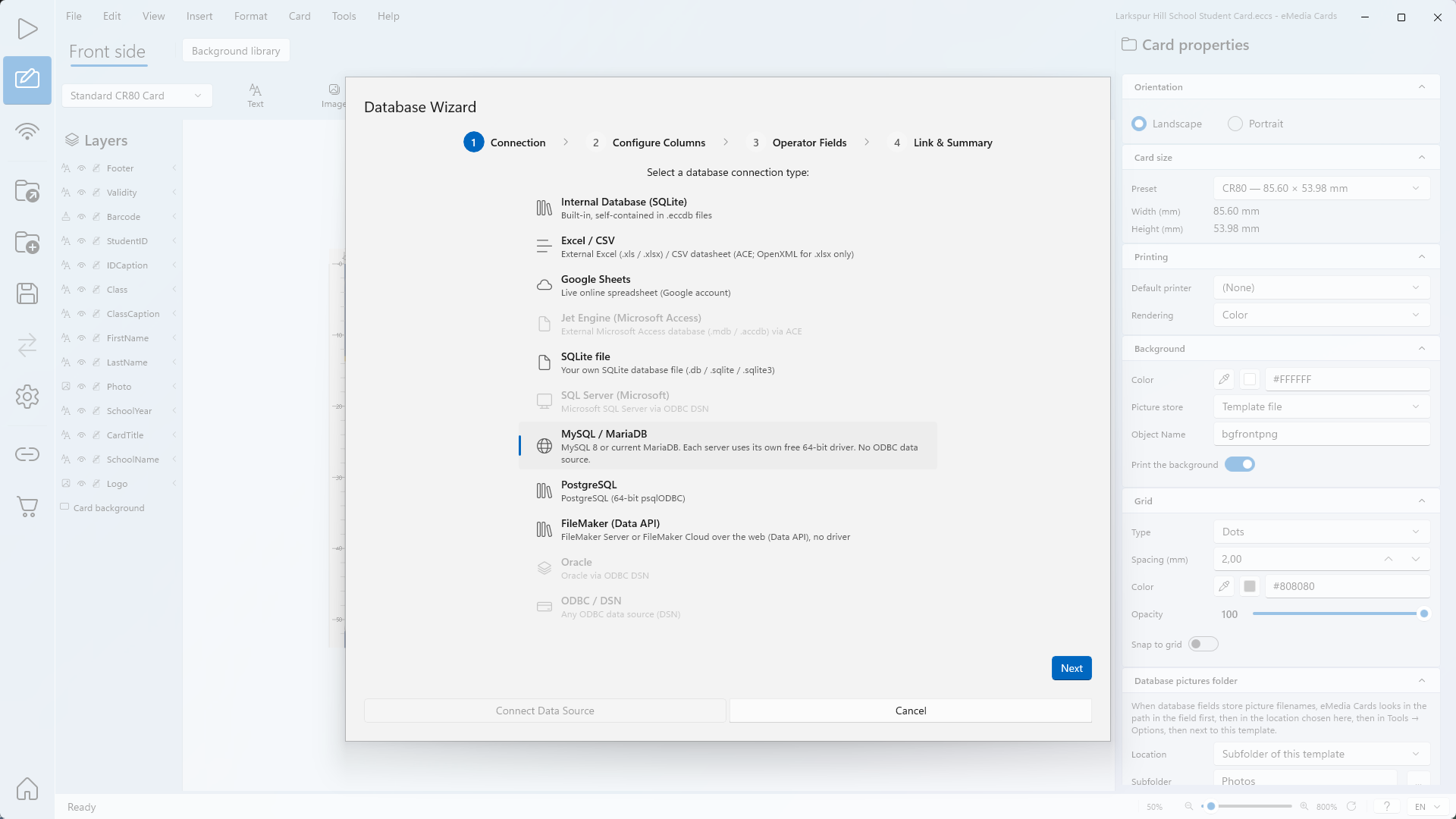
Click Next. Step 2, Configure Columns, opens on Connect to MySQL or MariaDB:. On Windows, the message MySQL driver found shows the driver version.
-
Windows only: next to Server:, keep MySQL, or choose MariaDB for a MariaDB server. The driver message changes to the driver of that server type. On Mac, there is no server-type choice: go to the next step.
-
In the Server: box, type the name or IP address of the server. Here:
school-server. -
In Port:, keep
3306unless your server uses another port. -
In Database:, type the database name. Here:
larkspur_school. -
In User ID:, type your user name. Here:
cards_app. -
In Password:, type your password. It shows as dots.
-
In SSL:, keep Prefer. Choose Require if your server accepts encrypted connections only, a Verify choice to check the server's certificate, or Off if the server has no SSL.
-
Click Test connection. The message shows the database, the server and the number of tables: here Connected to larkspur_school on school-server. 1 table found. Next works only after a successful test.
-
In Source:, choose how eMedia Cards reads the records, depending on how your database is organised:
-
Table: the records of one table. Choose it in Table:.
-
View: the records of a view. Choose it in View:.
-
SQL: the result of an SQL statement. Type it in SQL statement:.
Here: Table.
-
-
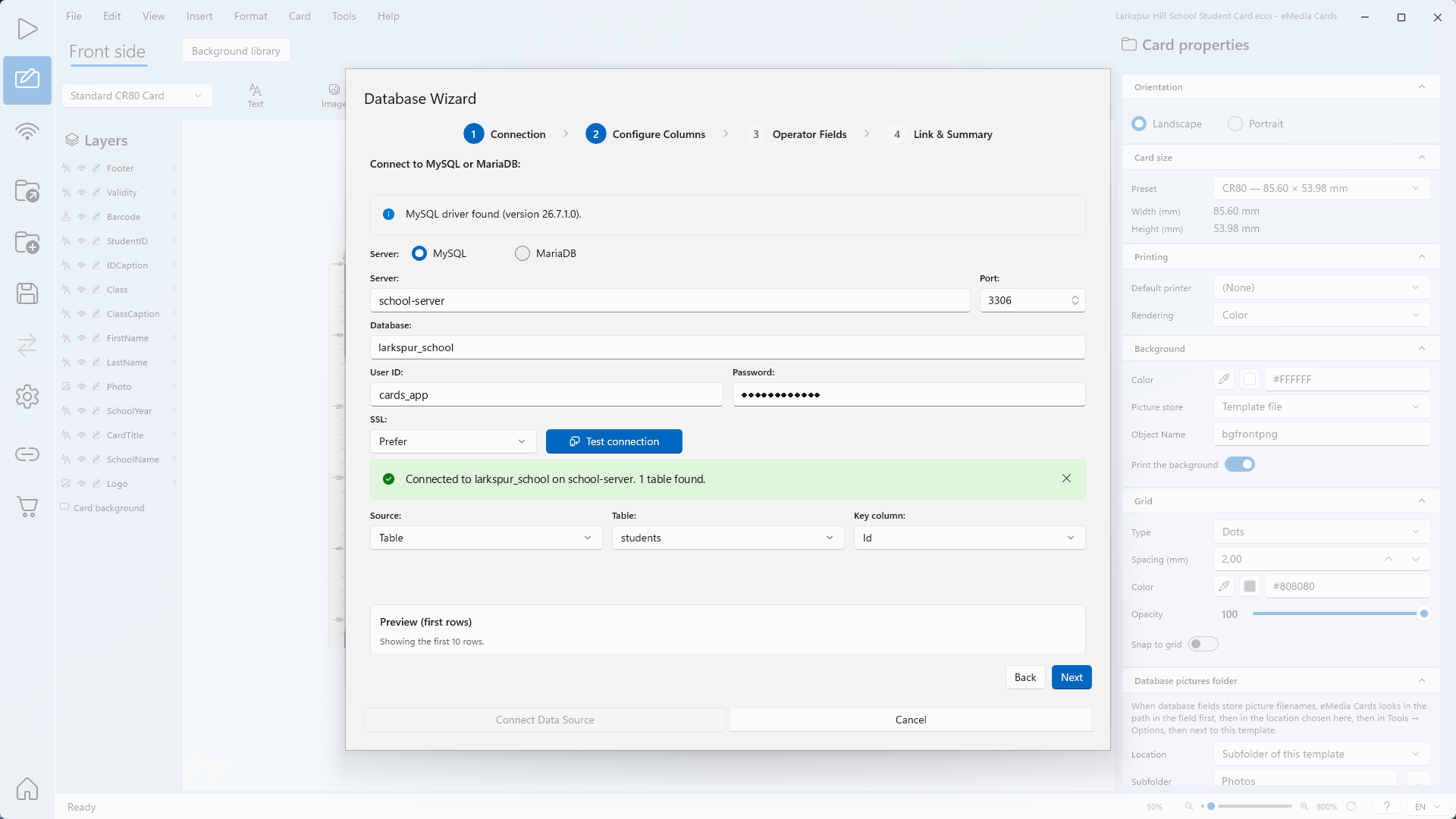
In Table:, choose your table. Here: students.
-
In Key column:, check the primary key of the table. In our example: Id.
-
Check the Preview (first rows) table. Here: Showing the first 10 rows.
-
Click Next. Step 3, Operator Fields, opens.
-
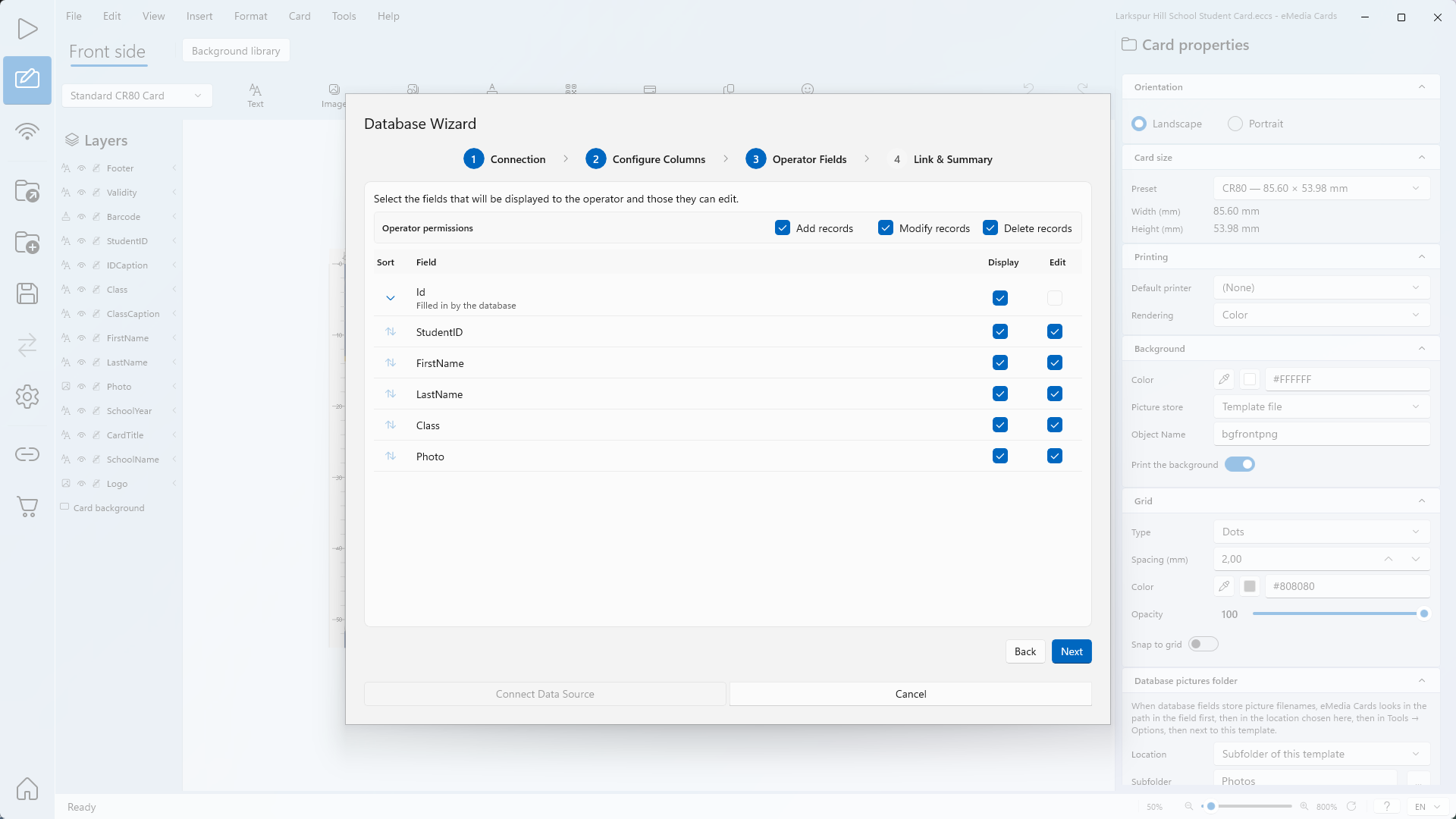
In the Display and Edit columns, untick the fields the operator must not see or change. Id shows Filled in by the database: the server numbers new records, so its Edit box is off. Optional: under Operator permissions, untick Add records, Modify records or Delete records.
-
Sort sets the record order in Operating mode. The wizard proposes a default sort on one field, here Id. To change it, click Sort on another field: the tooltip shows Sort A to Z or Sort Z to A. Sort is optional: you can also sort later in Operating mode by clicking a column header in the records grid. Each click goes to Sort A to Z, then Sort Z to A, then no sort, which brings back the template's sort. A header sort is not saved with the template.
-
Click Next. Step 4, Link & Summary, opens.
-
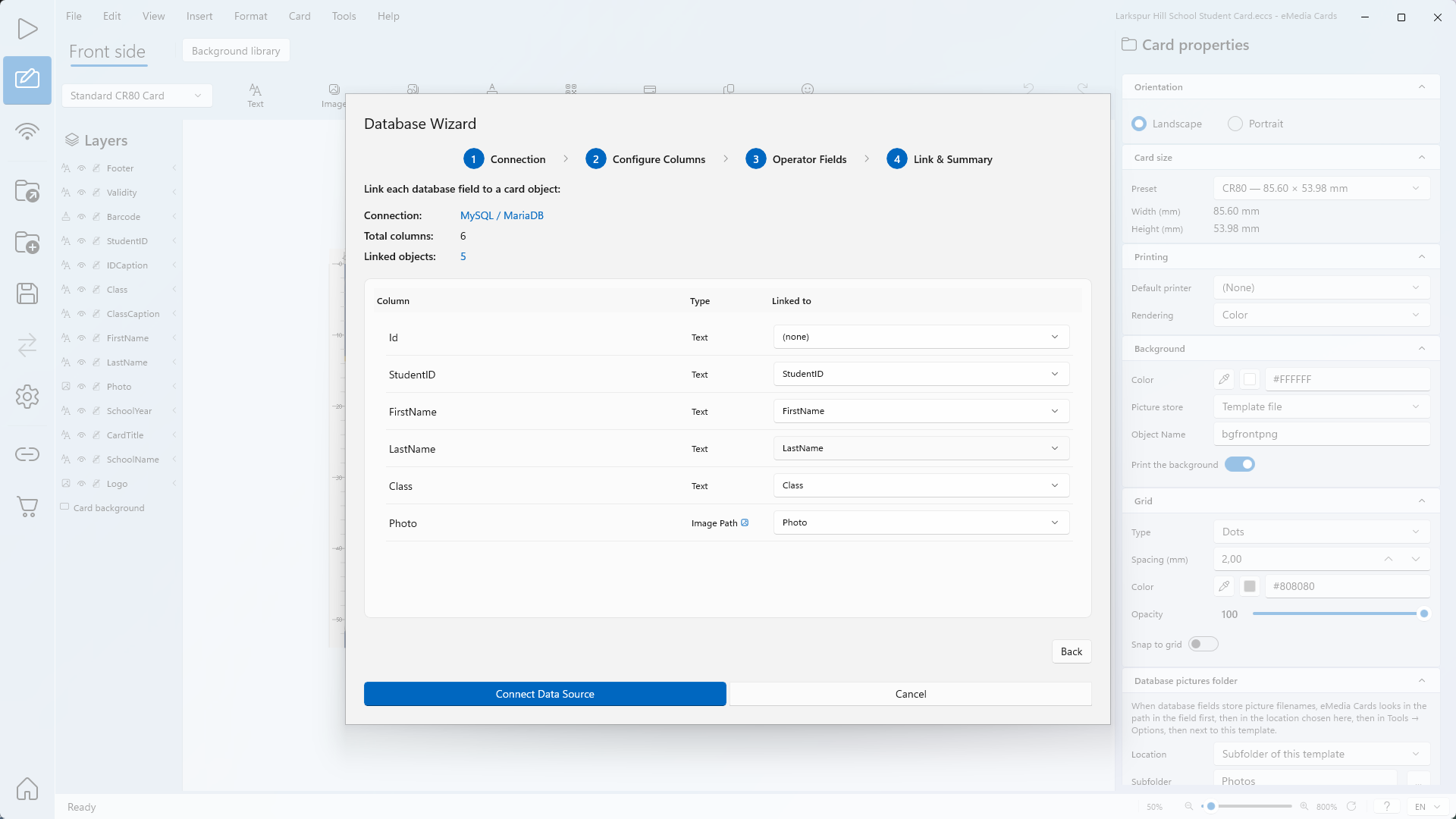
Check Connection:, Total columns: and Linked objects:. Here: MySQL / MariaDB, 6 and 5. Each column whose name matches a card object is linked automatically. Photo is typed Image Path. Id stays on (none): it is not shown on the card.
-
Click Connect Data Source.
-
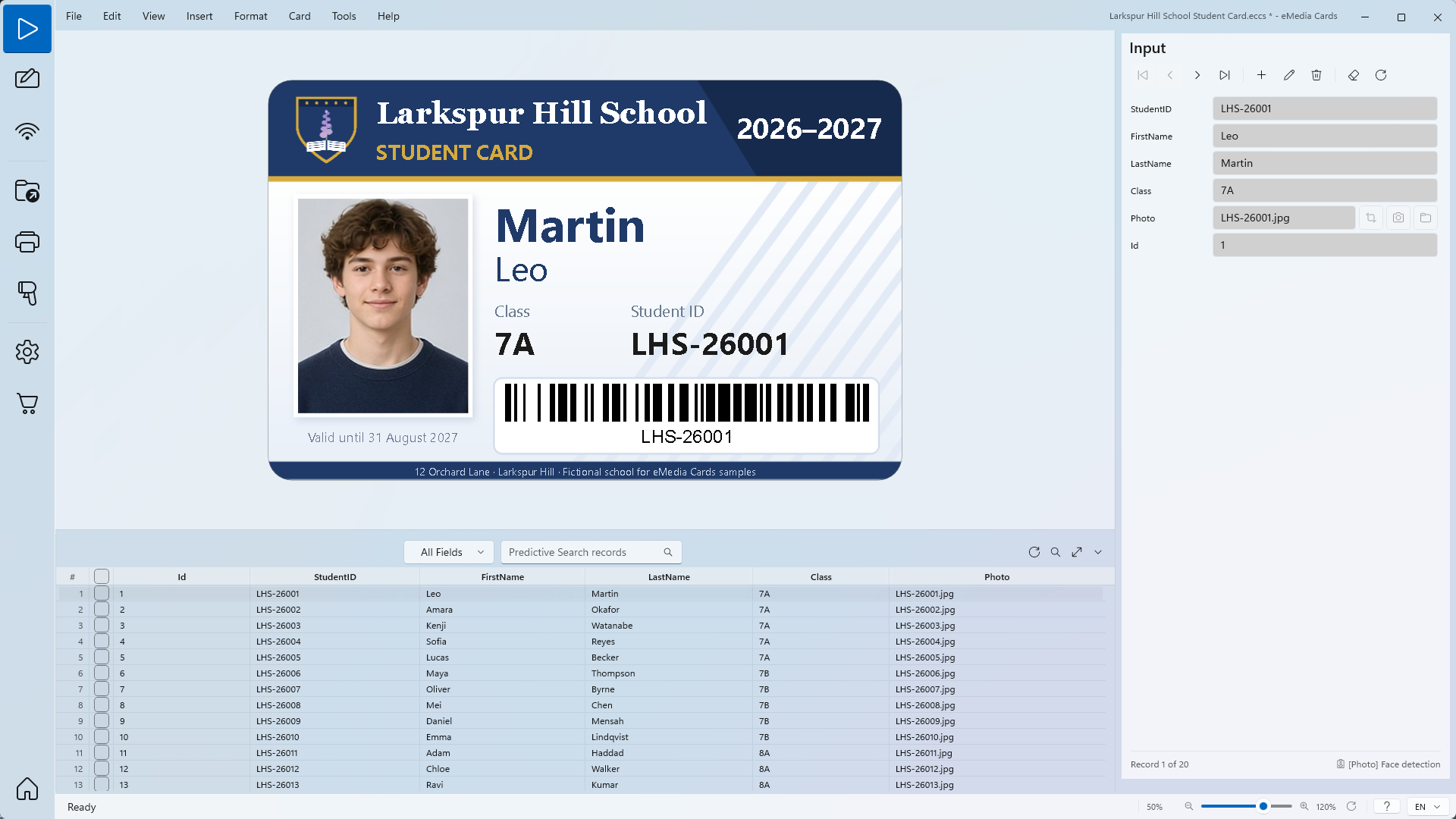
Click View > Operating mode. The card and the records grid show the rows of the MySQL or MariaDB table.
Tips
-
The MySQL or MariaDB table is the live database. Changes made in Operating mode are written to the server. Click Requery to read changes made by other users.
-
Columns named like the card objects are linked automatically.
-
Picture columns hold file names, such as
LHS-26001.jpg. eMedia Cards finds the files in the template's pictures folder, here thePhotosfolder next to the template. -
When you add a record, the server gives Id the next number.
-
The text after Could not connect: comes from the server or the driver. It can be in the server's language.
Common errors
| Symptom | Cause | Fix |
|---|---|---|
| Database driver not installed: MySQL 8 and newer needs the free MySQL ODBC Unicode driver (64-bit). Install it, then click Check again. | Windows: the MySQL driver is not installed on this PC. | Click Download MySQL ODBC, install the 64-bit Unicode driver, then click Check again. |
| Database driver not installed: MariaDB needs the free MariaDB ODBC 3.2 driver (64-bit). Install it, then click Check again. | Windows: the MariaDB driver is not installed on this PC. | Click Download MariaDB ODBC, install the 64-bit driver, then click Check again. |
| Only the ANSI driver is installed. eMedia Cards needs the Unicode 64-bit driver. Install it, then click Check again. | Only the ANSI driver is installed. | Install the Unicode driver from the same package, then click Check again. |
| Only the 32-bit driver is installed. eMedia Cards is a 64-bit app and needs the 64-bit driver. Install it, then click Check again. | Only the 32-bit driver is installed. | Install the 64-bit driver, then click Check again. |
| Could not connect: The user name or password is incorrect. Check them and try again. | Wrong User ID: or Password:. | Type the user name and your password again. |
| This server uses a MariaDB login method. Select MariaDB and install that driver. | Windows: the server is MariaDB and your login uses a MariaDB login method. | Next to Server:, choose MariaDB, and install the MariaDB driver. |
| This server uses a MySQL login method. Select MySQL and install that driver. | Windows: the server is MySQL, but MariaDB is selected. | Next to Server:, choose MySQL, and install the MySQL driver. |
| This server requires a secure (SSL) connection. Turn on SSL. | SSL: is Off, but the server accepts encrypted connections only. | Choose Prefer or Require. |
| Could not connect:, followed by a message about the certificate | A Verify choice is selected and the server's certificate is not trusted, has expired, or does not match the server name. | For a self-signed or private certificate, select its file in CA certificate file (optional):. Or ask your administrator for a valid certificate. |
| Connected to larkspur_school on school-server. 1 table found. This server is MySQL. The MySQL driver is the one meant for it. | Windows: the test worked, but Server: does not match the server type. This is a warning, not an error. | Choose the server type the message names. |
| The MySQL / MariaDB login "cards_app" can read "students" but isn't allowed to change it. Ask your database administrator for write access. | Your login has read rights only. | Ask your administrator for write rights on the table. |
| The MySQL / MariaDB login "cards_app" isn't allowed to read "students". Ask your database administrator for read access. | Your login has no rights on the table. | Ask your administrator for read rights on the table. |