
How to connect a card template to an SQLite database
What you'll learn
Connect a card template to a table in your own SQLite database file with the Database Wizard, link its columns to card objects, and show the records in Operating mode. eMedia Cards reads and writes the file directly.
SQLite in short
-
The file is the database. There is no server to install, and no user name or password to type.
-
File types:
.db,.sqliteand.sqlite3. -
Read and write: adding, changing or deleting a record in Operating mode writes to the file at once.
-
eMedia Cards does not keep the file open between reads and writes, so another program can use the same file. If that program is writing, eMedia Cards waits a few seconds, then says the file is locked.
-
To change records, the table needs a key column whose values are all different, usually its primary key. A view, a table without such a column, or a file that is read-only on disk can be read, but not changed.
-
A file on a network share can be read from several PCs, but only one PC should write at a time. For several stations working together, use PostgreSQL.
-
SQLite file is not Internal Database (SQLite). The internal database is the
.eccdbfile that eMedia Cards creates for you. Choose SQLite file for a database file made by another program. -
Available on Windows and Mac.
Before you start
-
Standard Edition or higher. In Starter Edition, SQLite file is greyed in the wizard.
-
An SQLite file with a table that holds your card data. Each PC that opens the template must reach the file: on a local drive, or on a network share that is connected.
-
This example uses
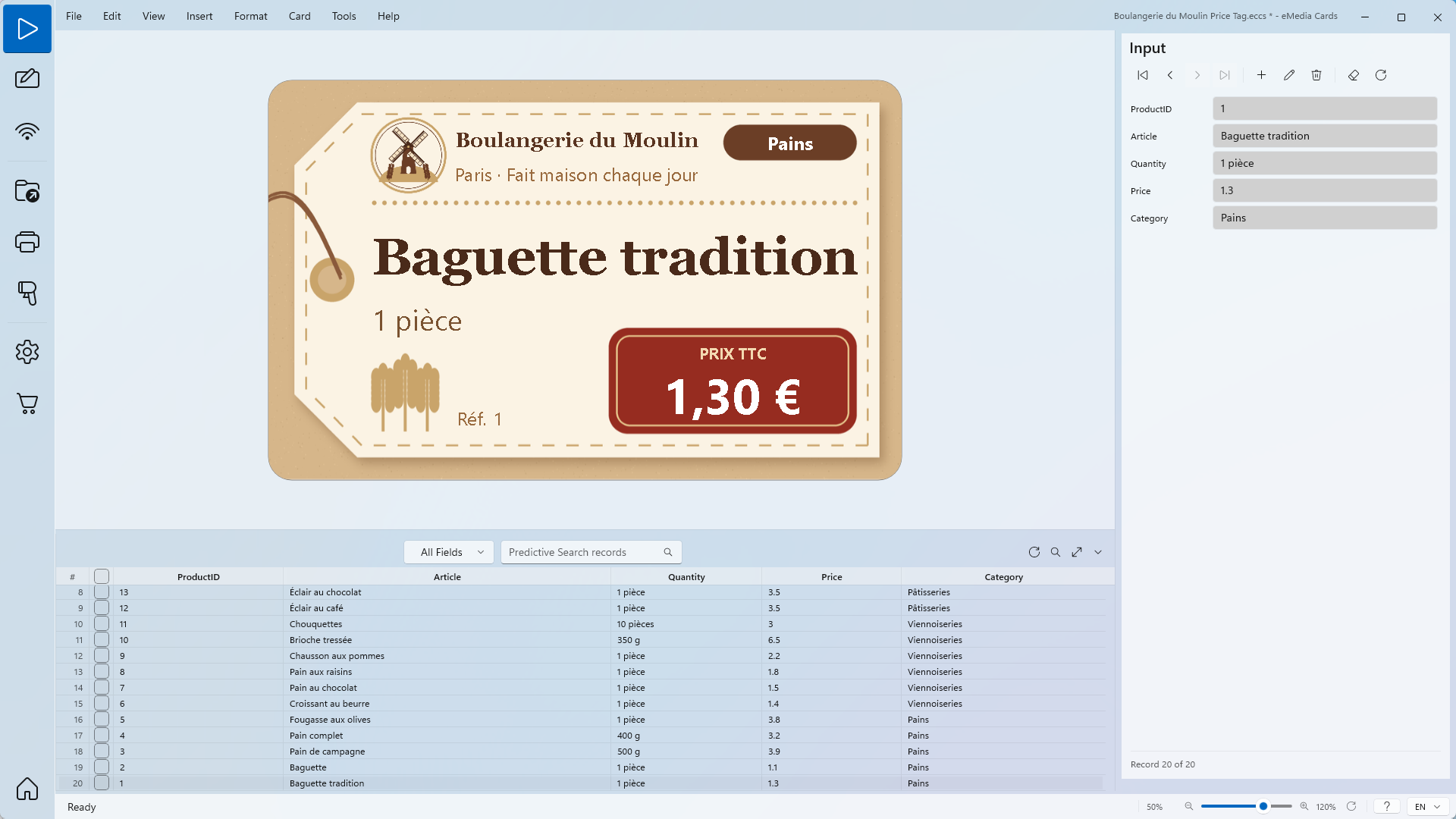
Boulangerie du Moulin Price Tag.eccs, a CR80 bakery price tag, front only, not yet connected to a database. Its text objects Article, Quantity, Price, Category and ProductID are named like the columns of the file. Price uses the Currency format: the price follows the regional settings of the PC, here1,30 €on a French PC. -
The data is
boulangerie.sqlite: one table,products, 20 rows, with the columnsProductID(the primary key, a whole number),Article,Quantity,PriceandCategory. -
The template, the SQLite file and the logo and background pictures are in the download above, with a
README.txt. Keep the template and the file in the same folder. The data is fictitious.
How to connect an SQLite file to a template
-
Unzip the sample files and open
Boulangerie du Moulin Price Tag.eccs. The template opens in Operating mode. -
Switch to Design mode.
-
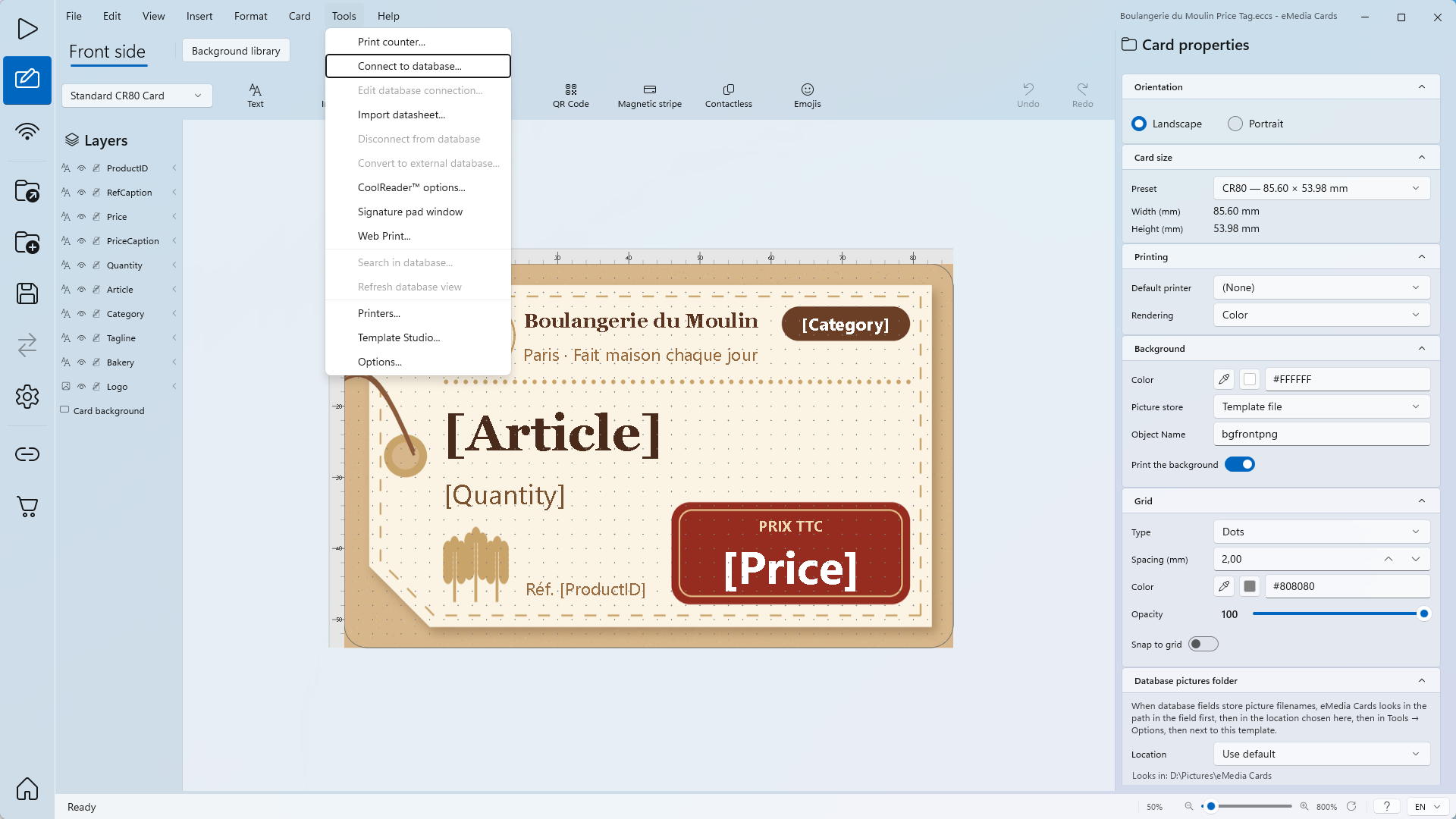
Click Tools > Connect to database.... If the message Database Connected appears, click Disconnect & Continue. The Database Wizard opens on step 1, Connection.
-
Under Select a database connection type:, click SQLite file, not Internal Database (SQLite). The main button now reads Connect Data Source.
-
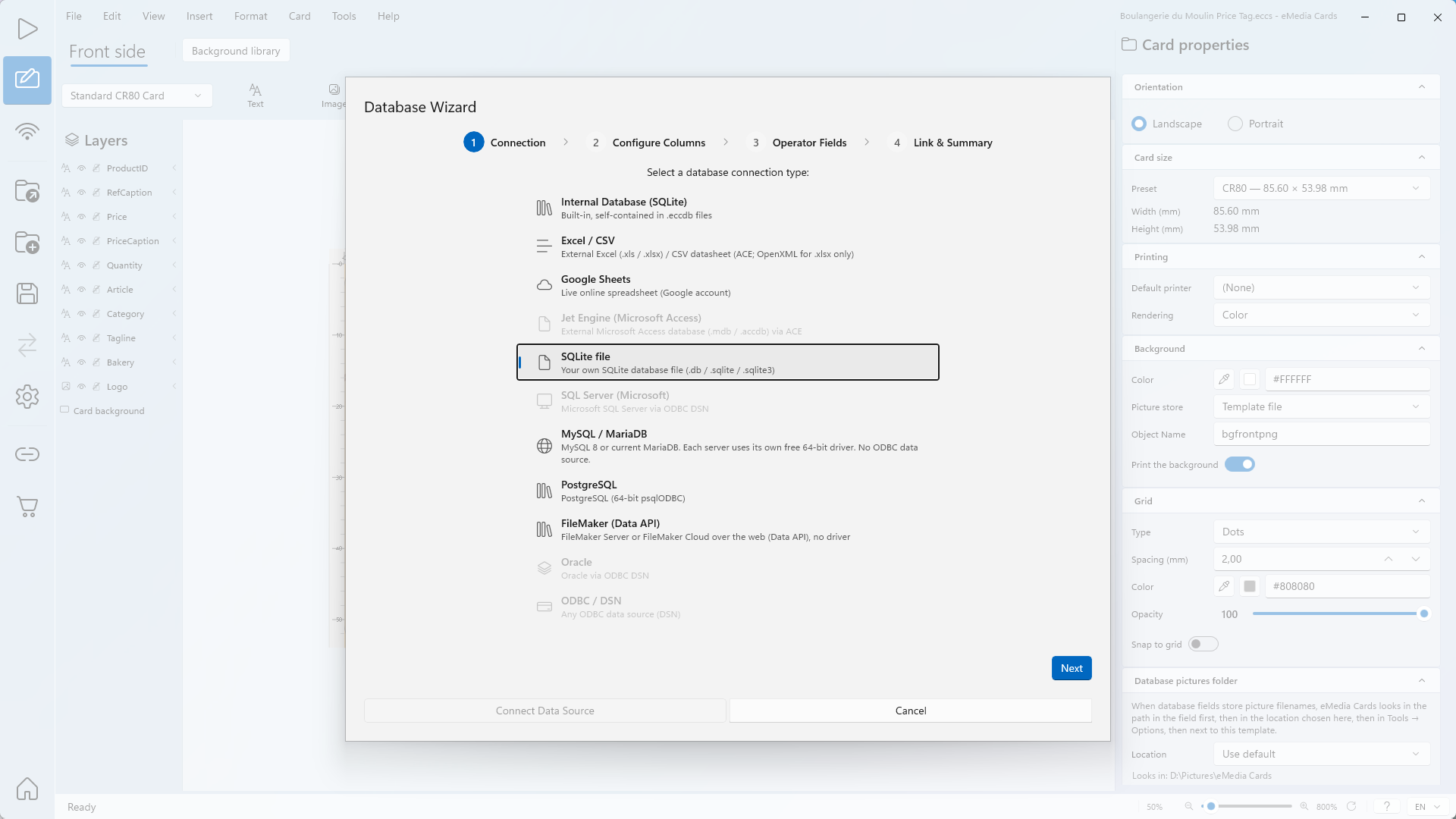
Click Next. Step 2, Configure Columns, opens on Select a SQLite database file:.
-
Click Browse… and select
boulangerie.sqlite. You can also type the full path of the file in the box and press Enter. No login step follows: the file is the database. -
Check Table or view:. Here: products, the only table in the file.
-
Check Key column:. The wizard proposes the primary key of the table: here ProductID.
-
Check the Preview (first rows) table. Here: Showing the first 10 rows. (20 rows in file).
-
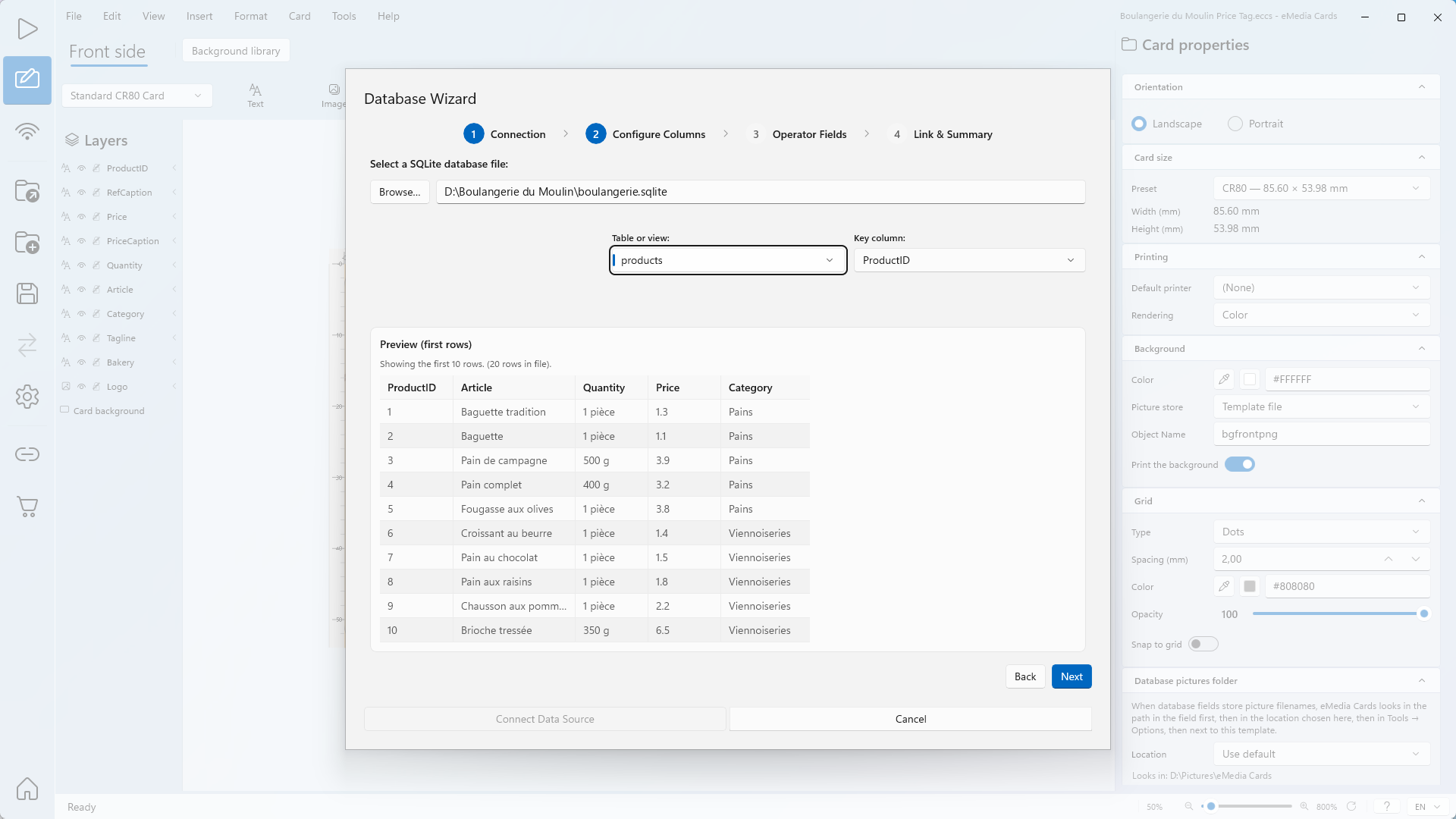
Click Next. Step 3, Operator Fields, opens.
-
In the Display and Edit columns, untick the fields the operator must not see or change. Optional: under Operator permissions, untick Add records, Modify records or Delete records.
-
Sort sets the record order in Operating mode. The wizard proposes a default sort on one field, here ProductID. To change it, click Sort on another field: the tooltip shows Sort A to Z or Sort Z to A. Sort is optional: you can also sort later in Operating mode by clicking a column header in the records grid. Each click goes to Sort A to Z, then Sort Z to A, then no sort, which brings back the template's sort. A header sort is not saved with the template.
-
Click Next. Step 4, Link & Summary, opens.
-
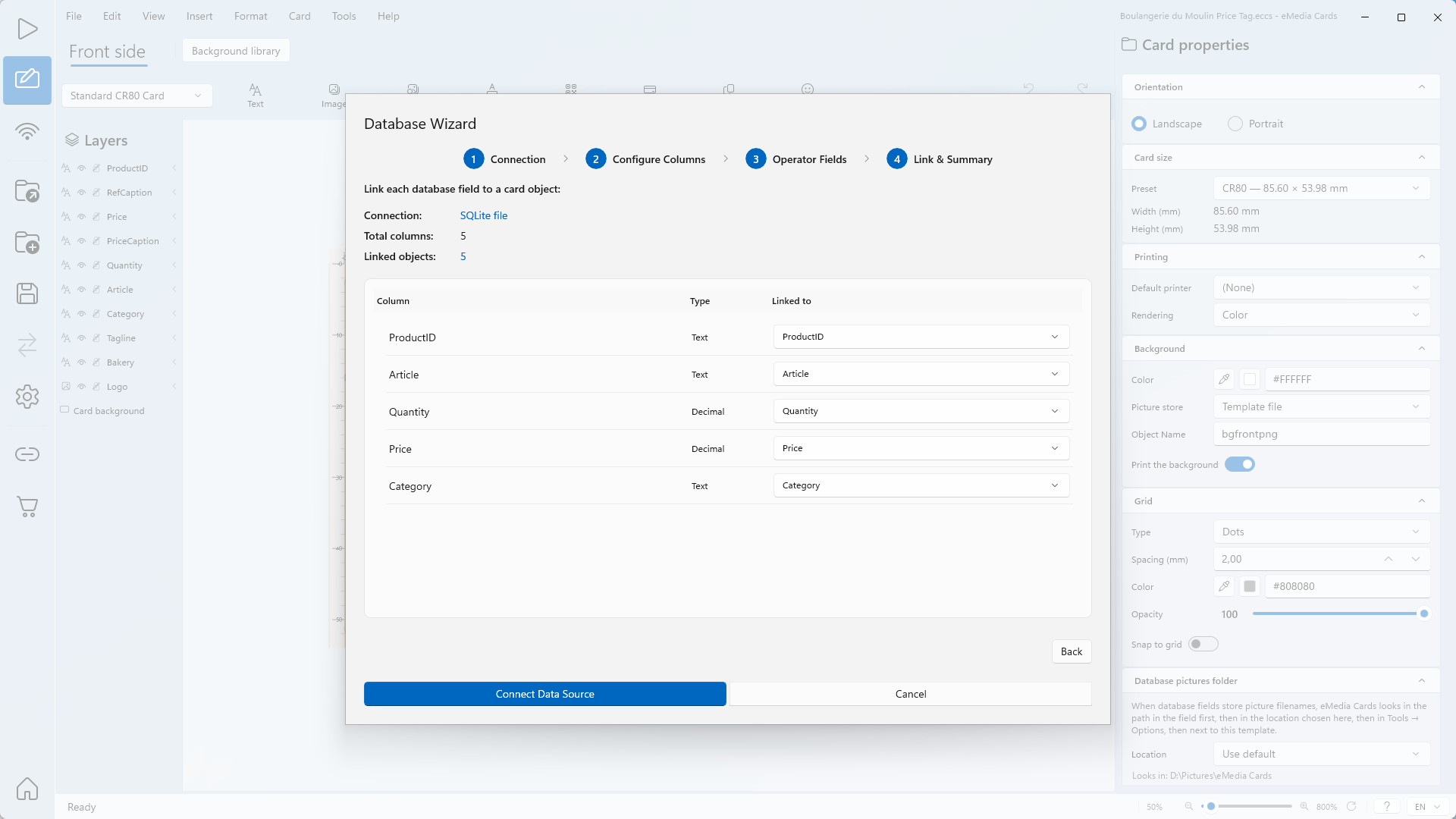
Check Connection:, Total columns: and Linked objects:. Here: SQLite file, 5 and 5. Each column whose name matches a card object is linked automatically.
-
Click Connect Data Source.
-
Click View > Operating mode. The card and the records grid show the rows of the SQLite table.
Tips
-
The SQLite file is the live database. Changes made in Operating mode are written to the file. Click Requery to read changes made by another program.
-
Columns named like the card objects are linked automatically.
-
With a whole-number primary key, like ProductID, you can leave the key field blank when you add a record: the record is saved without a message, and SQLite gives it the next number.
-
To share one file between several stations, put it on a network share and let only one station add or change records. For several stations writing at the same time, use PostgreSQL.
-
Back up the file like any other document. It holds all the records.
Common errors
| Symptom | Cause | Fix |
|---|---|---|
| Please select a SQLite database file (.db / .sqlite / .sqlite3). | No file is selected. | Click Browse… and select the file. |
| This connection type requires a SQLite database file (.db / .sqlite / .sqlite3). Browse for a different file. | The file has another extension. | Select a .db, .sqlite or .sqlite3 file. |
| This file is not a SQLite database. | The file has an SQLite extension, but another content. | Select the right file, or ask the program that made it for an SQLite export. |
| This SQLite file contains no tables or views. | The file is empty. | Select the file that holds your data. |
| The SQLite file can't be found:, followed by the path | The file was moved or renamed, or its network share is not connected. | Put the file back, or connect the network share. To use the file in its new place, run Tools > Connect to database... again. |
| The SQLite file is locked by another program. Close it there or wait a moment, then try again. | Another program is writing to the file. | Close the file in that program, or wait a moment, then try again. |
| This table has no key column with unique values: records can be read but not added, changed or deleted. Pick a key column whose values are all different. | The Key column: has the same value in several rows. | Choose a key column whose values are all different, usually the primary key. |
| This is a view: records can be read but not added, changed or deleted. | Table or view: is a view. | To change records, choose a table. |
| The file is read-only on disk: records can be read but not added, changed or deleted. | The file is read-only, or you can't write to its folder. | Clear the read-only attribute, or ask for write permission. |
| This file is on a network share. Reading it from several stations is safe, but only one station should write at a time. For several stations working together, use PostgreSQL. | The file is on a network share. This is a note, not an error. | Let only one station write at a time, or use PostgreSQL. |
| That record is no longer in the SQLite file. Refresh and try again. | Another program deleted the record. | Click Requery, then try again. |