
How to print one card
What you'll learn
Print the card that is on screen: the current record of your template. Use the Print button for a quick print on the usual printer, or the Print dialog to check the printer and the number of copies first.
Before you start
-
eMedia Cards Starter Edition or higher, activated.
-
Your card printer is installed on your computer (Windows or macOS) and switched on. To choose it once for all your prints, see How to choose and set up your card printer.
-
This example uses
Larkspur Hill School Student Card.eccs, connected tostudents.csv(20 students), from the download above. Unzip it to keep the template, the CSV file and thePhotosfolder together. The school and the students are fictitious. -
Printing works in Operating mode, the mode the template opens in.
How to print the current card at once
-
Open the template. Open
Larkspur Hill School Student Card.eccs. It opens in Operating mode on the first record. -
Go to the record to print. Click its row in the records grid.
-
Click Print in the left bar. Point to it first: the tooltip names the printer, for example "Print this card on Microsoft Print to PDF".
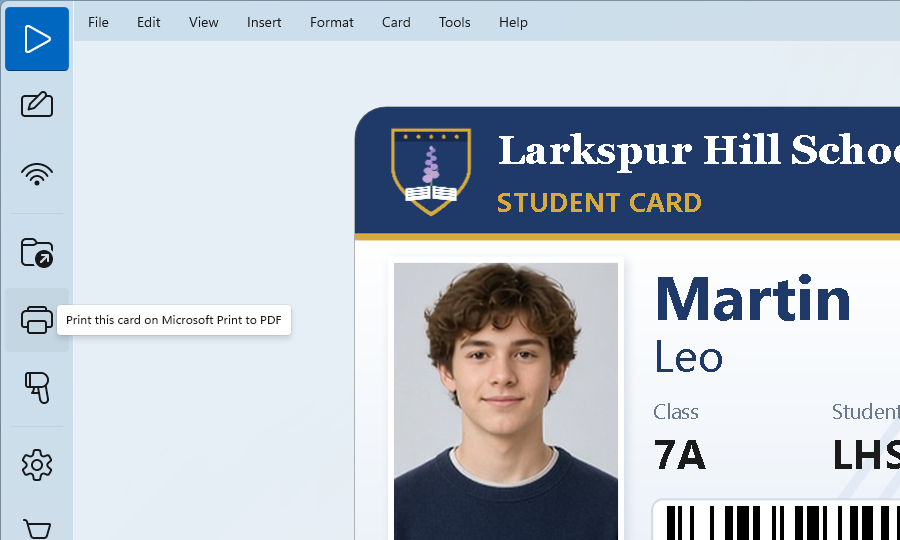
The Print button prints at once, without a dialog. It uses the printer of the template, or your default printer when the template has none, and prints the number of cards set in File > Print count... (1 unless you changed it).
How to print with the Print dialog
-
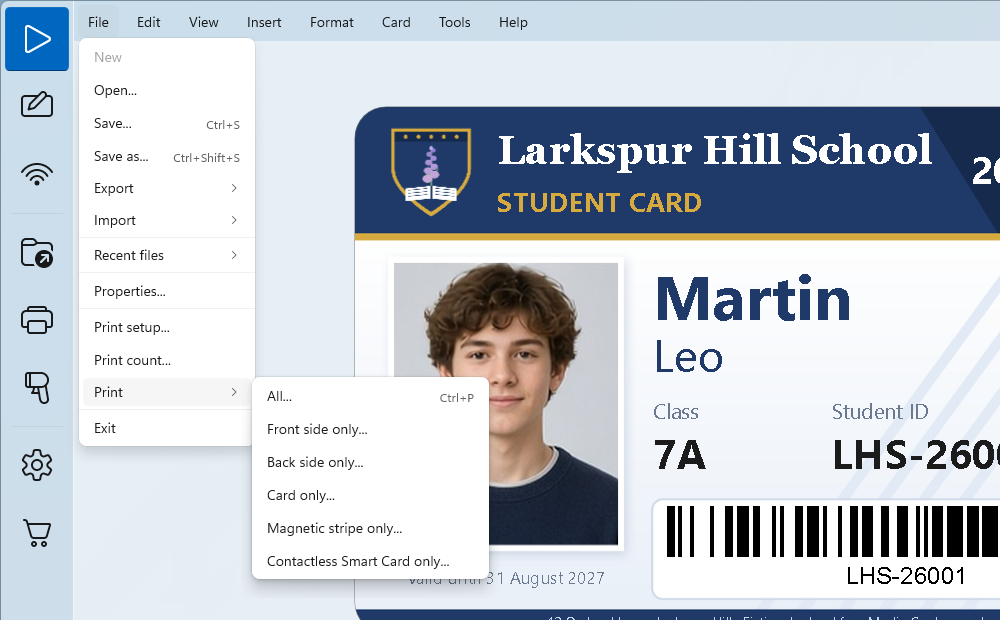
Open the Print dialog. Click File > Print > All..., or press Ctrl+P.
-
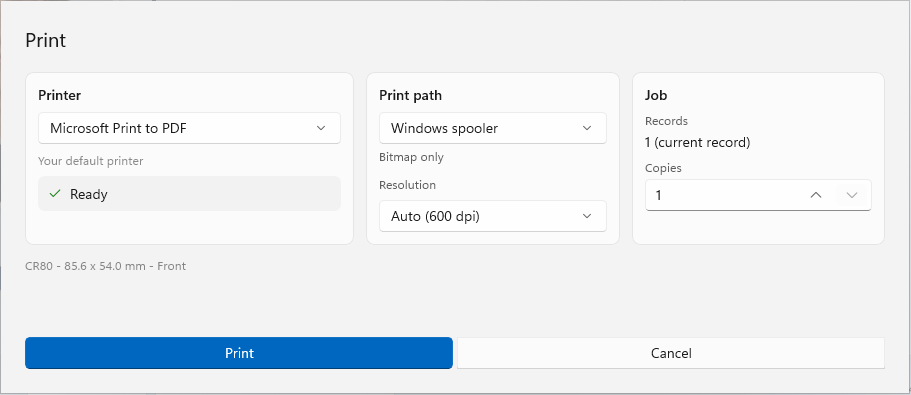
Check the printer. Under Printer, choose your card printer. The line below says where it comes from: Printer of this template or Your default printer. When the printer is ready, the dialog shows Ready.
-
Check the print path. Print path and Resolution come from your settings in Tools > Options... > Printing. You can change them here for this print only.
-
Set the copies. Under Job, Records shows 1 (current record). In Copies, type how many identical copies of the card to print.
-
Click Print.
The line under the three panels shows the card size and the sides printed, for example "CR80 - 85.6 x 54.0 mm - Front".
How to print several cards in a row with Print count
-
Click File > Print count....
-
In Print count:, type how many different cards to print. The dialog says: "Define how many copies of the card must be printed out the next time. Notice that the print counter will be incremented between the copies."
-
Click OK.
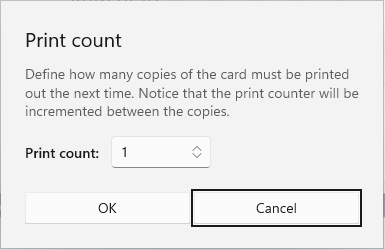
Print count and Copies are two different settings:
-
Print count is how many different cards to make. eMedia Cards recalculates the card for each one, so the print counter goes up by one each time.
-
Copies, in the Print dialog, is how many identical copies of each card to print. It starts at 1 and multiplies the Print count.
-
The Print button in the left bar skips the dialog, so only the Print count applies.
-
After each print, Print count goes back to 1.
For example, with the print counter at 101, Print count 2 and Copies 2 print 4 cards: 101, 101, 102, 102.
Tips
-
Card only... in File > Print opens the same dialog as All.... Front side only... and Back side only... print one side of a double-sided card: see How to print double-sided cards.
-
To print several records, tick them in the records grid: see How to print a batch of cards from your database.
-
On a Mac, press Cmd+P. The Print path is macOS print queue.
Common errors
| Symptom | Cause | Fix |
|---|---|---|
| Please select a printer | No printer is chosen in the Print dialog. | Choose your card printer under Printer. |
| No printers are installed on this system. | No printer is installed on your computer. | Install the driver of your card printer, then open the dialog again. |
| A license message opens instead of the print. | eMedia Cards is not activated. | Activate eMedia Cards with a Starter Edition license or higher. |
| The card does not come out of the printer. | The printer is off, or the wrong printer is chosen. | Switch the printer on and check the Printer in the Print dialog. |