
How to choose and set up your card printer
What you'll learn
Tell eMedia Cards which card printer to use: for one template, or for all your cards. Open the printer driver settings, and check the print path.
Before you start
-
Your card printer is installed on your computer (Windows or macOS) with its driver, and switched on.
-
This example uses
Larkspur Hill School Student Card.eccsfrom the download above. The school and the students are fictitious.
Which printer eMedia Cards uses
When you print, eMedia Cards uses the first printer it finds in this order. The Print dialog shows which one it took:
-
Printer of this template: the printer stored in the template.
-
Your default printer: the Default printer in Tools > Options... > Printing.
-
Windows default printer (macOS default printer on a Mac).
How to choose the printer of a template
-
Open the template. Open
Larkspur Hill School Student Card.eccs. -
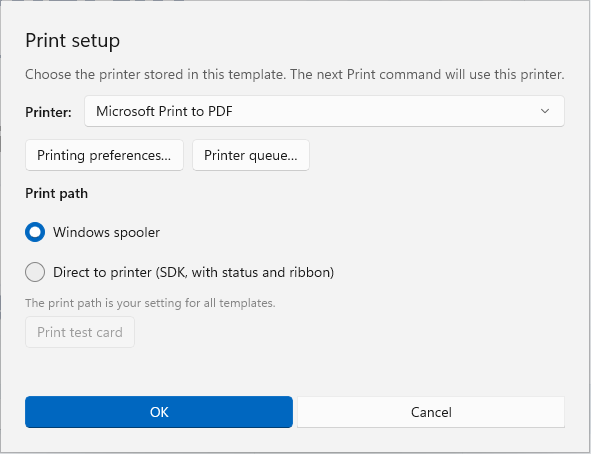
Open Print setup. Click File > Print setup.... The dialog says: "Choose the printer stored in this template. The next Print command will use this printer."
-
Choose the printer. In Printer:, choose your card printer.
-
Set the driver if needed. Click Printing preferences… to open the settings of your printer driver: two-sided printing, ribbon, card orientation. Click Printer queue… to see the print jobs waiting.
-
Click OK, then save the template (File > Save).
The next Print dialog shows Printer of this template:
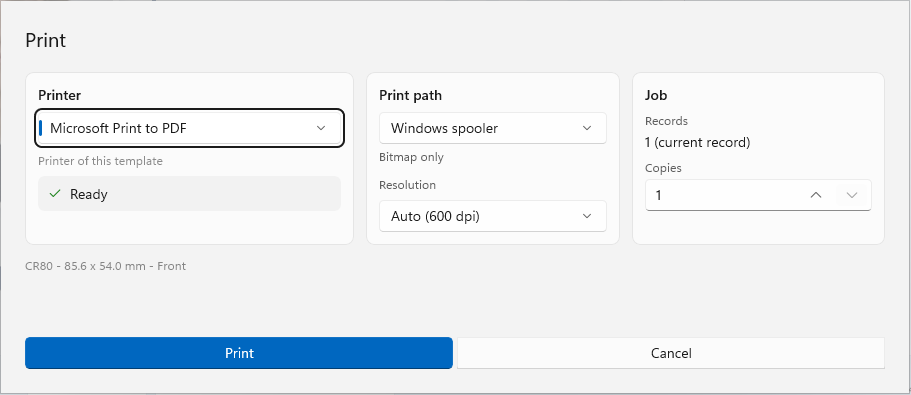
In Design mode, the same printer shows in Card properties > Printing > Default printer. (None) means that the template has no printer of its own.
How to choose your default printer for all cards
-
Click Tools > Options..., then Printing.
-
Under Printer, choose your card printer in Default printer.
-
Click Close.
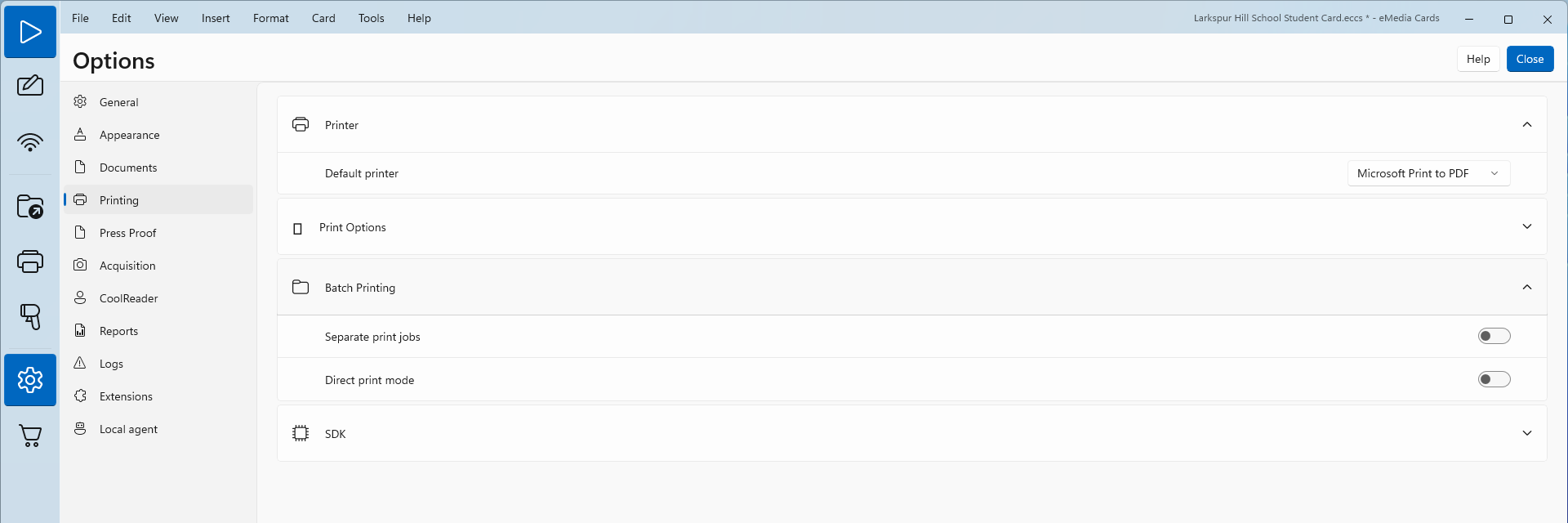
This printer is used for every template that has no printer of its own.
The print path
Print setup offers two print paths: Windows spooler (macOS print queue on a Mac) and Direct to printer (SDK, with status and ribbon). "The print path is your setting for all templates." Windows spooler and macOS print queue print through the printer driver and work with every printer. The direct path works only with supported card printers. Print test card needs the direct path: "The test card needs the direct (SDK) print path and a supported printer."
Tips
-
Give each template its printer when you use several card printers, for example one for student cards and one for staff badges.
-
Keep the printer driver settings (two-sided printing, ribbon) in Printing preferences…: eMedia Cards uses them for every print on this printer.
-
To check a new printer without wasting cards, print once on Microsoft Print to PDF.
Common errors
| Symptom | Cause | Fix |
|---|---|---|
| The card goes to the wrong printer. | The template has its own printer. | Check File > Print setup..., or the line under Printer in the Print dialog. |
| Your card printer is missing from the list. | It is not installed on your computer. | Install its driver, then open the dialog again. |
| "No printers are installed on this system." | No printer is installed on your computer. | Install the driver of your card printer. |
| Print test card is greyed out. | The print path is Windows spooler or macOS print queue. | Print a card from the template instead, or use the direct path with a supported printer. |