
Open your eMedia CS templates in eMedia Cards
What you'll learn
Templates made with eMedia CS (CS2) open directly in eMedia Cards: same .eccs file, same design, same database link. This page shows how to make eMedia Cards the program that opens .eccs files, how to open an eMedia CS template, and where eMedia Cards keeps an automatic copy of the original file.
Before you start
-
eMedia Cards installed on Windows.
-
A template made with eMedia CS, a
.eccsfile. -
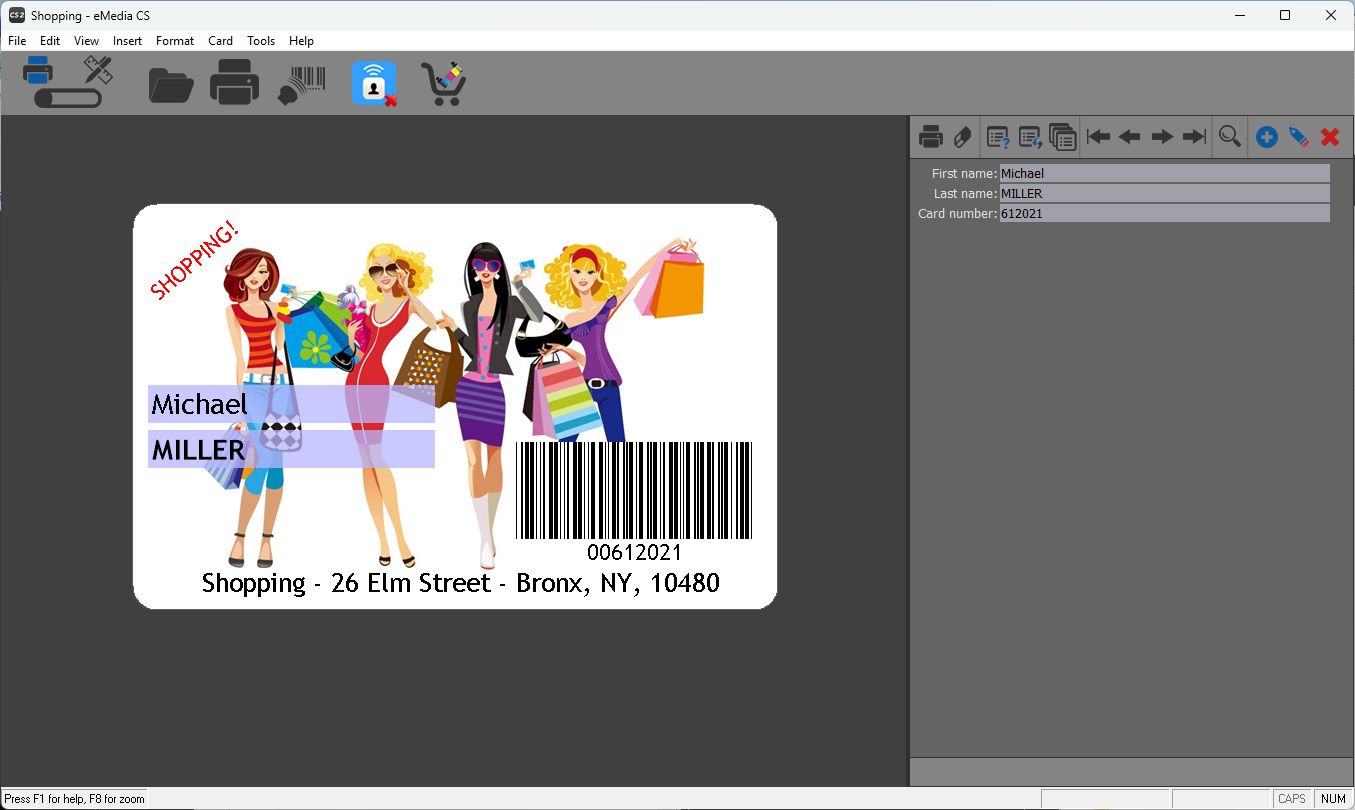
This example uses the Shopping loyalty card installed with eMedia CS, in the Public Documents folder:
%PUBLIC%\Documents\eMedia CS\Sample Cards\Loyalty Card\Shopping.eccs. It reads its customers fromFiles\Database.xls, in the same folder.
If eMedia CS is installed too
Note: eMedia CS and eMedia Cards both use the
.eccsfile type, and Windows opens a file type with one program only. When both programs are on the same computer, they compete for.eccsfiles. The eMedia Cards installer makes eMedia Cards the default, but if a double-click on a template still opens eMedia CS, make eMedia Cards the default again with the steps below. eMedia CS stays installed and still opens its templates from its own File menu.
How to make eMedia Cards the default app for .eccs files
From eMedia Cards
-
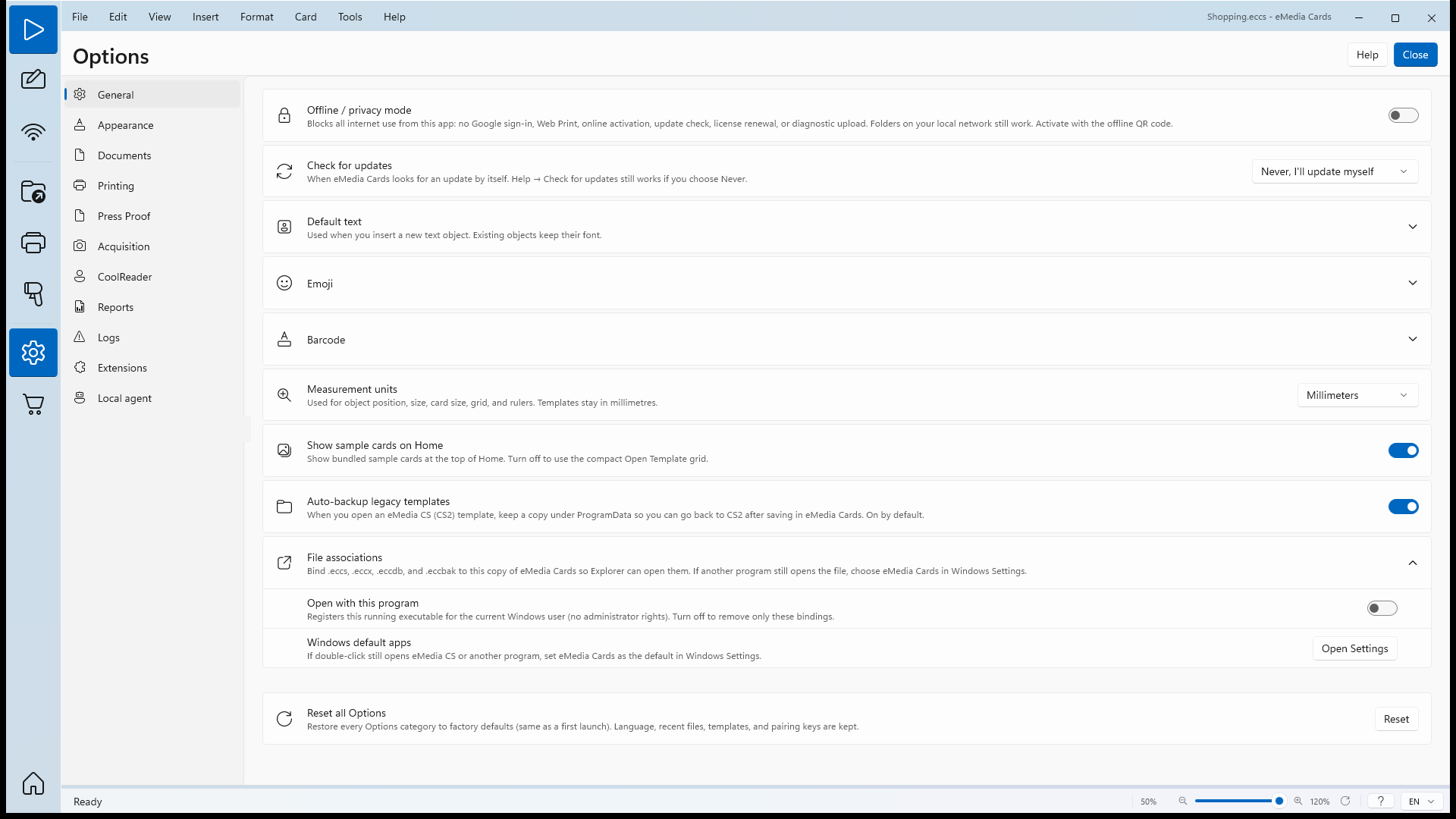
Open Options. In eMedia Cards, click Tools > Options..., then General.
-
Go to File associations. It says "Bind .eccs, .eccx, .eccdb, and .eccbak to this copy of eMedia Cards so Explorer can open them."
-
Turn on Open with this program. This copy of eMedia Cards is registered for
.eccs,.eccx,.eccdband.eccbakfiles for your Windows user, with no administrator rights. The message says "This copy of eMedia Cards is registered for .eccs, .eccx, .eccdb, and .eccbak." -
If a double-click still opens eMedia CS, click Open Settings next to Windows default apps, and follow From Windows Settings.
From File Explorer (Windows 11)
-
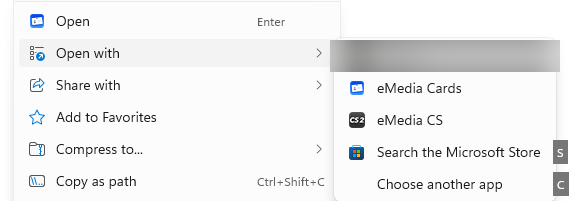
Right-click a template. In File Explorer, right-click a
.eccsfile, for exampleShopping.eccs. -
Click Open with > Choose another app. The Open with menu also lists eMedia Cards and eMedia CS: clicking eMedia Cards there opens the file once, without changing the default.
-
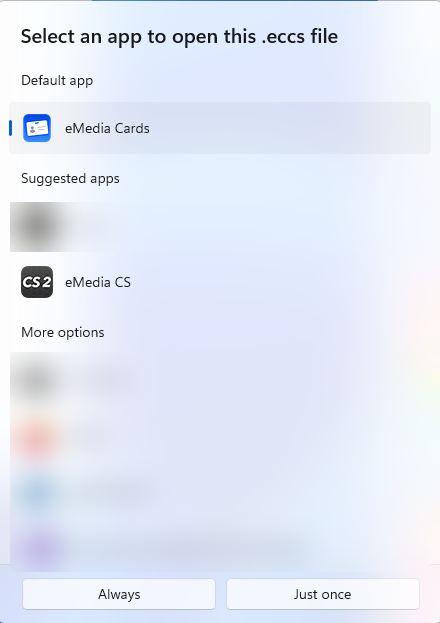
Click eMedia Cards. Select an app to open this .eccs file opens. eMedia CS is in the list too.
-
Click Always. From now on, a double-click on any
.eccsfile opens eMedia Cards. Just once opens this file only.
From File Explorer (Windows 10)
-
Right-click a
.eccsfile and click Open with > Choose another app. -
Click eMedia Cards.
-
Tick Always use this app to open .eccs files, then click OK.
From Windows Settings
-
Windows 11: open Settings > Apps > Default apps. Under Set a default for a file type or link type, type
.eccs, then click the app shown for.eccs. In Select a default app for .eccs files, click eMedia Cards, then Set default. -
Windows 10: open Settings > Apps > Default apps > Choose default apps by file type, find
.eccs, click the app next to it and choose eMedia Cards.
How to open an eMedia CS template
-
Double-click the template, or in eMedia Cards click File > Open... and open
Shopping.eccsfrom the Loyalty Card folder shown in Before you start. -
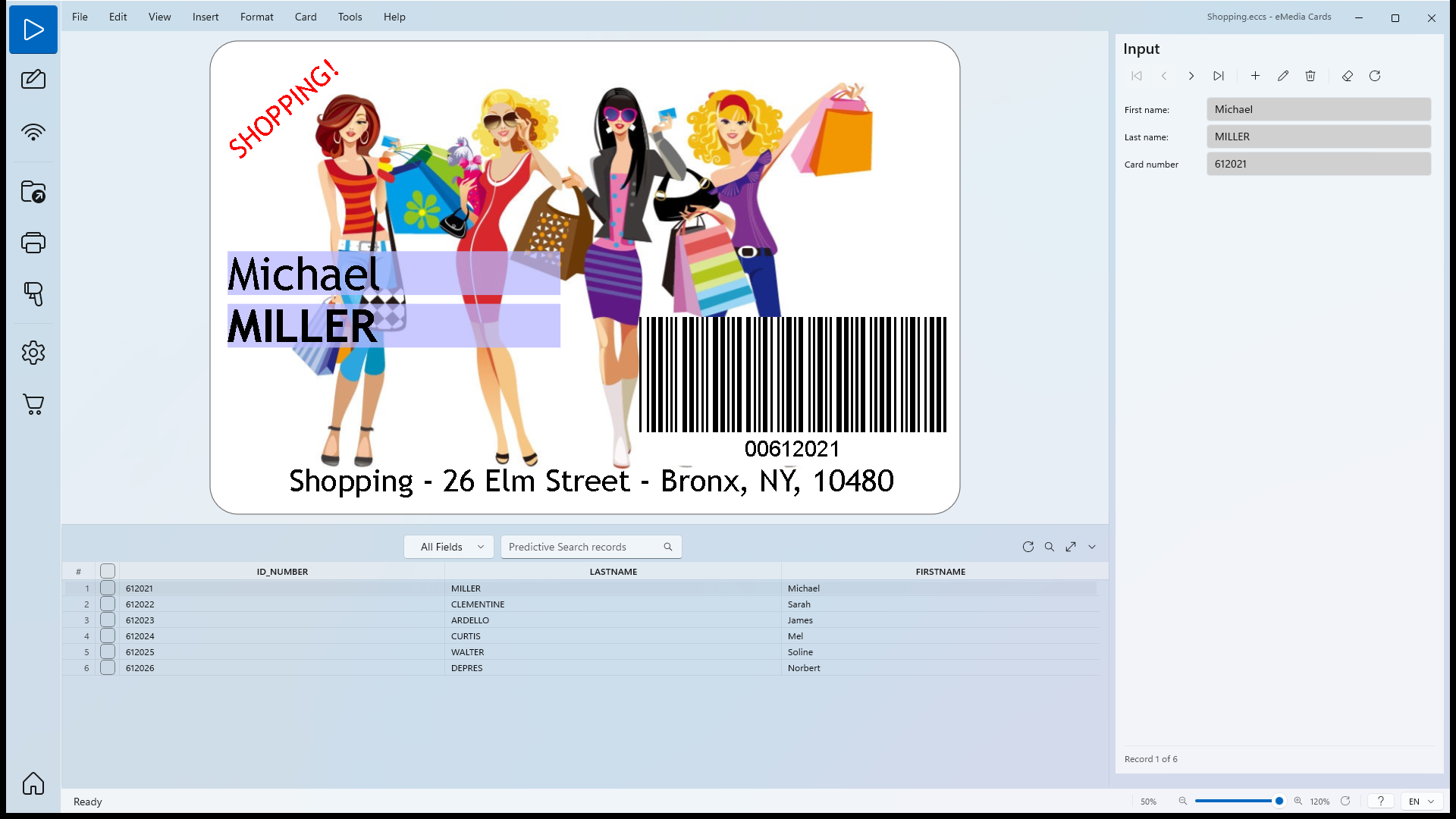
Check the card. The title bar says
Shopping.eccs - eMedia Cards. The design, the fields and the 6 records ofDatabase.xlsshow as they did in eMedia CS.
The automatic backup of eMedia CS templates
When you save an eMedia CS template in eMedia Cards, it is saved in the eMedia Cards format, and eMedia CS can no longer open it. So when eMedia Cards opens a template made with eMedia CS, it first copies the original file to a safe place, without any message. The status bar still says Ready.
The copy goes to:
%ProgramData%\Mediasoft Development\eMedia Cards\Legacy templates\<folder>\<file name>.eccs
-
The folder is a 16-character code made from the full path of your template, for example
3CFF4EBB8C7E580F. Two templates with the same name in different folders get their own backup. -
The file has the same name and date as your original. Next to it,
origin.jsonholds the full path of the original file. -
When: each time you open the template, and once more just before you save over it, as long as the file on disk is still in the eMedia CS format. The backup is replaced only by a newer eMedia CS file. Once you save the template in eMedia Cards, the backup keeps the last eMedia CS version.
-
Where it applies: templates made with eMedia CS only. Templates made with eMedia Cards are never copied.

How to go back to eMedia CS
-
Close the template in eMedia Cards.
-
In File Explorer, type
%ProgramData%\Mediasoft Development\eMedia Cards\Legacy templatesin the address bar and press Enter.ProgramDatais a hidden folder, so typing the path is the quickest way. -
Open the folders until you find your template. Check the path in
origin.json. -
Copy the backup
.eccsfile over your template, then open it in eMedia CS.
The backup is on by default. To turn it off, click Tools > Options... > General and turn off Auto-backup legacy templates: "When you open an eMedia CS (CS2) template, keep a copy under ProgramData so you can go back to CS2 after saving in eMedia Cards. On by default."
Tips
-
To keep the original for eMedia CS and work on a copy in eMedia Cards, use File > Save as... with a new name.
-
Keep the
Filesfolder next toShopping.eccs: the template looks forFiles\Database.xlsthere. -
The automatic backup is made by eMedia Cards for Windows.
Common errors
| Symptom | Cause | Fix |
|---|---|---|
| A double-click on a template opens eMedia CS. | eMedia CS is the default app for .eccs files. |
Make eMedia Cards the default: see How to make eMedia Cards the default app for .eccs files. |
| eMedia Cards is not in the Open with list. | Windows does not list it for .eccs yet. |
In eMedia Cards, turn on Open with this program in Tools > Options... > General > File associations, then try again. |
| Could not update file associations: and a reason. | Windows refused the change. | Use Open with > Choose another app or Windows Settings instead. |
| eMedia CS cannot open a template any more. | The template was saved in eMedia Cards. | Copy the backup back: see How to go back to eMedia CS. |
| No backup for a template. | The template was made with eMedia Cards, or Auto-backup legacy templates is off. | Turn on Auto-backup legacy templates, then open the eMedia CS template again before you save it. |