
How to print a batch of cards from your database
What you'll learn
Print the cards of several records in one go: tick them in the records grid, then print them with the Print checked records dialog.
Before you start
-
eMedia Cards Standard Edition or higher. Starter Edition prints one card at a time: see How to print one card.
-
A template connected to a database. To connect one, see How to connect a template to a CSV file or How to connect a template to an Excel file.
-
This example uses
Larkspur Hill School Student Card.eccs, connected tostudents.csv(20 students), from the download above. Unzip it to keep the template, the CSV file and thePhotosfolder together. The school and the students are fictitious. -
Your card printer is chosen: see How to choose and set up your card printer.
How to print the ticked records
-
Open the template. Open
Larkspur Hill School Student Card.eccs. It opens in Operating mode, with the records grid at the bottom. -
Tick the records to print. Tick the box at the start of each row. To tick every visible record, tick the box in the header ("Tick or untick every visible record").
-
Click the print button above the grid. It appears when at least one record is ticked and shows the number of ticked records, for example (3 selected), and the tooltip "Print the selected records".

-
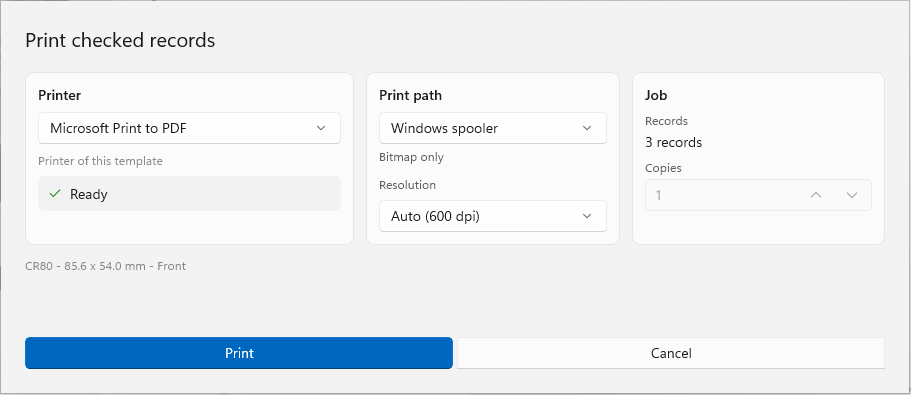
Check the dialog. The Print checked records dialog opens. Records shows how many cards are printed, for example 3 records. Under Printer, check your card printer.
-
Click Print. eMedia Cards prints one card for each ticked record. The Printing... window shows the progress; click Abort... to stop the job.
How to print ticked records hidden by a search
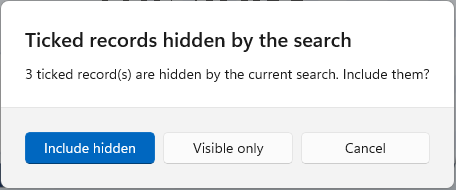
The ticks stay when you search the records. If some ticked records are hidden by the search, the button shows it, for example (3 selected, 3 hidden by search), and a question opens when you print:
-
Include hidden prints every ticked record.
-
Visible only prints only the ticked records the search shows.
-
Cancel prints nothing.
Tips
-
To tick or untick every visible record at once, click the box in the column header ("Tick or untick every visible record"). Records hidden by a search keep their ticks. Ctrl+A in the grid ticks every visible record (Cmd+A on a Mac).
-
To tick a range, click the box of the first record, then Shift+click the box of the last one: every record in between takes the state of the first box, ticked or unticked. Ctrl+Shift+click (Cmd+Shift+click on a Mac) adds the range to the ticks.
-
To remove every tick, click Remove all marks next to the print button.
-
Copies stays at 1 for a batch: each ticked record prints once. To print a record twice, print it again with How to print one card.
-
By default, the batch goes to the printer as one print job. To send one print job per card, turn on Separate print jobs in Tools > Options... > Printing > Batch Printing.
-
Print a short batch first to check the cards before you print a whole class.
Common errors
| Symptom | Cause | Fix |
|---|---|---|
| "Available with Standard Edition. Contact your reseller for a license upgrade if required." | Your license is Starter Edition. | Print one card at a time, or upgrade your license. |
| The print button above the grid is missing. | No record is ticked. The button appears with the first tick. | Tick at least one record. If the grid is empty, connect the template to a database first. |
| Fewer cards are printed than you ticked. | You chose Visible only when some ticked records were hidden by the search. | Clear the search, or choose Include hidden. |
| Cards come out with the wrong photo or no photo. | The Photos folder is not next to the template. |
Unzip the whole download, then open the template again. |